

Welcome to today’s post.
In today’s post I will be showing how to recognize speech from spoken audio inputs that are read in from microphone input.
I will be using the Microsoft Azure Speech SDK, which is a speech library that is used from an existing Microsoft Azure AI Services Subscription.
In a previous post I showed how to use the Azure AI Speech Service to create a script that recognized and translated audio files in WAV format into text output.
In another post I showed how to use the Azure AI Speech Service to create a script that read in entered text and synthesized audio output as a generated sound WAV file.
In today’s post I will be showing how to implement a different type of speech to text recognition, where the input is not an existing generated audio WAV file, but live audio from a microphone.
The microphone you use for inputting the audio can be the built-in laptop microphone or a dedicated microphone device that is plugged into the laptop or computer. Below is an overview of the process of taking microphone audio input and converting it to text output:
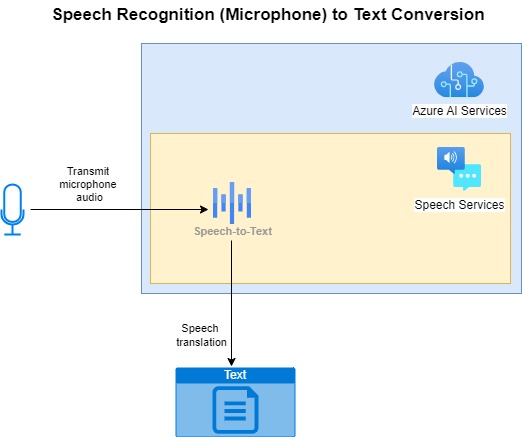
In the next section, I will be covering the methods used to sample the audio input before it is transmitted to the Azure Speech Services for recognition and conversion.
Methods of Sampling Microphone Audio
There are two ways in which we can sample audio from a microphone:
- Single utterance.
- Continuous utterance.
I will cover the above cases in this post.
Single Utterance Sampling
For single utterance audio sampling, we wait for the first audio sound for a word to finish it being spoken input to the microphone device. The ending of the first sound is determined when there is a clear silence following the initially uttered word.
[spoken sound] … [silence] …
The resulting sound is then sent to the sound recognition process, which then determines if it is a recognizable word in the target language.
The single utterance is most common used for sampling single word commands, recognizing them into text word, then mapping the command into an action. The action can be executed within an application interface to open and execute a specific task that would normally be reached through use of physical key presses.
Continuous Utterance Sampling
For continuous utterance sampling, we wait for a stream of audio sounds to be spoken through the microphone, with each sound separated by a distinct silence. The stream ends when a silence of longer duration is detected:
[spoken sound] … [brief silence] … [spoken sound] … [longer silence]
The resulting stream of sounds is then sent to the sound recognition process, which then determines if each sound is a recognizable word in the target language. The resulting stream of sounds is then output into to a collection of text words in the target language.
When the sounds are output as a text sentence, the validity of the grammar or structure of the sentence is not verified. The speech recognition process outputs to text exactly what we utter into the audio device without any final validation or correction of the sentence syntax or grammar of the output text.
The continuous utterance sampling is most common used for sampling streams of spoken sentences, recognizing them into text words, then combining these into sentences. This very task is also known as audio dictation, which takes spoken audio in a source voice language, and produces accurate translation output in sentences in the target language.
For the examples I will provide, we will use a single language for both the audio input and the output language of the text.
Single Utterance Speech Recognition from Microphone Input
In this section, I will cover two goals:
- Show how to process speech recognition from a Microphone input device.
- Show how to process recognition for the first utterance of a sound from the input device.
The first type of input that we will process is when we record a single utterance from the input device. In the next section I will show how to process a continuous stream of utterances from the input device.
Most of the Speech SDK code this section that you may be unfamiliar with is explained in my previous post when I showed how to use speech recognition for audio source files in WAV format. The main difference between processing a static sound file and real-time input is the use of event handlers to deal with the stages of each detected sound, including when the recognition engine stops processing the sound sample.
The example I will provide is written in .NET Core 8.0 as a console application. You could also use a standard .NET console application, or a JavaScript embedded in a browser to achieve the same outcomes.
In addition, you should include the NuGet package:
Microsoft.CognitiveServices.Speech
Which can be installed from the NuGet package manager:

Below is the basic setup in the code to retrieve the subscription key and subscription region (which you will need to supply) from a secure source such as environment variables or from a key vault service. Unless your speech recognition is hosted in a secure server environment, where you could use an application settings file.
string speechKey = Environment.GetEnvironmentVariable("SPEECH_KEY");
string speechRegion = Environment.GetEnvironmentVariable("SPEECH_REGION");

var speechConfig = SpeechConfig.FromSubscription(speechKey, speechRegion);
speechConfig.SpeechRecognitionLanguage = "en-US";
If you manage to host your speech processing on a server, the settings can be used in a settings file as follows:
HostApplicationBuilder builder = Host.CreateApplicationBuilder(args);

builder.Configuration.Sources.Clear();

builder.Configuration
    .AddJsonFile("appsettings.json")
    .AddEnvironmentVariables()
    .Build();

AppConfiguration options = new();
builder.Configuration.GetSection("AppConfiguration").Bind(options);

string speechKey = options.Speech_Key;
string speechRegion = options.Speech_Region;
With appsettings.json settings file with the format:
{
  "AppConfiguration": {
    "Speech_Key": "[your speech subscription key]",
    "Speech_Region": "[your speech region]"
  }
}
We then make a call to a method RunRecognizeSingleCommands() to request and process the sound input:
RunRecognizeSingleCommands(speechConfig);
The method that receives the audio input and processes it is shown below:
static async void RunRecognizeSingleCommands(SpeechConfig speechConfig)
{
    SpeechRecognitionResult speechRecognitionResult;
    ConsoleKeyInfo consoleKeyInfo;
    bool isFinished = false;

    using var speechRecognizer = new SpeechRecognizer(speechConfig);

    while (!isFinished)
    {
        Console.WriteLine("Speak into your microphone.");

        speechRecognitionResult = await speechRecognizer.RecognizeOnceAsync();

        OutputSpeechRecognitionResult(speechRecognitionResult);

        Console.WriteLine("Press Y to give another sample. Escape to finish.");
        consoleKeyInfo = Console.ReadKey(true);
        if (consoleKeyInfo.Key == ConsoleKey.Escape)
            isFinished = true;
    }
}
The key method is the asynchronous call to await microphone input with RecognizeOnceAsync() in the SpeechRecognizer class.
I have included a while loop to process one sample at a time, with the user option to continue or exit.
Within the method is an additional call to a method OutputSpeechRecognitionResult() to output the speech recognition results for the single utterance input.
It processes the value of the Reason property of the SpeechRecognitionResult result structure to action to give a text result, report no match, report a cancellation action, or report an error during processing.
static void OutputSpeechRecognitionResult(SpeechRecognitionResult speechRecognitionResult)
{
    switch (speechRecognitionResult.Reason)
    {
        case ResultReason.RecognizedSpeech:
            Console.WriteLine($"RECOGNIZED: Text={speechRecognitionResult.Text}");
            break;
        case ResultReason.NoMatch:
            Console.WriteLine($"NOMATCH: Speech could not be recognized.");
            break;
        case ResultReason.Canceled:
            var cancellation = CancellationDetails.FromResult(speechRecognitionResult);
            Console.WriteLine($"CANCELED: Reason={cancellation.Reason}");

            if (cancellation.Reason == CancellationReason.Error)
            {
                Console.WriteLine($"CANCELED: ErrorCode={cancellation.ErrorCode}");
                Console.WriteLine($"CANCELED: ErrorDetails={cancellation.ErrorDetails}");
                Console.WriteLine($"CANCELED: Did you set the speech resource key and region values?");
            }
            break;
    }
}
The section of code that includes the program startup and Main() method is shown below without the two custom processing methods I showed above:
using System;
using System.IO;
using System.Threading.Tasks;
using Microsoft.CognitiveServices.Speech;
using Microsoft.CognitiveServices.Speech.Audio;
using Microsoft.Extensions.Hosting;
using SpeechToTextConsoleApp;

class Program
{
    …

    async static Task Main(string[] args)
    {
        string speechKey = Environment.GetEnvironmentVariable("SPEECH_KEY");
        string speechRegion = Environment.GetEnvironmentVariable("SPEECH_REGION");

        HostApplicationBuilder builder = Host.CreateApplicationBuilder(args);

        using IHost host = builder.Build();

        var speechConfig = SpeechConfig.FromSubscription(speechKey, speechRegion);
        speechConfig.SpeechRecognitionLanguage = "en-US";

        RunRecognizeSingleCommands(speechConfig);

        await host.RunAsync();
    }
}
Notice that we need to include following the namespaces to process speech audio and run the audio recognition asynchronously:
using System.Threading.Tasks;
using Microsoft.CognitiveServices.Speech;
using Microsoft.CognitiveServices.Speech.Audio;
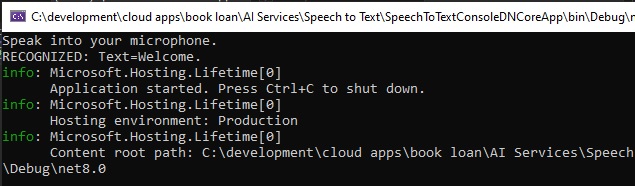
When the application is built and run, you will get a prompt to record a sample command from Microphone input. When the input sound is recognized, you should see the following output with the text of the sound/utterance input:
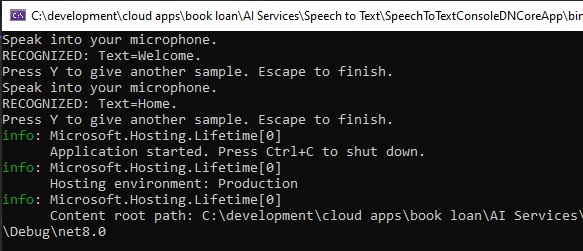
If you choose to sample additional sounds, then they will be displayed if recognized as shown:
The process loop will end when the ESCAPE key is pressed. Below is a debug snapshot of the SoundRecognitionResult objectinstance:
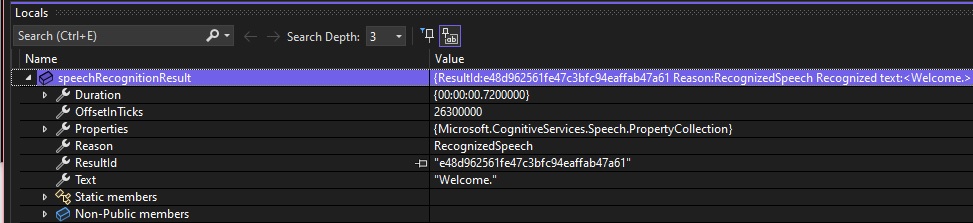
We can see the properties:
Duration – this is the time duration of the utterance sound sample.
OffsetInTicks – this is the time the utterance sound sample first started recording.
Reason – this is the reason code for the recognition result (explained earlier).
Text – this the resulting output text when the input sample is recognized successfully.
We have managed to successfully sample and process single utterance sound samples from a Microphone. In the next section, I will show how to process continuous utterance sound samples.
Continuous Utterance Speech Recognition from Microphone Input
In this section, I will show how to process voice inputs from a Microphone input device and process the sampled sound continuously with the speech recognition SDK. This involves sampling a stream of voice sounds until silence is reached.
I will explain these events later when explaining how the speech recognition results are processed asynchronously through event handlers.
We setup the speech configuration and speech recognition SDK classes in the same way with continuous utterance recognition. The main difference that we have between the two modes of sampling and recognition is in the use of the StartContinuousRecognitionAsync() method within the speechRecognizer SDK class.
The call to this method is asynchronous and blocking until it completes.
await speechRecognizer.StartContinuousRecognitionAsync();
I have modified the Main() code block to allow selection of single or continuous recognition sampling:
async static Task Main(string[] args)
{
    string speechKey = Environment.GetEnvironmentVariable("SPEECH_KEY");
    string speechRegion = Environment.GetEnvironmentVariable("SPEECH_REGION");

    using IHost host = builder.Build();

    var speechConfig = SpeechConfig.FromSubscription(speechKey, speechRegion);
    speechConfig.SpeechRecognitionLanguage = "en-US";

    Console.WriteLine("For Single Utterance Recognition Press U.");
    Console.WriteLine("For Continuous Recognition Press C.");
    Console.WriteLine("Press Escape to finish.");
    ConsoleKeyInfo consoleKeyInfo = Console.ReadKey(true);
    if (consoleKeyInfo.Key == ConsoleKey.U)
        RunRecognizeSingleCommands(speechConfig);
    if (consoleKeyInfo.Key == ConsoleKey.C)
        RunRecognizeContinuousCommands(speechConfig);

    await host.RunAsync();
    }
}
where the custom method RunRecognizeContinuousCommands() is used to sample and process speech recognition continuously. In that method we create task completion object that is used to signal the completion of the continuous asynchronous recognition processing:
var stopRecognition = new TaskCompletionSource<int>();
To stop continuous processing, we make the call:
speechRecognizer.StopContinuousRecognitionAsync();
which resets the event stopRecognition.
We can also stop continuous recognition by calling:
stopRecognition.TrySetResult(0);
Before we can execute the asynchronous command:
speechRecognizer.StartContinuousRecognitionAsync();
we will need to define all the events we need to process the following continuous recognition events for the SpeechRecognizer SDK class:
Recognizing
This event fires when individual sounds are recognized in the input stream. The event contains the text of the recognized words. This fires multiple times during the sampling.
Recognized
This event fires when the input stream reaches a long silence, and a sentence is determined. The event contains the text of the recognized words.
Canceled
This event fires when an unexpected error occurs, such as a network or authentication issue. The event handler returns an error to the handling delegate, which contains a Reason property. If the Reason property matches the enumerated value CancellationReason.Error, then the error code and details can be read from ErrorCode and ErrorDetails.
SessionStopped
This event handler fires when the stopRecognition event is signalled.
The method to process sound inputs continuously is shown below:
static async void RunRecognizeContinuousCommands(SpeechConfig speechConfig)
{
    SpeechRecognitionResult speechRecognitionResult;
    ConsoleKeyInfo consoleKeyInfo;
    bool isFinished = false;

    using var speechRecognizer = new SpeechRecognizer(speechConfig);

    var stopRecognition = new TaskCompletionSource<int>();

    speechRecognizer.Recognizing += (s, e) =>
    {
        Console.WriteLine($"RECOGNIZING: Text={e.Result.Text}");

        if (e.Result.Text.ToLower().StartsWith("stop"))
            speechRecognizer.StopContinuousRecognitionAsync();
    };

    speechRecognizer.Recognized += (s, e) =>
    {
        if (e.Result.Reason == ResultReason.RecognizedSpeech)
        {
            Console.WriteLine($"RECOGNIZED: Text={e.Result.Text}");
        }
        else if (e.Result.Reason == ResultReason.NoMatch)
        {
            Console.WriteLine($"NOMATCH: Speech could not be recognized.");
        }
    };

    speechRecognizer.Canceled += (s, e) =>
    {
        Console.WriteLine($"CANCELED: Reason={e.Reason}");

        if (e.Reason == CancellationReason.Error)
        {
            Console.WriteLine($"CANCELED: ErrorCode={e.ErrorCode}");
            Console.WriteLine($"CANCELED: ErrorDetails={e.ErrorDetails}");
            Console.WriteLine($"CANCELED: Did you set the speech resource key and region values?");
        }

        stopRecognition.TrySetResult(0);
    };

    speechRecognizer.SessionStopped += (s, e) =>
    {
        Console.WriteLine("\n    Session stopped event.");
        stopRecognition.TrySetResult(0);
    };

    while (!isFinished)
    {
        Console.WriteLine("Speak into your microphone.");

        await speechRecognizer.StartContinuousRecognitionAsync();

        Console.WriteLine("Press Y to give another continuous sample. Escape to finish.");
        consoleKeyInfo = Console.ReadKey(true);
        if (consoleKeyInfo.Key == ConsoleKey.Escape)
        {
            Console.WriteLine("Escape Key Pressed.");
            isFinished = true;
            stopRecognition.TrySetResult(0);
        }
    }

    Console.WriteLine("Sampling Session Concluded by Key Stroke.");

    // Waits for completion.
    Task.WaitAny(new[] { stopRecognition.Task });

    Console.WriteLine("Sampling Session Concluded.");
}
Note that in the Recognizing event handler, I provided a handy way to stop continuous recognition by ending when we utter the word (command) “stop”:
if (e.Result.Text.ToLower().StartsWith("stop"))
    speechRecognizer.StopContinuousRecognitionAsync();
To prevent the asynchronous recognition process from ending before processing has ended or ends abruptly, we wait for the stopRecognition to signal using the WaitAny() command:
Task.WaitAny(new[] { stopRecognition.Task });
When the application is re-built and run, the continuous recognition process runs as follows when we utter a stream of words as a sentence:
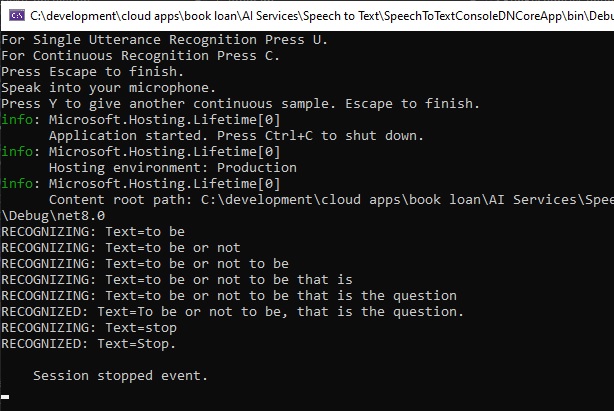
The above has shown us how to use the single utterance and continuous utterance speech recognition SDK to produce accurate text outputs.
There are numerous real-world use cases where the above can be used.
Note that if we tried to use the following for our Microphone configuration:
using var audioConfig = AudioConfig.FromDefaultMicrophoneInput();
using var speechRecognizer = new SpeechRecognizer(speechConfig, audioConfig);
then the default microphone configurations do not seem to be working for .NET and JavaScript libraries. As I mentioned in my previous posts, the microphone sampling has limitations working from server-side scripts and libraries. Using the method I used in the previous sections should suffice in client-side environments.
I will continue my discussions with Speech AI in future posts.
That is all for today’s post.
I hope that you have found this post useful and informative.

Andrew Halil is a blogger, author and software developer with expertise of many areas in the information technology industry including full-stack web and native cloud based development, test driven development and Devops.

