

Welcome to today’s post.
In today’s post I will show how to test a web chatbot solution that has been implemented from within the Bot Framework Composer environment.
In the previous post, when we created the chatbot from within the Bot Framework Composer environment, we ran the chat bot as a web chat bot running within the same environment.
The Bot Framework Emulator is a powerful tool that can be used to not only have chatbots running locally from the Bot Framework Composer, but also have chatbots running locally from within a custom chatbot implemented and run from within Visual Studio. I will explore the Visual Studio option in a later post.
The ability to test the web chatbot is provided by an environment that emulates the execution of the chatbot. Being in a self-contained emulated environment means that we use limited resources to test out chatbot. The emulated environment we will use is the Bot Framework Emulator. In the first section that follows, I will show how to install and run the Bot Framework Emulator.
Installation and Setup of the Bot Framework Emulator
Before we can install the Bot Framework Emulator, we will need to download it. The releases are in the GitHub page for the Bot Framework Emulator.
Select and download the latest installer for the Bot Framework Emulator.
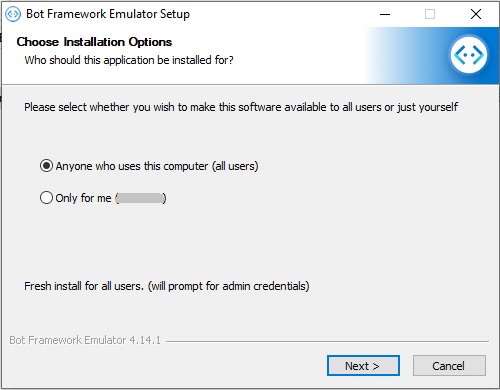
In the installer, you can run it as yourself or as an administrator:
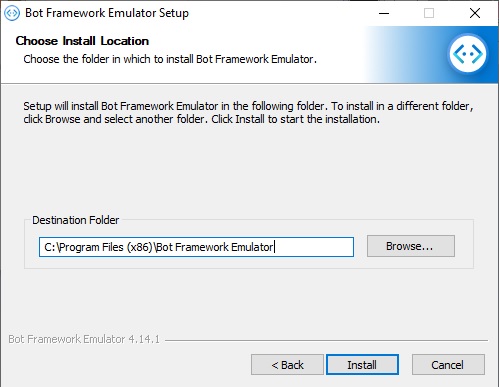
Select the destination folder of the emulator installation:
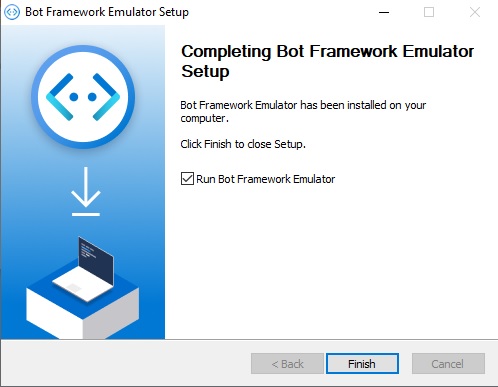
On completion of the emulator installation, you can run the emulator:
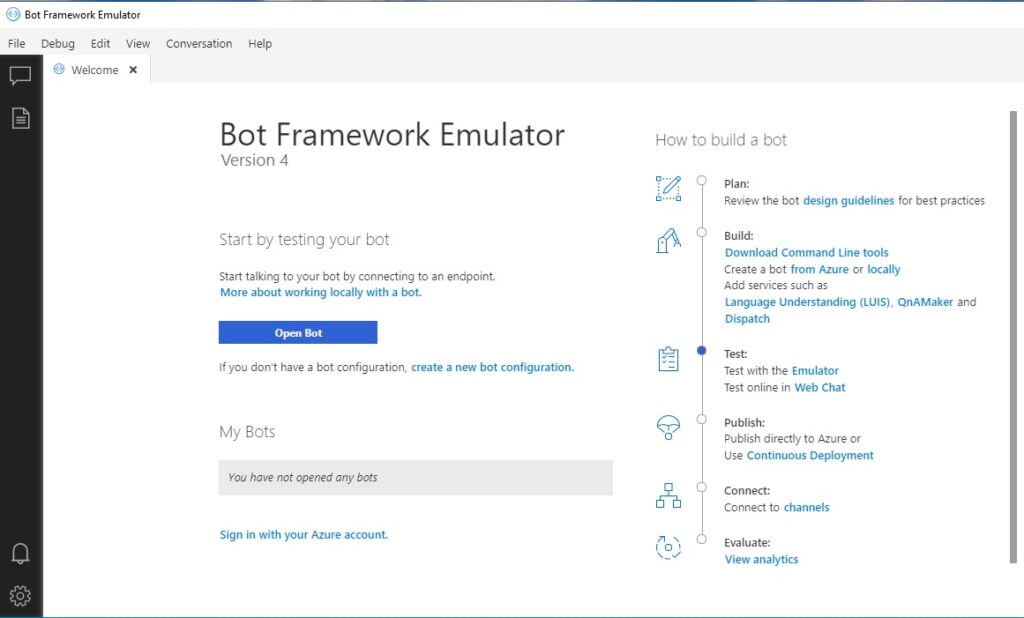
When the emulator is running, you will see the following landing page, which presents you with instructions on how to build, test, publish, connect, and evaluate the bot.
There are also details on how to test the bot.
In the next section, I will show how to test the chatbot that we had created from within the Bot Framework Composer.
Testing a Chatbot with the Bot Framework Emulator
In this section, I will show how to test the chatbot from within the Bot Framework Emulator.
When we were creating the web chatbot using the Bot Framework Composer, it generated an ASP.NET Core solution that ran locally as a Web API service. Given this, we can run the same solution within the generated project folder using .NET commands. We can use the dotnet run command to run the chat bot Web API solution in a command prompt. I will show how this is done.
The first thing that we do is to change to the project folder:
cd "C:\development\cloud apps\chat bots\Home_Automation_Bot\Home_Automation_Bot"
One thing to note when running the project within the chatbot solution, is that if you try the following command from the project file:
dotnet run Home_Automation_Bot.csproj
You will get the following error:
Specify which project file to use because
C:\development\cloud apps\chat bots\Home_Automation_Bot\Home_Automation_Bot contains more than one project file.

Specify which project file to use because contains more than one project file.
To resolve the above error, run the application using the project file as shown below:
dotnet run --project Home_Automation_Bot.csproj
When the chatbot project is running, you will see the logging with the port for the web API service as shown below:

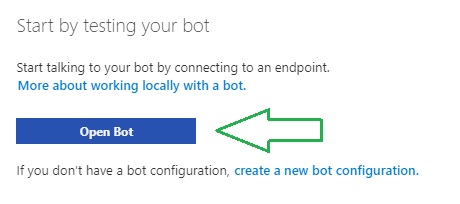
When the chatbot Web API is running, you are now ready to test the chatbot. Return to the Bot Framework Emulator landing page and click on the Open Bot action as shown below:
You will then see the following connection dialog:
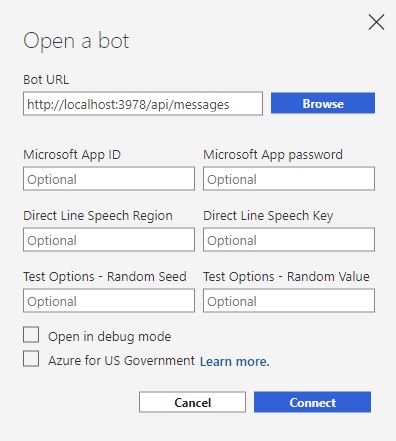
In the Bot URL, enter the following URI (this will depend on the local port you are running the solution):
http://localhost:3978/api/messages
After the connection is established, you will see the Local bot runtime manager popup near the top of the IDE. From here we can start and stop bots individually. We can also start the chat bot as a web chat bot or test it within the emulator.
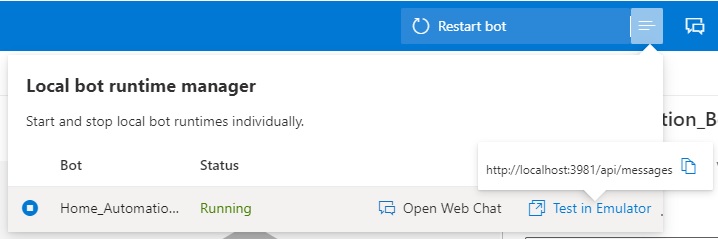
Select the option Test in Emulator.
You will then see the emulator open a live chat tab, with the conversation displaying the initial welcome message from the chatbot:
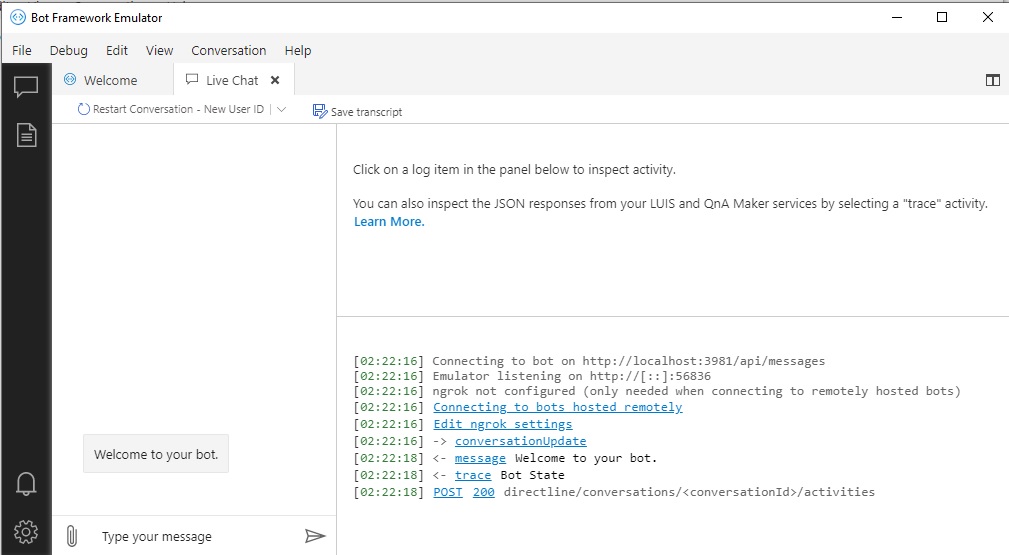
To test the bot, type in a response test.
In the chatbot that was created from the previous post, we created a basic chatbot that displayed a menu as a response to a menu command.
Type in the command menu as shown:
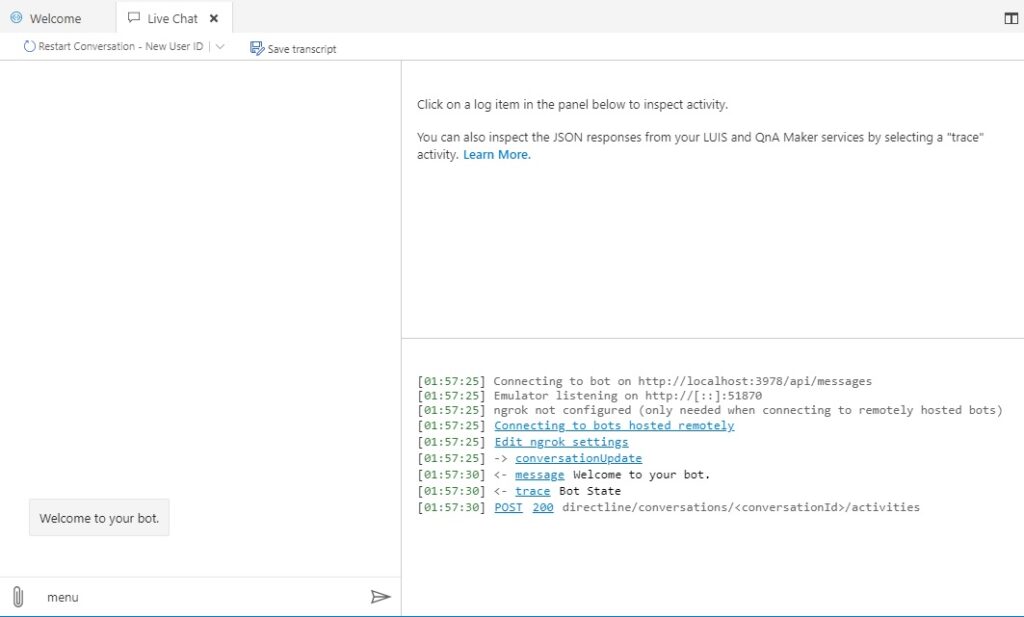
The bot will now respond with the menu as shown:
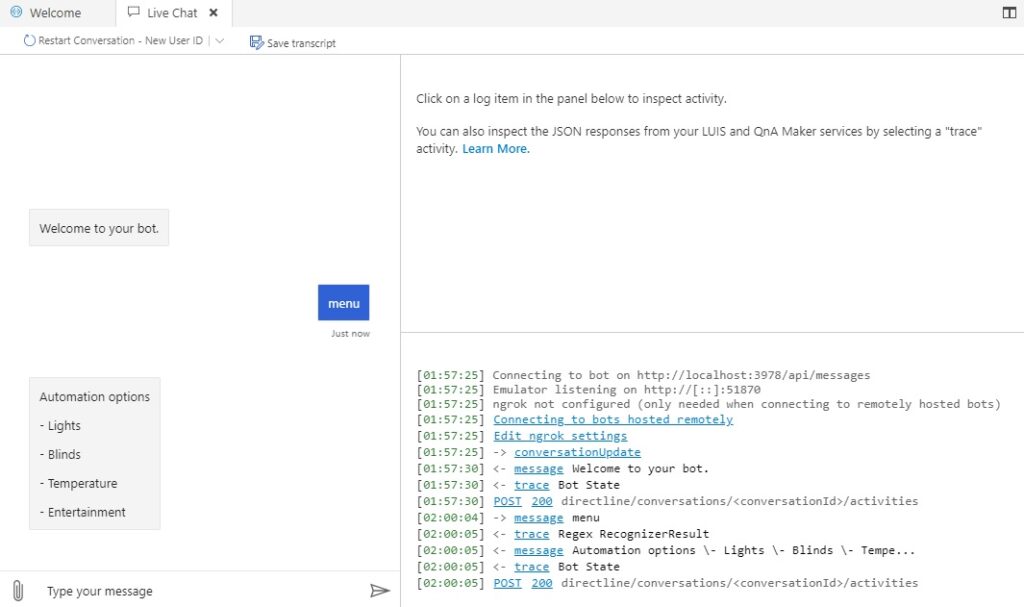
In the log messages to the right pane, you will see both incoming messages from the bot, and outgoing messages from you, the user, to the bot.
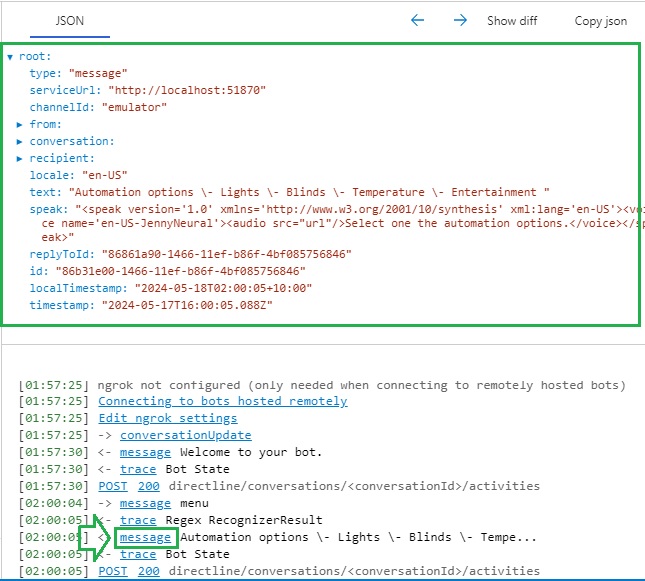
Clicking on any of the hyperlinked entries in the log will display the content of the message in JSON format at the top of the message log pane as shown:
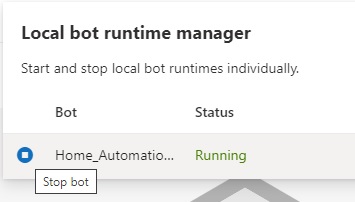
Once you have finished testing the bot from the emulator, you can finish the session by stopping the bot from the emulator runtime manager as shown:
If you try sending messages to the chatbot service from within the emulator and you get the following error from the log:
code:"ServiceError"
message:"request to http://localhost:3978/api/messages failed, reason: connect ECONNREFUSED 127.0.0.1:3978"
We then check that the chat service is running, as the emulator is unable to connect to the message API of the chat service.
The above has shown how you can test a chatbot using the Bot Framework Emulator.
In a future post, I will show how to use the Bot Framework Emulator to test and debug chatbots implemented using Visual Studio and the Bot Framework SDK.
That is all for today’s post.
I hope that you have found this post useful and informative.

Andrew Halil is a blogger, author and software developer with expertise of many areas in the information technology industry including full-stack web and native cloud based development, test driven development and Devops.

