

Welcome to today’s post.
In today’s post I will be discussing how to use sentiment analysis to analyze text to determine the feeling of text within paragraphs or documents. To achieve our goal, I will be showing how to use Azure AI Language Services to analyze text inputs to determine the sentiment of the user that has authored the text.
In a previous post, I showed how to use the Azure AI Language Service and the Azure Language Studio to create a conversational language understanding model. Creating the conversational language model allows us to integrate it into a chat bot application, which could understand the intent of sentences. Intent is the intended action of the user behind the sentence.
In this post, I will be showing you how to determine sentiment within sentences and how this can be used in the real-world.
In the first sections, I will explain what sentiment analysis is and how it can be used in applications.
What is Sentiment Analysis?
Sentiment analysis is one of the features within the Azure AI Language service, which consists of machine learning language algorithms used to help develop intelligent applications that use written languages.
Sentiment analysis is used to determine the feeling associated with some input text and give the text a label, such as positive, negative, neutral. The sentiment (or feeling) that is calculated is a decimal value, a confidence level between 0 and 1, which is then used to decide on the sentiment label.
A confidence score of zero, or close or it, is correlated to a sentiment of negative.
A confidence score of 1, or close or it, is correlated to a sentiment of positive.
A confidence score of 0.5, or close or it, is correlated to a sentiment of neutral.
Uses of Sentiment Analysis
When we are analyzing the sentiment of a text, we are ascertaining the feeling of the user that entered the text. In the context of an application, we want to decide whether the user has provided a positive or negative experience when using an application or service. In the context of commercial products, we want to determine if a consumer had a positive or negative experience using a particular product.
When providing end users an interface to provide reviews of a product or service, a numeric score of 1-5 can be used to give feedback for the review, or a written opinion can be provided. With the score-based system, the sentiment is provided by the score, but there are no reasons why the user gave that score. However, with an analysis of the various phrases within the text, we can determine how many phrases and sentences within the input text have positive, negative, and negative sentiment, then provide an overall calculation on the sentiment.
The calculation of sentiment of a particular sentence is decided by parsing keywords that represent positive words and negative words. Positive words can include words such as: improving, enjoyable, engaging, interesting etc. and negative words can include words such as: slow, lacking, boring, bland etc.
Another usage of sentiment analysis is to determine the feeling of end-users that are on a business site’s support chat bot. When a user conversation is detected as providing negative feedback, the bot can ask the user if they want to be redirected to a support personnel who can resolve the issues the user has experienced.
In the next section, I will show how to use sentiment analysis within the Azure AI Language Studio.
Using Sentiment Analysis in the Azure Language Studio
Before we start using sentiment analysis, we can try out the feature in the Azure Language Studio to get an idea of how text is evaluated by the built-in language models.
The Azure Language Studio is directly accessible or through the Azure Portal and requires an Azure subscription.
In addition to an Azure subscription, you will need to create an Azure Language Service resource.
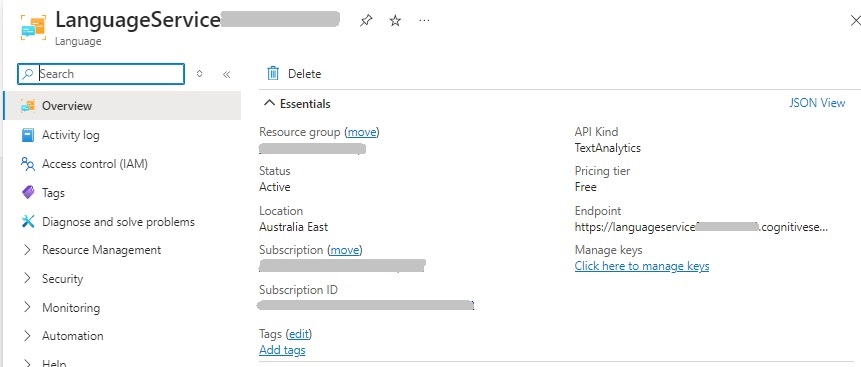
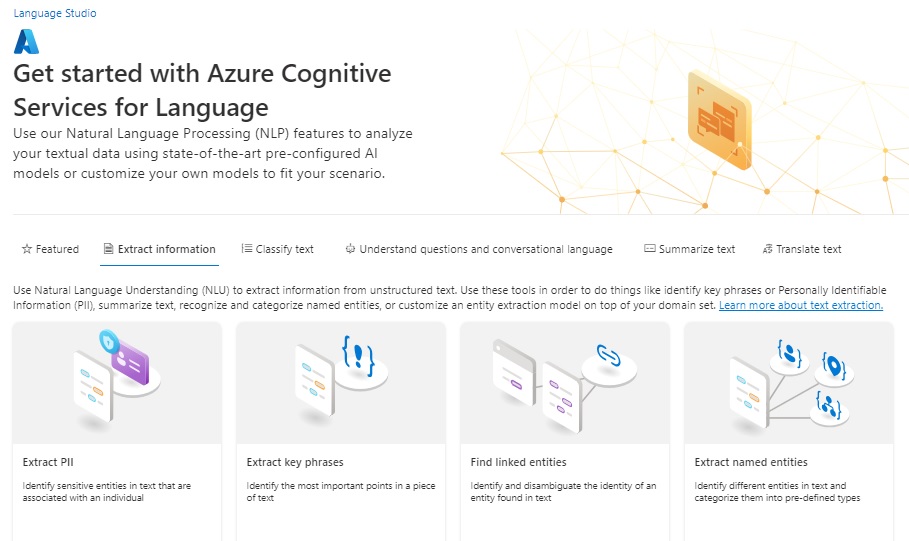
Once the language resource is created, you will then be able to access the Azure Language Studio. In the landing page, you will see a selection of features that have built-in AI language models you can evaluate. In the Classify text tab you will see the Custom sentiment analysis feature that you can select:
In the sentiment and opinion mining feature you will see an input form that contains the following parameters:
Text language
Azure language resource
Input text
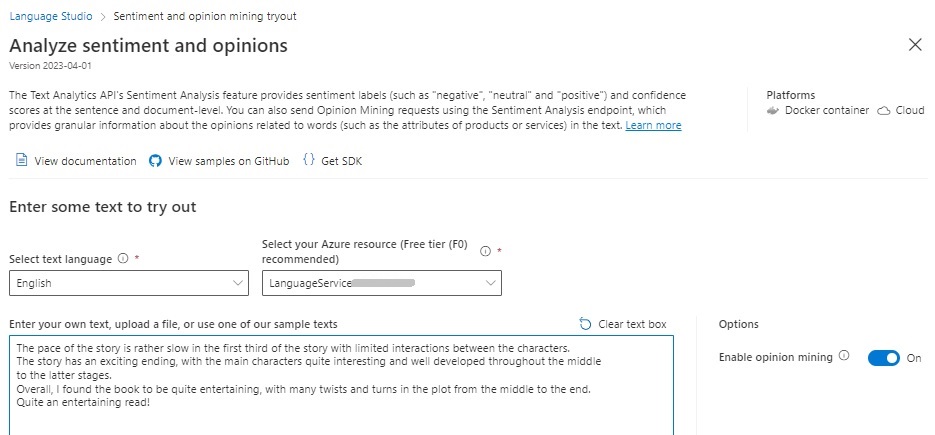
To evaluate the sentiment of the entered text, press the Run button.
When the results are ready, they are viewable in a user-friendly format and in JSON format.
The following is the text that I have entered as part of a book review:
“The pace of the story is rather slow in the first third of the story with limited interactions between the characters.

The story has an exciting ending, with the main characters quite interesting and well developed throughout the middle to the latter stages.

Overall, I found the book to be quite entertaining, with many twists and turns in the plot from the middle to the end. Quite an entertaining read!”
The results are structured with a Document sentiment summary, that shows the overall sentiment. Then an analysis of each sentence in the document.
Below, we can see the sentiment is mixed at 75% confidence:
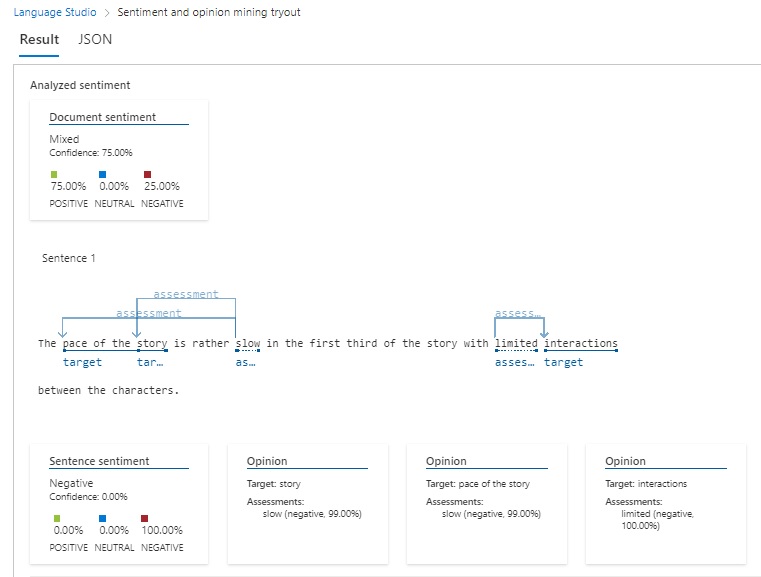
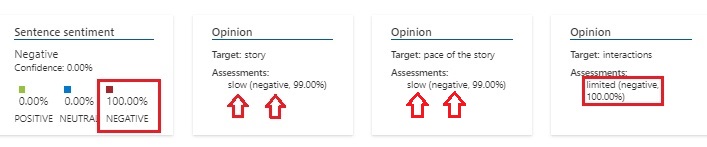
In the first sentence, the sentiment is 100% negative with two parts of the sentence exhibiting negative sentiments with phrases slow and limited.
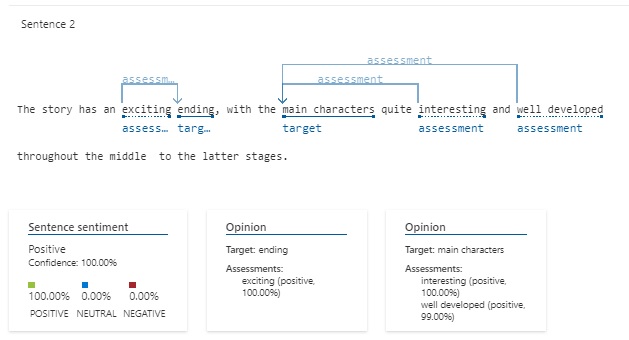
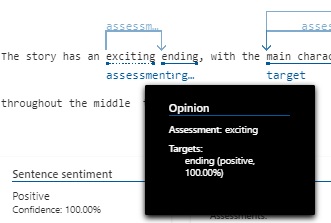
The second sentence has a positive sentiment, with three parts of the sentence all exhibiting positive sentiments, with words exciting, interesting, and well developed.
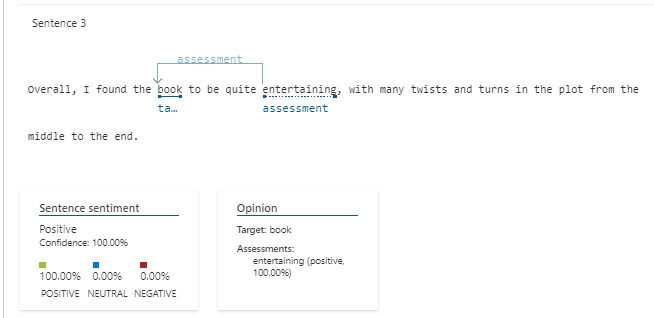
The third sentence has also a positive sentiment, with the word entertaining.
The final sentence has also a positive sentiment, again with the word entertaining.
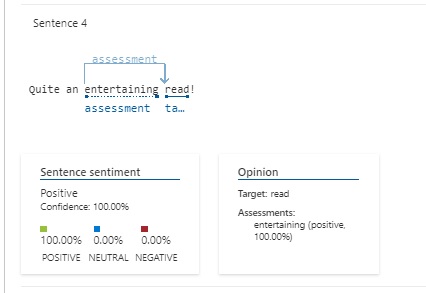
The analysis shown in the results view shows us the assessments within each sentence and the underlined target phrases that are evaluated for their sentiment:
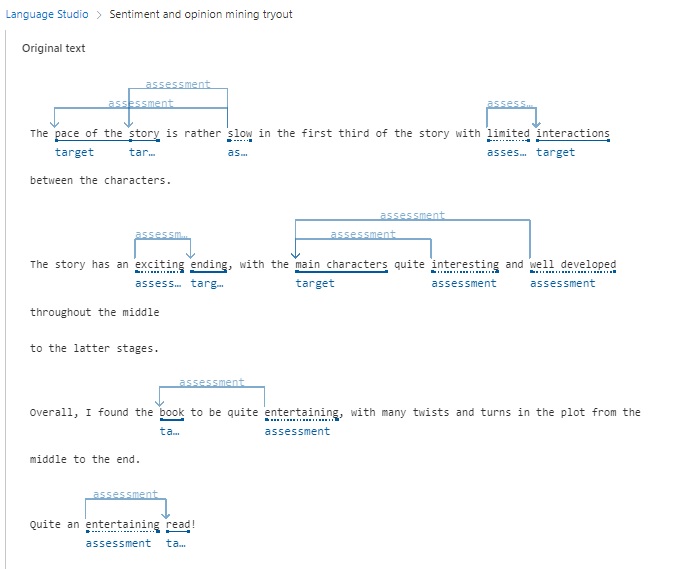
When we hover over each assessment within each sentence, a popup displaying the assessment and targets displays. In the first sentence, with one of the assessments for the word slow, we have two targets:
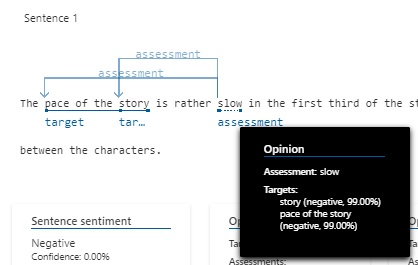
The evaluated sentiment of the sentence is rated as negative, with the two opinions yielding negative assessments:
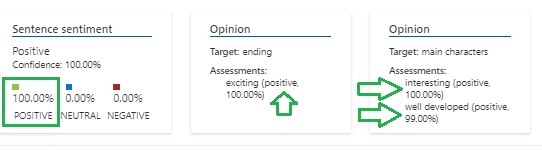
In the next sentence, there are two assessments, with the first one on the word exciting having a positive sentiment:
The next assessments on phrases interesting and well developed on the target main characters have positive sentiments:
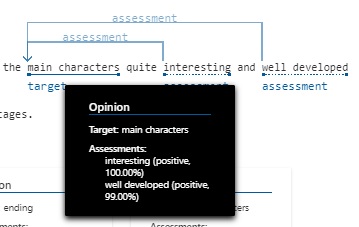
The evaluated sentiment of the sentence is rated as positive, with the two opinions yielding three positive assessments:
The general structure of the JSON results is shown with the document sentiment, sentences arrays, with the target and assessment arrays within each sentence:
{
    "documents": [
        {
            "id": "id__[identifier]",
            "sentiment": "[positive/mixed/neutral]",
            "confidenceScores": {
                "positive": [score for positive sentiment document],
                "neutral": [score for negative sentiment document],
                "negative": [score for negative sentiment document]
            },
            "sentences": [
                {
                    "sentiment": "[positive/mixed/neutral]",
                    "confidenceScores": {
                        "positive": [number of positive sentiment words],
                        "neutral": [number of neutral sentiment words],
                        "negative": [number of negative sentiment words]
                    },
                    "offset": [start offset of sentence],
                    "length": [end offset of sentence],
                    "text": "[sentence text]",
                    "targets": [
                        {
                            "sentiment": "[positive/negative/neutral]",
                            "confidenceScores": {
                                "positive": [score for positive],
                                "negative": [score for negative]
                            },
                            "offset": [start offset of target],
                            "length": [length of target],
                            "text": "[text of target]",
                            "relations": [
                                {
                                    "relationType": "assessment",
                                    "ref": "#/documents/0/sentences/0/assessments/0"
                                }
                            ]
                        },
                        …
                    ],
                    "assessments": [
                        {
                            "sentiment": "[positive/negative/neutral]",
                            "confidenceScores": {
                                "positive": [score for positive],
                                "negative": [score for negative]
                            },
                            "offset": [start offset of assessment],
                            "length": [length of assessment],
                            "text": "[text of assessment]",
                            "isNegated": [true/false]
                        },
                        …
                    ]
                },
            ],
            "warnings": []
        }
    ],
    "errors": [],
    "modelVersion": "latest"
}
Determining Text Sentiment using the Text Analytics SDK
In this section, I will be showing you how to use the Azure Language Service resource and the Text Analytics SDK to analyze text within documents for sentiments.
Instead of using the sentiment analysis in the Azure Language Studio, we can use the SDK can be used within a client application.
Before we can use the Text Analytics SDK within a client application, we will need to obtain the endpoint and access key from the Azure Language Service resource and create them where they are then accessible from the client application. This can either be within the machine’s environment variables, or in a secure key vault.
These are obtainable from the resource overview and manage keys screens.
To store the endpoint and keys in the local environment, use the setx commands as shown:
SETX TEXT_ANALYTICS_ENDPOINT [your-text-analytics-endpoint]
SETX TEXT_ANALYTICS_KEY [your-text-analytics-key]
In the following example, I will be showing how to construct an application using a .NET Core Console application.
Once you have opened Visual Studio, create a new .NET Core console application.
You will then need to add the following NuGet package library to the application:
Azure.AI.TextAnalytics
We then add the following namespaces to the top of the code file:
using Azure;
using Azure.AI.TextAnalytics;
using System.Text;
We then create two string variables to store our endpoints and key from the environment variables:
static string textanalyticsEndpoint = String.Empty;
static string textanalyticsKey = String.Empty;
In our main block, we initialize the variables using the following method:
private static void InitializeVariables()
{
    textanalyticsEndpoint = Environment.GetEnvironmentVariable("TEXT_ANALYTICS_ENDPOINT");
    textanalyticsKey =Environment.GetEnvironmentVariable("TEXT_ANALYTICS_KEY");
}
Calls to the sentiment analysis methods are through the TextAnalyticsClient class, which is initialized through the following code snip:
Uri endpoint = new(textanalyticsEndpoint);
AzureKeyCredential credential = new(textanalyticsKey);
TextAnalyticsClient client = new(endpoint, credential);
Once we have established an instance if the text analytics client, we can start analyzing text to determine sentiment.
There are two ways in which to process text for sentiment analysis. We can process the text a single document at a time, or multiple documents at a time.
The TextAnalytics SDK method for processing text sentiment in individual documents is the AnalyzeSentiment() method of the TextAnalyticsClient class, whose definition is below:
Response<DocumentSentiment> AnalyzeSentiment(string text);
The above method returns a response instance of type DocumentSentiment, which contains a property ConfidenceScores, which contains Positive, Negative or Neutral scores.
Below is a method that computes the sentiment for a provided text input:
private static void AnalyzeSingleDocumentSentiment(TextAnalyticsClient client,
    string document)
{
    try
    {
        Response<DocumentSentiment> response = client.AnalyzeSentiment(document);
        DocumentSentiment docSentiment = response.Value;

        Console.WriteLine($"Document sentiment is {docSentiment.Sentiment} with: ");
        Console.WriteLine($"  Positive confidence score: {docSentiment.ConfidenceScores.Positive}");
        Console.WriteLine($"  Neutral confidence score: {docSentiment.ConfidenceScores.Neutral}");
        Console.WriteLine($"  Negative confidence score: {docSentiment.ConfidenceScores.Negative}");
    }
    catch (RequestFailedException exception)
    {
        Console.WriteLine($"Error Code: {exception.ErrorCode}");
        Console.WriteLine($"Message: {exception.Message}");
    }
}
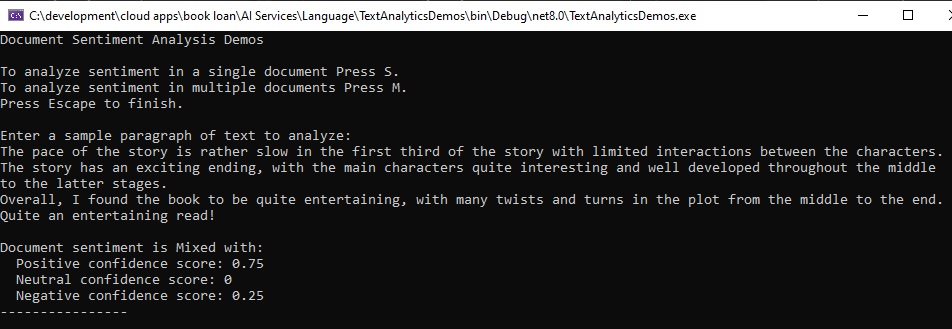
In the above method, I have passed in the following input text:
The pace of the story is rather slow in the first third of the story with limited interactions between the characters.
The story has an exciting ending, with the main characters quite interesting and well developed throughout the middle to the latter stages.
Overall, I found the book to be quite entertaining, with many twists and turns in the plot from the middle to the end.
Quite an entertaining read!
The results are as shown:
The TextAnalytics SDK method for processing text sentiment as multiple documents is the AnalyzeSentimentBatch() method of the TextAnalyticsClient class, whose definition is below:
Response<AnalyzeSentimentResultCollection> AnalyzeSentimentBatch(
    List<string> multipleDocuments
);
The above method returns a response instance of type AnalyzeSentimentResultCollection object, which contains a collection of the property AnalyzeSentimentResult, with each value containing a property DocumentSentiment, which contains sentiment scores from Positive, Negative or Neutral properties.
Each value in AnalyzeSentimentResult has a DocumentSentiment property, which has a collection Sentences of type SentenceSentiment, has an overall sentiment in the property Sentiment. The sentiment score for negative, positive, and neutral sentiments is obtained from the ConfidenceScores property of DocumentSentiment.
Below is a method that computes the sentiment for a provided multiple text string input:
private static void AnalyzeMultipleDocumentSentiment(TextAnalyticsClient client,
    List<string> multipleDocuments)
{
    Response<AnalyzeSentimentResultCollection> response = client.AnalyzeSentimentBatch(multipleDocuments);
    AnalyzeSentimentResultCollection documentSentiment = response.Value;

    int i = 0;
    Console.WriteLine($"Analyze Sentiment, model version: \"{documentSentiment.ModelVersion}\"");
    Console.WriteLine();

    foreach (AnalyzeSentimentResult documentResult in documentSentiment)
    {
        Console.WriteLine($"Sentiment result for document with Text = \"{multipleDocuments[i++]}\"");

        if (documentResult.HasError)
        {
            Console.WriteLine($"  Error!");
            Console.WriteLine($"  Document error code: {documentResult.Error.ErrorCode}");
            Console.WriteLine($"  Message: {documentResult.Error.Message}");
            Console.WriteLine();
            continue;
        }

        Console.WriteLine($"  Document sentiment is {documentResult.DocumentSentiment.Sentiment} with: ");
        Console.WriteLine($"    Positive confidence score: {documentResult.DocumentSentiment.ConfidenceScores.Positive}");
        Console.WriteLine($"    Neutral confidence score: {documentResult.DocumentSentiment.ConfidenceScores.Neutral}");
        Console.WriteLine($"    Negative confidence score: {documentResult.DocumentSentiment.ConfidenceScores.Negative}");
        Console.WriteLine();
        Console.WriteLine($"  Sentence sentiment results:");

        foreach (SentenceSentiment sentimentInSentence in documentResult.DocumentSentiment.Sentences)
        {
            Console.WriteLine($"  * For sentence: \"{sentimentInSentence.Text}\"");
            Console.WriteLine($"    Sentiment is {sentimentInSentence.Sentiment} with: ");
            Console.WriteLine($"      Positive confidence score: {sentimentInSentence.ConfidenceScores.Positive}");
            Console.WriteLine($"      Neutral confidence score: {sentimentInSentence.ConfidenceScores.Neutral}");
            Console.WriteLine($"      Negative confidence score: {sentimentInSentence.ConfidenceScores.Negative}");
            Console.WriteLine();
        }
    }
}
Below are the input texts I have used for the multiple/batch sentiment call:
Sample text 1:
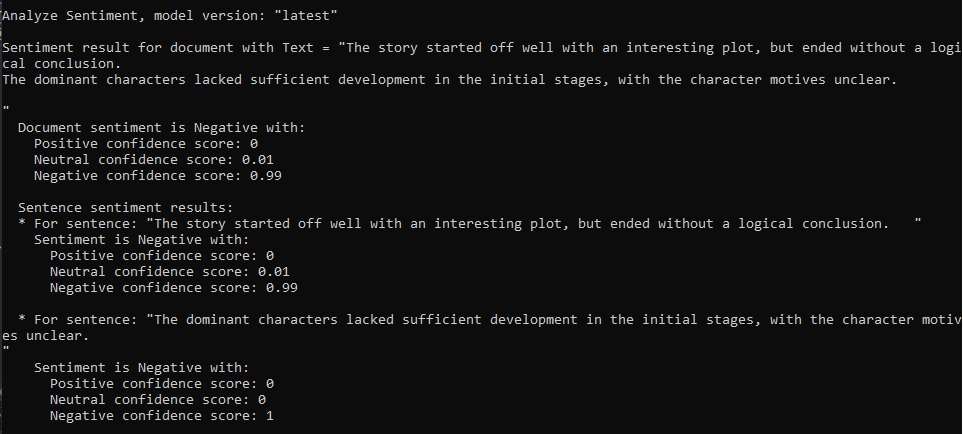
The story started off well with an interesting plot, but ended without a logical conclusion.
The dominant characters lacked sufficient development in the initial stages, with the character motives unclear.
Sample text 2:
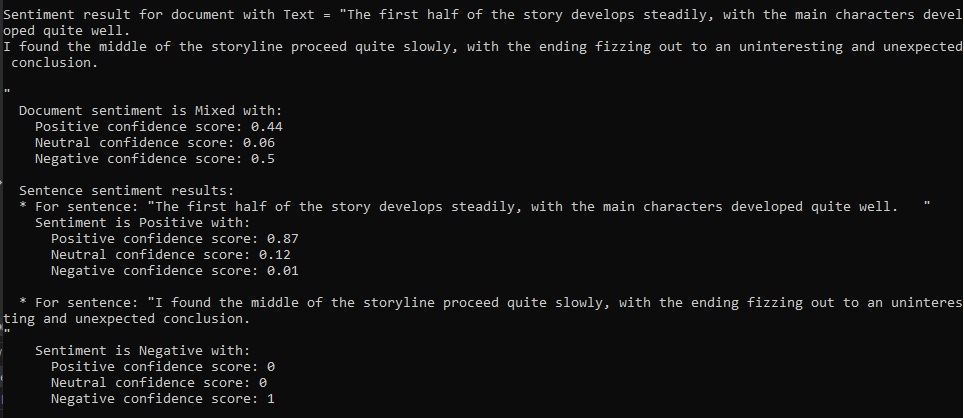
The first half of the story develops steadily, with the main characters developed quite well.
I found the middle of the storyline proceed quite slowly, with the ending fizzing out to an uninteresting and unexpected conclusion.
Sample text 3:
In many of the scenes in the novel, the scenery and senses in the surrounding environment are described creatively in great detail.
Readers are taken through a journey with many twists and turns in the plot and their imagination is tested constantly.
The story has a thrilling conclusion!
Sample text 4:
The customer service was rather poor.
I had to wait for over an hour at the return counter, and the staff were quite rude.
I do not recommend this library.
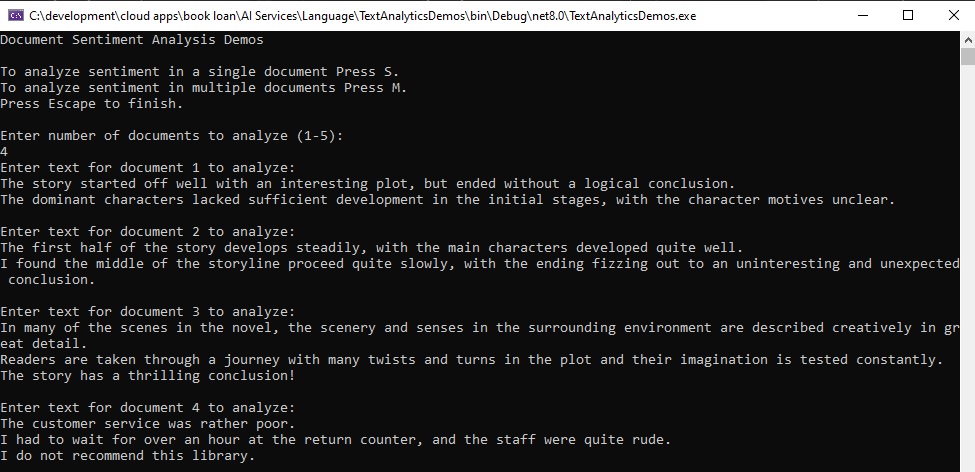
Below is an excerpt of the input texts provided for the batch processing of the sentiment analysis:

The results are as shown for the first text input document with an overall sentiment of Negative, which has a 99% confidence of negative sentiment:
The results are as shown for the second text input document with an overall sentiment of Mixed, which has a 44% confidence of positive sentiment, 50% confidence of negative sentiment, and 6% confidence of neutral sentiment:
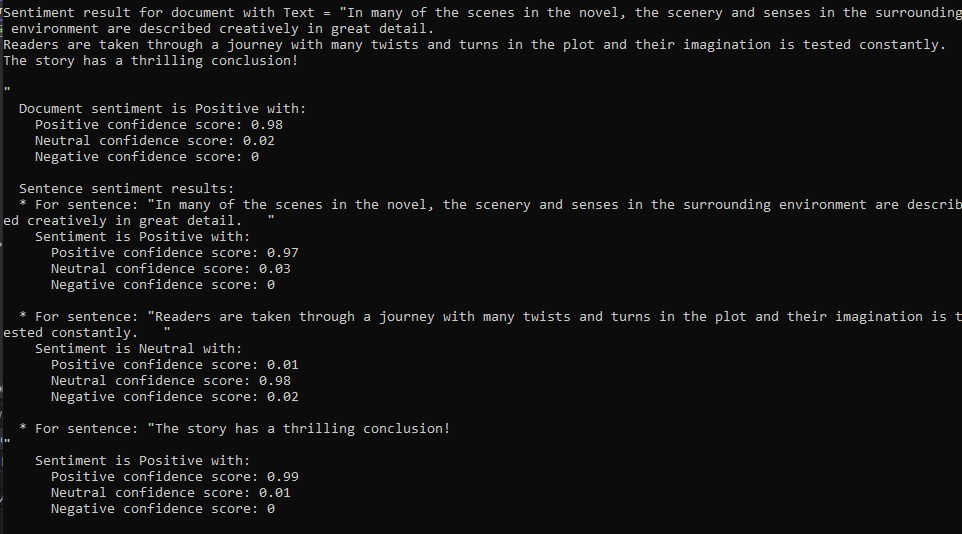
The results are as shown for the third text input document with an overall sentiment of Positive, which has a 98% confidence of positive sentiment:
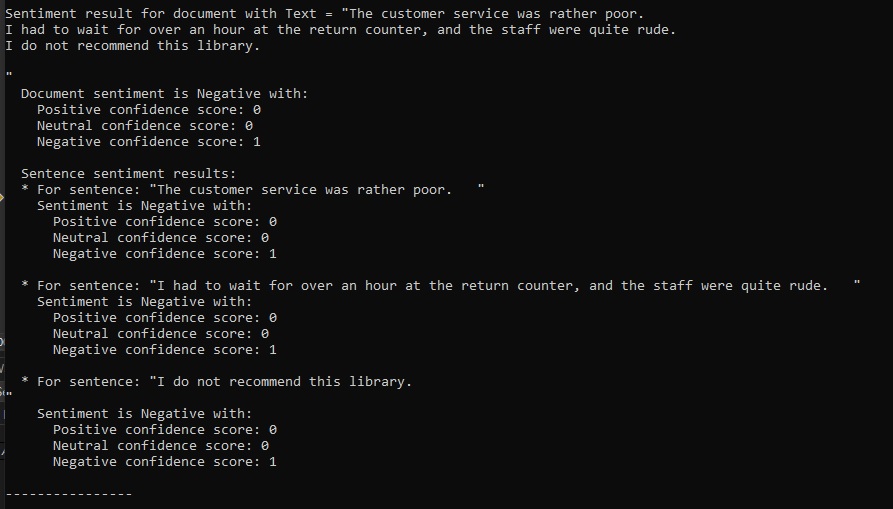
The results are as shown for the fourth text input document with an overall sentiment of Negative, which has a 100% confidence of negative sentiment:
Below is a session where multiple input texts are entered and used for the batch processing of sentiments:
The code block for requesting user inputs for the single and multiple document inputs is shown below:
StringBuilder sb = new StringBuilder();

while (true)
{
    sb.Clear();

    Console.WriteLine("Document Sentiment Analysis Demos");
    Console.WriteLine();
    Console.WriteLine("To analyze sentiment in a single document Press S.");
    Console.WriteLine("To analyze sentiment in multiple documents Press M.");
    Console.WriteLine("Press Escape to finish.");
    Console.WriteLine();

    ConsoleKeyInfo consoleKeyInfo = Console.ReadKey(true);

    if (consoleKeyInfo.Key == ConsoleKey.Escape)
    {
        Console.WriteLine("Exiting application.");
        break;
    }

    if (consoleKeyInfo.Key == ConsoleKey.S)
    {
        Console.WriteLine("Enter a sample paragraph of text to analyze:");
        string? sampleText = Console.ReadLine();
        sb.AppendLine(sampleText);

        while ((sampleText != null) && (sampleText.Length > 0))
        {
           sampleText = Console.ReadLine();
           sb.AppendLine(sampleText);
        }
        AnalyzeSingleDocumentSentiment(client, sb.ToString());
    }

    if (consoleKeyInfo.Key == ConsoleKey.M)
    {
        Console.WriteLine("Enter number of documents to analyze (1-5):");
        string inputDocuments = Console.ReadLine();

        int numberDocuments = 0;
        if (!string.IsNullOrEmpty(inputDocuments))
            numberDocuments = Convert.ToInt32(inputDocuments);

        List<string> documents = new List<string>();

        bool invalidDocument = false;

        for (int i = 0; i < numberDocuments; i++)
        {
            Console.WriteLine($"Enter text for document {i + 1} to analyze:");
            string inputText = Console.ReadLine();
            if (!string.IsNullOrEmpty(inputText))
            {
                sb.AppendLine(inputText);
                while ((inputText != null) && (inputText.Length > 0))
                {
                    inputText = Console.ReadLine();
                    sb.AppendLine(inputText);
                }
                documents.Add(sb.ToString());
                sb.Clear();
            }
            else
                invalidDocument = true;
        }
        if ((numberDocuments > 0) && (!invalidDocument))
        {
            AnalyzeMultipleDocumentSentiment(client, documents);
        }
        else
        {
            if (numberDocuments == 0)
                Console.WriteLine("No documents have been specified!");
            if (invalidDocument)
                Console.WriteLine("Invalid document specified!");
        }
    }

    Console.WriteLine("----------------");
    Console.WriteLine();
}
The above has shown us how to use the Azure AI Language Service to evaluate the sentiment of input text.
We saw how to use the Azure AI Language Studio to evaluate sentiment of sample input text, then I showed how to use the Text Analytics SDK of the Azure AI Language resource to evaluate sentiment of single and multiple input documents.
In a future post, we will look at how to use the Azure Language Services to analyze text in other useful ways.
That is all for today’s post.
I hope that you have found this post useful and informative.

Andrew Halil is a blogger, author and software developer with expertise of many areas in the information technology industry including full-stack web and native cloud based development, test driven development and Devops.

