

Welcome to today’s post.
In today’s post I will be showing you how to connect with and interact with an existing Conversational Language Understanding (CLU) model with the Azure AI Conversational SDK.
Connecting to a CLU model from a client application is one of the pieces of integration that is required to implement a web site hosted Azure Chat Bot. In a future post, I will provide the entire architecture on how we do this.
In a previous post, I showed how to create a CLU model using the Azure Language Studio. This involved creating a training dataset of utterances in our language domain, then creating custom named entities and intents, which were then labelled within each of the utterances.
As we know, chat bots, with the required training model predict what intents are contained within utterances, then understand what the intention is of the user that submitted the utterance within the chat conversation. In addition, determining the target entity within the utterance provides enough details for the chat bot to determine what action to take for the user.
Exposing the CLU Model for Client Consumption
In a subsequent post I showed how to train the CLU model to understand intents and entities. Following successful training iterations, where we maximized the recall and precision of the model, I showed how to publish and deploy the CLU model as a Prediction API, which is accessible through a client application using an endpoint, access key, project name, and deployment name. The consuming client could be a Chat Bot application, or a basic console application.
I then showed how to test the CLU model within the Azure Language Studio with a sample utterance and evaluate the visual or JSON response that is returned with the matching entities and intents. We will use the JSON response that was returned from the Prediction API test to determine how to extract the relevant entities and intents elements.
In the following sections, I will show how to connect to the CLU model resource through a client application using the Azure AI Conversational SDK. I will then show how to submit sample utterances to the Prediction API and receive responses back that include predicted entities and intents.
Setup and Configuration in a Client to Connect to a Deployed CLU Model
In this section, I will explain how to set up the application to connect to our AI Language Services resource and the Prediction API of the published CLU Language Service Project.
Before opening our Visual Studio 2022 development IDE, the following environment values need to be assigned using SETX from the command line:
SETX LANGUAGE_ENDPOINT [your-language-services-endpoint]
SETX LANGUAGE_KEY [your-language-services-key]
SETX CLU_PROJECT_NAME [your-clu-project-name]
SETX CLU_DEPLOYMENT_NAME [your-clu-project-deployment-name]
Before we can use the library within the Azure AI Conversational SDK, we will first require the following NuGet package to be installed within the application:
Azure.AI.Language.Conversations
The code that uses the Conversational SDK requires the following library namespaces declared at the top of the file:
using Azure;
using Azure.AI.Language.Conversations;
using Azure.Core;
using System.Text.Json;
Below is the first part of the code that initializes the working variables and environment variables:
namespace CustomCLUDemo
{
    internal class Program
    {
        static string languageEndpoint = String.Empty;
        static string languageKey = String.Empty;

        static string projectName = String.Empty;
        static string deploymentName = String.Empty;

        static void Main(string[] args)
        {
            InitializeVariables();
            …
The method InitializeVariables(), which sets the environment variables for the endpoint, keys and CLU model access is shown below:
private static void InitializeVariables()
{
    languageEndpoint = Environment.GetEnvironmentVariable("LANGUAGE_ENDPOINT");
    languageKey = Environment.GetEnvironmentVariable("LANGUAGE_KEY");
    projectName = Environment.GetEnvironmentVariable("CLU_PROJECT_NAME ");
    deploymentName = Environment.GetEnvironmentVariable("CLU_DEPLOYMENT_NAME ");
}
The CLU project name is obtained from the name of the Language Understanding project that was created within the Azure Language Studio.
The CLU deployment name is obtained from the deployment of the CLU model. When the model was deployed within the Language Studio, it is obtained from the Add deployment dialog (as shown below) or shown within the deployment overview.
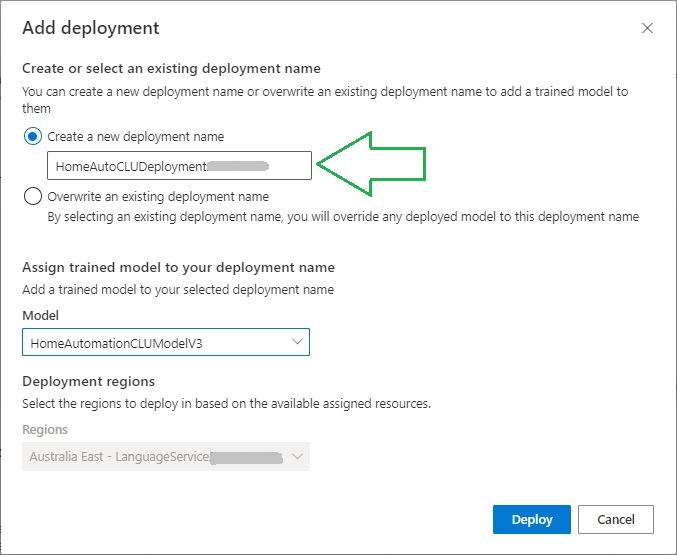
Connecting to the Azure Language Resource and the model within the deployed CLU Project is shown below:
Uri endpoint = new Uri(languageEndpoint);
AzureKeyCredential credential = new AzureKeyCredential(languageKey);
Connecting to the Azure AI Conversational SDK is done by creating an instance of the ConversationAnalysisClient class as shown:
ConversationAnalysisClient client = new ConversationAnalysisClient(
    endpoint,
    credential
);
In the next section, I will show how to use the Azure AI Conversational SDK to analyze utterances sent to the CLU model.
Analyzing Utterances within the CLU Model with the Azure AI Conversational SDK
In this section, I will show how to analyze utterances using the Azure AI Conversational SDK.
One of the parameters that is required for the analysis of a conversation are the messages that are submitted to the CLU model.
Below is the section of code in the main body that allows the user to enter an utterance that is submitted to the CLU model through the Conversational SDK for analysis:
…
      while (true)
      {
          Console.WriteLine("Custom CLU Demo");
          Console.WriteLine("-------------------------------");
          Console.WriteLine("To ask a question to the Custom CLU Service Press 1.");
          Console.WriteLine("Press Escape to finish.");
          Console.WriteLine();

          ConsoleKeyInfo consoleKeyInfo = Console.ReadKey(true);

          if (consoleKeyInfo.Key == ConsoleKey.Escape)
          {
              Console.WriteLine("Exiting application.");
              return;
          }

          if (consoleKeyInfo.Key == ConsoleKey.D1)
          {
              Console.WriteLine("Enter a question to ask the Home Automation CLU Model:");
              string? utterance = Console.ReadLine();

              if ((utterance != null) && (utterance.Length > 0))
              {
                  Console.WriteLine();
                  RequestCLUAnswer(utterance, client, projectName, deploymentName).Wait();
              }
          }
          Console.WriteLine();
      }
The method RequestCLUAnswer() which will analyze the utterance will be shown shortly. Before that, I will explain the SDK methods used for the utterance analysis and the input parameters.
The method parameters include the utterance string, ConversationAnalysisClient instance, project name and project deployment name:
RequestCLUAnswer(
    string utterance,
    ConversationAnalysisClient client,
    string projectName,
    string deploymentName
);
Submitting utterance data for analysis requires sending the data to the following SDK method:
Task<Response> AnalyzeConversationAsync(RequestContent content);
The content requires a data object to be passed in with the following structure:
var data = new
{
      analysisInput = new
      {
          conversationItem = new
          {
              text = “[the utterance string]”,
              id = "[identifier]", // can make this a random digit.
              participantId = "[participant identifier]", // can make this a random digit.
          },
      },
      parameters = new
      {
          projectName = “[the CLU model project name]”,
          deploymentName = “[the CLU model deployment name]”,
      },
      kind = "Conversation"
};
To perform the CLU analysis, make the following call:
Response response = await client.AnalyzeConversationAsync(
    RequestContent.Create(data)
);
In the next section, I will show how to parse the output response resulting from the above conversation analysis SDK.
Parsing and Output of the Analyzed Utterances Response
Recall that when we tested the deployed CLU model with a test utterance text run against the Prediction API within the CLU Language Studio project, there was a JSON response that was returned.
It looks like the JSON returned as shown:
ValueKind = Object :
{
    "kind":"ConversationResult",
    "result":
    {
        "query":"I want to open the living room lights",
        "prediction":
        {
            "topIntent":"ControlLights",
            "projectKind":"Conversation",
            "intents":
             [
                 {"category":"ControlLights","confidenceScore":0.9991653},
                 {"category":"ControlBlinds","confidenceScore":0.91022193},
                 {"category":"ControlAppliance","confidenceScore":0.6687017},
                 {"category":"ControlTemperature","confidenceScore":0.66563076},
                 {"category":"ControlVolume","confidenceScore":0.5420815},
                 {"category":"None","confidenceScore":0}
             ],
             "entities":
             [
                 {
                     "category":"LightOrBlindsAction",
                     "text":"open",
                     "offset":10,
                     "length":4,
                     "confidenceScore":1,
                     "extraInformation":
                      [
                          {"extraInformationKind":"ListKey","key":"LightOrBlindsActionList"}
                      ]
                 },
                 {
                     "category":"RoomName",
                     "text":"living room",
                     "offset":19,
                     "length":11,
                     "confidenceScore":1,
                     "extraInformation":
                     [
                         {"extraInformationKind":"ListKey","key":"RoomNameList"}
                     ]
                 }
            ]
        }
    }
}
When we run the above SDK method, AnalyzeConversationAsync(), it returns a JSON structure with the same structure as that in the model tester. Given this, we can parse the returned JSON object and extract the required entities and intents from the prediction JSON element:
"prediction":
{
    "topIntent":"ControlLights",
    "projectKind":"Conversation",
    "intents":
    [
        …
    ],
    "entities":
    [
        …
    ]
}
The code shown below extracts the prediction element part of the JSON structure:
JsonElement conversationRootResult = JsonDocument.Parse(response.ContentStream).RootElement;
JsonElement conversationResult = conversationRootResult.GetProperty("result");
JsonElement conversationPrediction = conversationResult.GetProperty("prediction");
Extraction of key/value pairs within each element is done using the JsonElement method GetProperty(“[element name]”).
Within the intents JSON array element, each member contains keys category and confidenceScore key/value pairs.
Within the entities JSON array element, each member contains keys category, text, offset, length, and confidenceScore key/value pairs.
The implementation of the conversation analysis method is shown below:
private static async Task RequestCLUAnswer(
    string utterance,
    ConversationAnalysisClient client,
    string projectName,
    string deploymentName)
{
      var data = new
      {
          analysisInput = new
          {
                conversationItem = new
                {
                    text = utterance,
                    id = "1", // can make this a random digit.
                    participantId = "1", // // can make this a random digit.
                },
          },
          parameters = new
          {
                projectName = projectName,
                deploymentName = deploymentName,
          },
          kind = "Conversation",
      };

      Response response = await client.AnalyzeConversationAsync(
            RequestContent.Create(data)
      );

      if (response.ContentStream == null)
      {
            Console.WriteLine("No response has been received!");
            return;
      }

      JsonElement conversationRootResult = JsonDocument.Parse(response.ContentStream).RootElement;
      JsonElement conversationResult = conversationRootResult.GetProperty("result");
      JsonElement conversationPrediction = conversationResult.GetProperty("prediction");

      Console.WriteLine();
      Console.WriteLine("Intents...");

      foreach (JsonElement intentElement in conversationPrediction.GetProperty("intents").EnumerateArray())
      {
            Console.WriteLine($"\tCategory  : {intentElement.GetProperty("category").GetString()}");
            Console.WriteLine($"\tConfidence: {intentElement.GetProperty("confidenceScore").GetSingle()}");
            Console.WriteLine();
      }

      Console.WriteLine();
      Console.WriteLine("Entities...");

      foreach (JsonElement entityElement in conversationPrediction.GetProperty("entities").EnumerateArray())
      {
            Console.WriteLine($"\tCategory  : {entityElement.GetProperty("category").GetString()}");
            Console.WriteLine($"\tText:
{entityElement.GetProperty("text").GetString()}");
            Console.WriteLine($"\tOffset    : {entityElement.GetProperty("offset").GetUInt32()}");
            Console.WriteLine($"\tLength    : {entityElement.GetProperty("length").GetUInt32()}");
            Console.WriteLine($"\tConfidence: {entityElement.GetProperty("confidenceScore").GetSingle()}");
            Console.WriteLine();
      }

      Console.WriteLine();
}
In the next section, I will review the outputs from the analysis resulting from two sample utterance inputs.
Reviewing Conversation Analysis Prediction Outputs
In this section, I will show the outputs from the console from two sample utterances. The first input is the same utterance that I used when testing the deployed CLU model within the Azure Language Studio.
After providing the following utterance:
I want to open the living room lights
We get the following console outputs for the intents and entities:
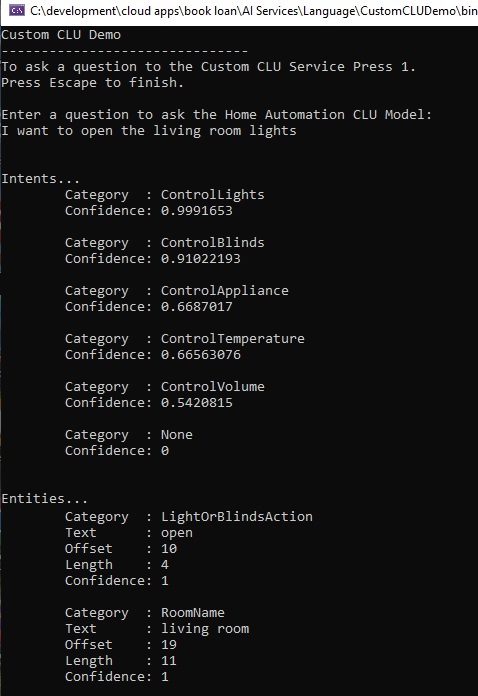
The top intent shown is ControlLights, and the detected entities are LightOrBlindsAction and RoomName.
ControlLights
I want to open the living room lights
LightOrBlindsAction
I want to open the living room lights
RoomName
I want to open the living room lights
Below is the second input utterance submitted for analysis:
Increase the air conditioner temperature
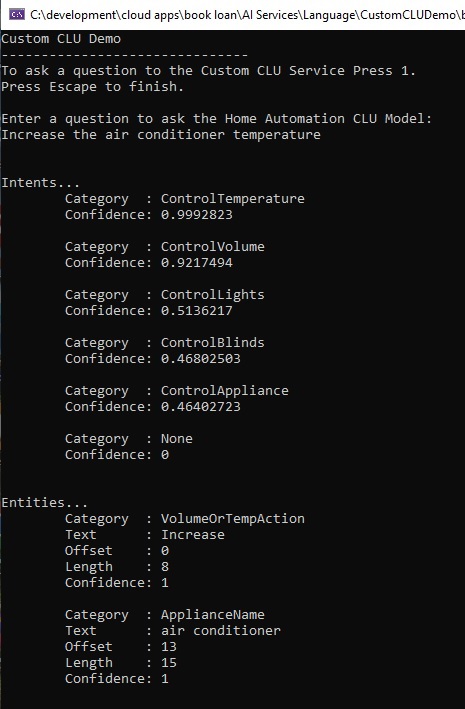
The top intent shown is ControlTemperature, and the detected entities are VolumeOrTempAction and ApplianceName.
ControlTemperature
Increase the air conditioner temperature
VolumeOrTempAction
Increase the air conditioner temperature
ApplianceName
Increase the air conditioner temperature
In this post, we have seen how to use the Azure AI Conversational SDK to connect to, then analyze prediction responses of input utterances. I will show how the same API method is used within a custom Azure Chat Bot service to analyze messages sent through the message API endpoint from a host Web application.
That is all for today’s post.
I hope that you have found this post useful and informative.

Andrew Halil is a blogger, author and software developer with expertise of many areas in the information technology industry including full-stack web and native cloud based development, test driven development and Devops.

