Welcome to today’s post.
In today’s post, I will be showing you how to use the Azure Document Search SDK to execute searches of documents that are stored in cloud storage and have been indexed by an instance of the Azure Search Service.
In a previous post I showed how to implement an indexed document search instance with the Azure Search Service within the Azure Portal. With the documents being indexed with the AI Search Service, they are ready to use the Azure Document Search SDK to perform intelligent searches on the indexed documents.
The most useful purpose behind using the Azure Document Search SDK is to allow us to implement client applications that can search for documents and output those search results in a user interface.
I will first cover the steps required to setup the environment to use the Azure Search libraries and to configure connectivity to the required Azure resources.
I will then show how to implement the steps required to execute search queries to the Azure Search Service resource and read the query responses.
Installation of Libraries and Configuration
Using the search SDK search requires us to install the necessary package libraries. The NuGet library that is required is the Azure.Search.Documents library package.
Next, we will need to copy the required Azure resource key and endpoint from the Search Service that we have already created from the Azure Portal.
The configuration key values that we require are:
- Search Service URI endpoint.
- Search Service API key.
- Search Index name.
The above configuration values can be stored in the appSettings.json file as shown:
{
    …
    "AllowedHosts": "*",
    "SearchServiceEndpoint": "[search-service-endpoint]",
    "SearchServiceQueryApiKey": "[search-service-api-key]",
    "SearchIndexName": "[search-index-name]"
}
Below is the code snip within the application SearchService class constructor that reads in the resource configuration values:
IConfigurationBuilder _builder = new
ConfigurationBuilder().AddJsonFile("appsettings.json");
IConfigurationRoot _configuration = _builder.Build();
SearchEndpoint = new Uri(_configuration["SearchServiceEndpoint"]);
QueryKey = _configuration["SearchServiceQueryApiKey"];
IndexName = _configuration["SearchIndexName"];
After reading in the configuration values, we will need to create a credentials instance with our search API key and create an instance of the search client with the endpoint, index name and credential instance. This is done below:
AzureKeyCredential credential = new AzureKeyCredential(QueryKey);
    SearchClient searchClient = new SearchClient(
    SearchEndpoint,
    IndexName,
    Credential
);
In the next section, I will show how we construct a service class that provides a method for dispatching queries to the Azure Document Search Service through input parameters.
Execution of Search Queries through a Search Service Class
The Azure.Document.Search library SDK has a method that allows us to execute document searches from the SearchClient SDK class. The definition is shown below:
SearchResults<T> results = searchClient.Search<T>(
    string searchText,
    SearchOptions options
);
Where:
T = type of class holding the search results.
SearchOptions = class instance containing the search options.
Each search option has the following properties:
bool IncludeTotalCount
SearchMode SearchMode
string Filter
string OrderBy
IList<string> Select
The Select property, which is a collection of type IList, which holds any fields to retrieve as part of the search results.
Only fields that have been added within the Search Service resource as part of the search index field definition should be included in the list. If a field name string is added that is not an added index field name, then an exception like the one below:
Microsoft.AspNetCore.Diagnostics.DeveloperExceptionPageMiddleware: Error: An unhandled exception has occurred while executing the request.
Azure.RequestFailedException: Invalid expression: Could not find a property named 'sentiment' on type 'search.document'.
Parameter name: $select
Status: 400 (Bad Request)
A useful method of the returned SearchResults class is GetResults(), which contains a type, SearchResult, which is a partial class within the Azure.Search.Document.Indexes.Models namespace and has the following useful properties: Document, Highlights, Score, and SemanticSearch, which are used for accessing the field values of the returned document, highlighted search terms, relevance score of the document, and semantic search result.
We will see in a later section how to use these within our search view to extract the additional outputs of the document search results.
The above call to the SDK Search() method is made within the QuerySearch() within the SearchService class as shown:
SearchService.cs
using CustomAISearch.Models;
using Azure;
using Azure.Search.Documents;
using Azure.Search.Documents.Models;

namespace CustomAISearch.Services
{
    public class SearchService
    {
        public Uri SearchEndpoint;
        public string QueryKey;
        public string IndexName;
        private readonly ILogger<SearchService> _logger;

        public SearchService(ILogger<SearchService> logger)
        {
            _logger = logger;
            IConfigurationBuilder _builder = new ConfigurationBuilder().AddJsonFile("appsettings.json");
            IConfigurationRoot _configuration = _builder.Build();
            SearchEndpoint = new Uri(_configuration["SearchServiceEndpoint"]);
            QueryKey = _configuration["SearchServiceQueryApiKey"];
            IndexName = _configuration["SearchIndexName"];
        }

        public SearchResults<SearchResult> QuerySearch(
            string searchText,
            string filterBy,
            string sortOrder)
        {
            // Search client
            AzureKeyCredential credential = new AzureKeyCredential(QueryKey);
            SearchClient searchClient = new SearchClient(SearchEndpoint, IndexName, credential);

            // Search query
            var options = new SearchOptions
            {
                IncludeTotalCount = true,
                SearchMode = SearchMode.All,
                Filter = filterBy,
                OrderBy = { sortOrder },
                HighlightFields = {
                    "locations",
                    "keyphrases",
                    "merged_content",
                    "imageTags",
                    "imageCaption"
                }
            };

            options.Select.Add("metadata_storage_name");
            options.Select.Add("metadata_storage_size");
            options.Select.Add("metadata_storage_last_modified");
            options.Select.Add("language");
            options.Select.Add("merged_content");
            options.Select.Add("keyphrases");
            options.Select.Add("locations");
            options.Select.Add("imageTags");
            options.Select.Add("imageCaption");

            SearchResults<SearchResult> results =
                searchClient.Search<SearchResult>(searchText, options);
            return results;
        }
    }
}
The SearchResult classfrom the typed class SearchResults<SearchResult> returned from the QuerySearch() method is a partial class from the Azure.Search.Document.Indexes.Models namespace.
The SearchResult class, which I discussed in the previous section has some additional members which are used for additional document rendering properties. The same class is extended with members for each of the metadata and cognitive skills properties in the definition below:
SearchResult.cs
using System;
using Azure.Search.Documents.Indexes;
using Azure.Search.Documents.Indexes.Models;

namespace CustomAISearch.Models
{
    public partial class SearchResult
    {
        [SearchableField(IsFilterable = true)]
        public string url { get; set; }

        [SearchableField()]
        public string merged_content { get; set; }

        [SearchableField(IsFilterable = true, IsSortable = true)]
        public string metadata_storage_name { get; set; }

        [SearchableField(IsFilterable = true, IsSortable = true, IsFacetable = true)]
        public string metadata_author { get; set; }

        [SearchableField(IsFilterable = true, IsSortable = true)]
        public int metadata_storage_size { get; set; }

        [SearchableField(IsFilterable = true, IsSortable = true)]
        public DateTime metadata_storage_last_modified { get; set; }

        [SimpleField(IsFilterable = true, IsSortable = true)]
        public string sentiment { get; set; }

        [SearchableField(IsFilterable = true)]
        public string language { get; set; }

        [SearchableField(IsFilterable = true)]
        public string[] locations { get; set; }

        [SearchableField()]
        public string[] keyphrases { get; set; }

        [SearchableField()]
        public string[] imageTags { get; set; }

        [SearchableField()]
        public string[] imageCaption { get; set; }
    }
}
Processing Search Parameters through a Controller
The input parameters searchText, filterBy, and sortOrder of the QuerySearch() method are derived within the search controller, where we use the following method:
public IActionResult Search(SearchModel searchModel)
The above method is used to read the submitted search, sort, and facet parameters from the query string submitted from the Search.cshtml view. We then construct the input parameter values for search terms, filter expressions, and sort order that are used in the call to the QuerySearch() method of our search service. The search controller is implemented below:
SearchController.cs
using Azure.Search.Documents.Models;
using Microsoft.AspNetCore.Mvc;
using Microsoft.AspNetCore.WebUtilities;
using CustomAISearch.Models;
using CustomAISearch.Services;

namespace CustomAISearch.Controllers
{
    public class SearchController : Controller
    {
        public string SearchTerms { get; set; } = "";
        public string SortOrder { get; set; } = "search.score()";
        public string FilterExpression { get; set; } = "";
        public SearchResults<SearchResult> search_results;

        private SearchService _searchService;

        public SearchController(SearchService searchService)
        {
            _searchService = searchService;
        }

        public IActionResult Search(SearchModel searchModel)
        {
            GetSearchResults();
            searchModel.search_results = search_results;
            return View(searchModel);
        }

        public void GetSearchResults()
        {
            if (Request.QueryString.HasValue)
            {
                var queryString = QueryHelpers.ParseQuery(Request.QueryString.ToString());
                SearchTerms = queryString["search"];

                if (queryString.Keys.Contains("sort"))
                {
                    SortOrder = queryString["sort"];
                }

                if (queryString.Keys.Contains("facet"))
                {
                    FilterExpression = "metadata_author eq '" + queryString["facet"] + "'";
                }
                else
                {
                    FilterExpression = "";
                }
                search_results = _searchService.QuerySearch(SearchTerms, FilterExpression, SortOrder);
            }
            else
            {
                SearchTerms = "";
            }
        }
    }
}
The search form view has a model, SearchModel that contains the search parameters: SearchTerms, SortOrder, FilterExpression and search_results, which is defined below:
SearchResultModel.cs
using Azure.Search.Documents.Models;

namespace CustomAISearch.Models
{
    public class SearchModel
    {
        public string SearchTerms { get; set; } = "";
        public string SortOrder { get; set; } = "search.score()";
        public string FilterExpression { get; set; } = "";
        public SearchResults<SearchResult> search_results;
    }
}
In the next section I will show how the query search view is implemented.
Web Form Interface for Search Query Requests
The search form is defined by the HTML view script displays the search fields:
SearchTerms, TotalCount and SortOrder
which are rendered below in the search view form:
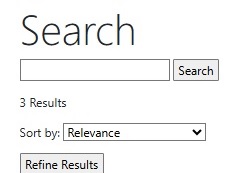
The above form then renders the results from the method GetResults() within the model property search_results in the results area.
The HTML script for the search view is shown below:
Search.cshtml
@model SearchModel

@{
    ViewData["Title"] = "National Parks Search";
}

<div>
    <h1 class="display-4">Search</h1>

    <form name="searchForm" method="get">
        <input name="search" type="text" value="@Model.SearchTerms"/>
        <input name="submit" type="submit" value="Search"/>
        <p>@Model.SearchTerms</p>
    </form>

        @using (Html.BeginForm("Search", "Search", FormMethod.Get))
        {
            <input name="search" type="hidden" value="@Model.SearchTerms"/>

            @if (Model != null)
            {
                @if (Model.search_results != null)
                {
                    // Show the result count.
                    <p>
                        @Html.DisplayFor(m => m.search_results.TotalCount) Results
                    </p>

                    if (Model.search_results.Facets != null)
                    {
                        // Create author filter options
                        List<string> authors = Model.search_results.Facets["metadata_author"].Select(x => x.Value.ToString()).ToList();
                        if (authors.Count > 0)
                        {
                            <p class="filterTitle">Filter by author:</p>
                                @for (var c = 0; c < authors.Count; c++)
                                {
                                    <div><input name="facet" value="@authors[c]" type="radio"> @authors[c] </div>
                                }
                        }
                    }

                    // Create sort list
                    <p class="sortList">Sort by: <select id="sort" name="sort">
                        <option value="search.score()" selected="@(Model.SortOrder == "search.score()")">Relevance</option>
                        <option value="metadata_storage_name asc" selected="@(Model.SortOrder == "metadata_storage_name asc")">File name</option>
                        <option value="metadata_storage_size desc" selected="@(Model.SortOrder == "metadata_storage_size desc")">Largest file size</option>
                        <option value="metadata_storage_last_modified desc" selected="@(Model.SortOrder == "metadata_storage_last_modified desc")">Most recently modified</option>
                    </select>
                    </p>
                    <input name="refine" type="submit" value="Refine Results" class="refineButton"></input>

                    // Display search results
                    @foreach (var result in Model.search_results.GetResults())
                    {
                        <div class="result">
                            <p class="resultLink"><a href="@result.Document.url" target="_blank">@result.Document.metadata_storage_name</a></p>
                            @if (result.Highlights != null){
                                @foreach (var highlight in result.Highlights)
                                {
                                    @foreach (var val in highlight.Value)
                                    {
                                    <div class='resultExtract'>@Html.Raw(val)</div>
                                    }
                                }
                            }
                            <ul class="resultAttributes">
                                <li>Author: @result.Document.metadata_author</li>
                                <li>Language: @result.Document.language</li>
                                <li>Size: @result.Document.metadata_storage_size bytes</li>
                                <li>Modified: @result.Document.metadata_storage_last_modified</li>
                                <li>Sentiment: @result.Document.sentiment</li>
                                 @if(result.Document.keyphrases !=  null){
                                <li>Key Phrases:</li>
                                    <ul class="resultAttributes">
                                        @foreach (var key_phrase in result.Document.keyphrases.Take(5))
                                        {
                                            <li>@key_phrase</li>
                                        }
                                    </ul>
                                 }
                                @if(result.Document.locations !=  null){
                                <li>Locations:</li>
                                        <ul class="resultAttributes">
                                        @foreach (var location in result.Document.locations.Take(5))
                                            {
                                                <li>@location</li>
                                            }
                                        </ul>
                                }
                                @if(result.Document.imageTags !=  null){
                                <li>Image Tags:</li>
                                    <ul class="resultAttributes">
                                        @foreach (var tag in result.Document.imageTags.Take(5))
                                        {
                                            <li>@tag</li>
                                        }
                                    </ul>
                                }
                            </ul>
                        <hr/>
                        </div>
                    }
                }
            }
        }
</div>
The HTML script for the landing page and a link to the search page is shown below:
Index.cshtml
@model IndexModel;

@{
    ViewData["Title"] = "Azure AI Search Demo";
}

<div class="text-center">
    <h1 class="display-4">Azure AI Search Demo</h1>
    <p>Welcome to the search site!</p>
</div>

<br />

<h2>Main Menu</h2>

<br />

<div>
    @Html.ActionLink("Search Parks", "Search", "Search", null, new { id="searchLink" })
</div>
The code to initialize, start the application, and add the search service class to the container collection is shown below:
Program.cs
using CustomAISearch.Services;

namespace CustomAISearch
{
    public class Program
    {
        public static void Main(string[] args)
        {
            var builder = WebApplication.CreateBuilder(args);

            builder.Services.AddTransient<SearchService, SearchService>();

            // Add services to the container.
            builder.Services.AddControllersWithViews();

            var app = builder.Build();

            // Configure the HTTP request pipeline.
            if (!app.Environment.IsDevelopment())
            {
                app.UseExceptionHandler("/Home/Error");
            }
            app.UseStaticFiles();

            app.UseRouting();

            app.UseAuthorization();

            app.MapControllerRoute(
                name: "default",
                pattern: "{controller=Home}/{action=Index}/{id?}");

            app.Run();
        }
    }
}
In the final section, I will show some sample query search executions.
Sample Search Submissions
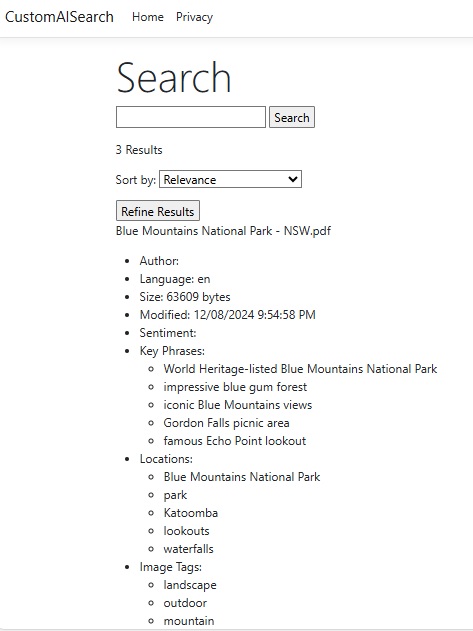
The first submission executed with the search was the wildcard and produced the following query result: output:
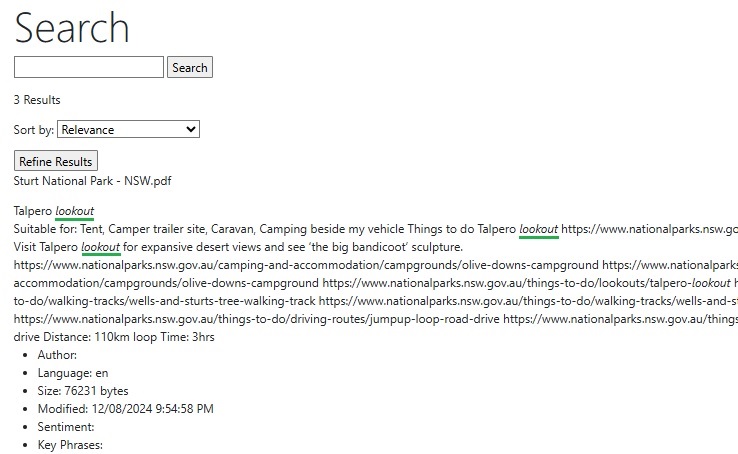
In the second query I specified the search term “lookout” and got the following results with the highlighted italic matching search terms (which I have underlined in green) from the key phrases and merged content:
We have seen how to use a client application to execute search queries on indexed PDF documents using the Azure Document Search SDK.
In a future post I will show how to use the Azure Search Service REST API to run search queries and maintain indexes, indexers and skillsets within an Azure search service.
That is all for today’s post.
I hope that you have found this post useful and informative.

Andrew Halil is a blogger, author and software developer with expertise of many areas in the information technology industry including full-stack web and native cloud based development, test driven development and Devops.