

Welcome to today’s post.
In today’s post will be showing you how to use the Azure AI Content Safety SDK library to analyze and assessment text content for safety.
Content safety is a feature that I explained and demonstrated in the Azure AI Studio within the previous post.
Two of the content safety features that I demonstrated were the:
- Content moderation
- Content protection
In the following sections I will be covering how we implement content moderation within a client application. I will start off with an overview of content safety. Later I will show how to install and set up content safety SDK libraries in Visual Studio, then write an application that demonstrates usage of content safety with some sample text content. I will then show how to interpret the results that are output from the content safety analyzer.
Overview of Content Safety
If you are to protect and keep system data safe so that users of your systems do not experience harm from viewing the content, then you will need to include a solution that can detect the severity levels of any of the known safety categories.
Due to the diverse and expansive quantity of content that exists, implementing a custom solution can be very challenging. A custom content safety detection algorithm with a high degree of accuracy needs to be trained with machine learning models to learn the many thousands and possibly millions of variations of unsafe content.
In the previous post, I showed how to use the Azure AI Content Safety Service within Azure AI Studio to determine unsafe severity levels of text content. Content that was detected to be highly unsafe by reaching a particularly high threshold was flagged as blocked. Content that reached a lower threshold was flagged as safe.
In this post I will show how to use the Azure AI Content Safety SDK within a client application to process text content and return a response that determines the severity of each of the following safety categories:
Hate
Self-harm
Sexual
Violence
If the content is determined to match any of the above safety categories and returns any unsafe severity levels, then the content could be flagged as breaching multiple safety categories.
Text content moderation safety is a feature that can be used in many real-world applications.
These can include:
- Web site blog post moderation.
- Educational content moderation.
- Chat site conversation moderation.
- Content generation moderation.
The content safety library can be used within a web application, which is configured from the web server configuration, which connects to, and accesses the Azure AI Content Safety resource.
Alternatively, creating a web API service that is configured with the Azure AI Content Safety resource, takes input content, then returns a response back to a configured web client application.
There are many ways in which to implement an application solution for content safety. In this post, I will focus on the simplest approach, which can then be expanded into an alternative, more complex architecture.
As I mentioned in my previous post, there are always going to be a case or two in every batch of a thousand presented cases where the content is misclassified as safe or unsafe, and this is always going to be the case with AI machine learning models, where the quality of annotated training datasets is critical. Where there are small exceptions like these, it does help to have a human moderator on hand to override the decision of the machine learning model and either pass or reject the decision. The decision to use fallback moderators is something that depends on the relative risk to the business using the AI content safety moderation tool in an unattended mode.
Setup and Configuration of the Azure Content Safety SDK Library
In this section, I will show how to install the NuGet library to access the Azure Content Safety SDK.
To install the Azure Content Safety NuGet package, install the following NuGet package from the package manager within Visual Studio:
Azure.AI.ContentSafety
The NuGet package is published by Microsoft and the package description is shown below:

To be able to access the Content Safety SDK libraries, we will need to declare the following namespaces in our program as shown:
Azure
Azure.AI.ContentSafety
After installing the NuGet package, we will need to configure a connection to the Azure AI Content Safety SDK. The connection requires the following parameters:
Endpoint
Key
Where:
The Endpoint is the URL of the Azure OpenAI Service resource. It is of the form:
https://[content-safety-service-name].cognitiveservices.azure.com/
The Access Key is one of the access keys within the Azure AI Content Safety Service resource.
To use the above parameters that are required to connect to the Azure AI resource from our source, we will need to either have them stored securely within Azure Key Vault or in environment variables. In this case, I am storing them in environment variables that are accessible from the program as shown:
using Azure;
using Azure.AI.ContentSafety;

namespace TextContentSafetyDemo
{
    internal class Program
    {
        static string? endpoint = Environment.GetEnvironmentVariable("CONTENTSAFETY_ENDPOINT");
        static string? key = Environment.GetEnvironmentVariable("CONTENTSAFETY_KEY");
        …
In our main block, we set a connection to the Azure Content Safety client by using the endpoint and key as shown:
// Get Content Safety client
ContentSafetyClient client = new ContentSafetyClient(
    new Uri(endpoint),
    new AzureKeyCredential(key)
);
The ContentSafetyClient object will then be used to run content analysis on the input text content.
Analyzing Text Content with the Azure Content Safety SDK
In this section, I will show how to use the Azure Content Safety SDK to analyze content.
To be able to analyze content with the Azure Content Safety SDK, we can use the AnalyzeText() method, which is a member of the ContentSafetyClient class.
The AnalyzeText() method is declared as shown:
Response<AnalyzeTextResult> AnalyzeText(AnalyzeTextOptions request);
Where:
AnalyzeTextResult is the response structure returned from the content analysis.
AnalyzeTextOptions is a class created that contains the content input.
A typical request is then structured as shown:
var request = new AnalyzeTextOptions(textContent);

Response<AnalyzeTextResult> response;
try
{
    response = client.AnalyzeText(request);
}
catch (RequestFailedException ex)
{
    … deal with the error …
}
The Value property of the response object Response<AnalyzeTextResult> contains an array of structures that are of type:
Azure.AI.ContentSafety.TextCategoriesAnalysis
Where each of the above types has the following properties:
Category
Severity
The Category property is a public static type TextCategory with the following members:
Hate
Violence
SelfHarm
Sexual
The Severity property is an integer, which can be either the following set of values for less severe content:
0,2,4,6
or the following set of values for more severe content:
0,1,2,3,4,5,6,7
Application Implementation for Content Safety Checking
Our basic application consists of a console input and output, and consists of three main modules, the main menu starting code block, a method for soliciting text content input from the user, and a method that processes the content safety analysis requests from the text input.
Below is the main starting code block, which either takes us to the user prompt and content analysis or allows us to escape from the application.
static void Main(string[] args)
{
    bool isFinished = false;

    while (!isFinished)
    {
        ConsoleKeyInfo consoleKeyInfo;

        Console.WriteLine("Content Safety Menu");
        Console.WriteLine("------------------");
        Console.WriteLine();
        Console.WriteLine("Press C to submit text content for assessment.");
        Console.WriteLine("Press Escape to finish.");
        Console.WriteLine();

        consoleKeyInfo = Console.ReadKey(true);
        if (consoleKeyInfo.Key == ConsoleKey.Escape)
        {
            Console.WriteLine("Escape Key Pressed.");
            isFinished = true;
        }
        if (consoleKeyInfo.Key == ConsoleKey.C)
        {
            PromptUserForContent();
        }
    }
}
The main code block then calls the custom method PromptUserForContent(), which executes the following four tasks:
- Initiates a connection to the content safety client object, ContentSafetyClient.
- Requests input from the user, and builds up the text into an input string, userMessage.
- Calls the method, RunAnalyzeTextContent(), passing in the client object and input string.
- Continue running the loop to request new input until the user presses the escape key.
The PromptUserForContent() method is shown below:
/// <summary>
/// PromptUserForContent()
/// </summary>
static void PromptUserForContent()
{
    ContentSafetyClient client = new ContentSafetyClient(
        new Uri(endpoint), new AzureKeyCredential(key)
    );

    string? userMessage = String.Empty, messageLine = String.Empty;

    ConsoleKeyInfo consoleKeyInfo;
    bool isFinished = false;

    while (!isFinished)
    {
        userMessage = String.Empty;

        Console.WriteLine("Enter text content to submit for Content Safety assessment:");
        bool finishedInput = false;
        while (!finishedInput)
        {
            messageLine = Console.ReadLine();
            if (messageLine != null)
                userMessage = userMessage + messageLine + Environment.NewLine;
            finishedInput = (messageLine == null || messageLine.Length == 0);
        }

        if (userMessage == String.Empty || userMessage?.Length == 0)
        {
            Console.WriteLine("Please specify a valid content text.");
            return;
        }

        RunAnalyzeTextContent(client, userMessage);

        Console.WriteLine();
        Console.WriteLine("Press Y to submit new text content for assessment. Escape to finish.");
        consoleKeyInfo = Console.ReadKey(true);
        if (consoleKeyInfo.Key == ConsoleKey.Escape)
        {
            Console.WriteLine("Escape Key Pressed.");
            isFinished = true;
        }
    }
}
The method RunAnalyzeTextContent() that executes calls to the content analysis sets up the parameters as discussed in the previous section.
It returns output that consists of the values in the CategoriesAnalysis property of the response object. When the response object is successfully returned, the Status property of the client object is set to 200 (OK):
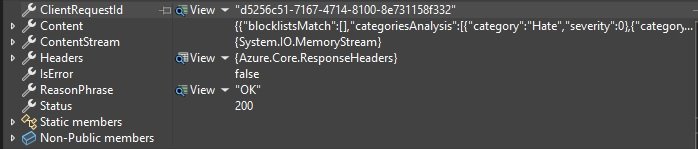
Each of the four output values from each safety category consists of the severity value.
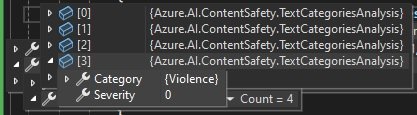
Below is a snapshot of the CategoriesAnalysis property populated for each of the safety categories:

The method is shown below:
private static void RunAnalyzeTextContent(
    ContentSafetyClient client,
    string? textContent
)
{
    var request = new AnalyzeTextOptions(textContent);

    Response<AnalyzeTextResult> response;
    try
    {
        response = client.AnalyzeText(request);
    }
    catch (RequestFailedException ex)
    {
        Console.WriteLine("Analyze text failed.\nStatus code: {0}, Error code: {1}, Error message: {2}", ex.Status, ex.ErrorCode, ex.Message);
        throw;
    }

    Console.WriteLine();
    Console.WriteLine("Text analysis succeeded:");

    Console.WriteLine("Hate severity: {0}",
    response.Value.CategoriesAnalysis.FirstOrDefault(a =>
            a.Category == TextCategory.Hate)?.Severity ?? 0);

    Console.WriteLine("Self harm severity: {0}",
        response.Value.CategoriesAnalysis.FirstOrDefault(a =>
            a.Category == TextCategory.SelfHarm)?.Severity ?? 0);

    Console.WriteLine("Sexual severity: {0}",
        response.Value.CategoriesAnalysis.FirstOrDefault(a =>
            a.Category == TextCategory.Sexual)?.Severity ?? 0);

    Console.WriteLine("Violence severity: {0}",
        response.Value.CategoriesAnalysis.FirstOrDefault(a =>
        a.Category == TextCategory.Violence)?.Severity ?? 0);
}
In the next section I will show some sample outputs for two sample text inputs.
Application Output for Content Safety Checking
In this section, I will go through the outputs we receive for some sample inputs and how to interpret them.
The first input sent to the content safety analyzer is shown below:
Daily walking is a regular exercise which improves your cardiovascular health, metabolism, lowers cholesterol, and improves mental health.
The above content looks quite safe, or is it?
Let’s see…
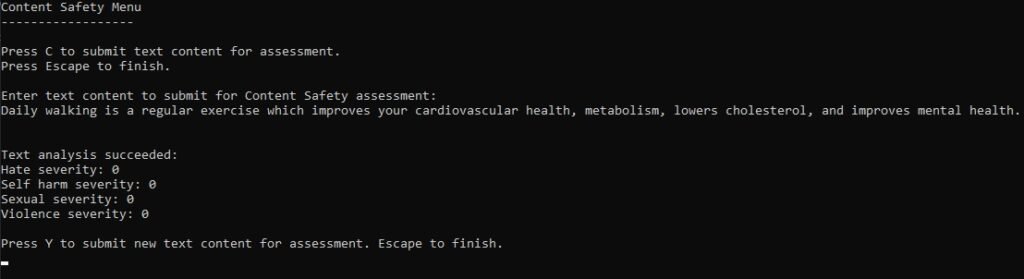
The output is shown below:
Hate severity: 0
Self harm severity: 0
Sexual severity: 0
Violence severity: 0
Each of the categories is given a severity score of zero, which is considered the safest level. Exercise is physical, but not violent, with a score of zero:
The second input sent to the content safety analyzer is shown below:
The assailant who was apprehended inflicted a gunshot wound to the victim causing excessive blood loss to the leg, requiring immediate medical attention.
The above content doesn’t look as safe as the first input. It has references to gunshots, blood, an assailant.
Let’s see what the output looks like…
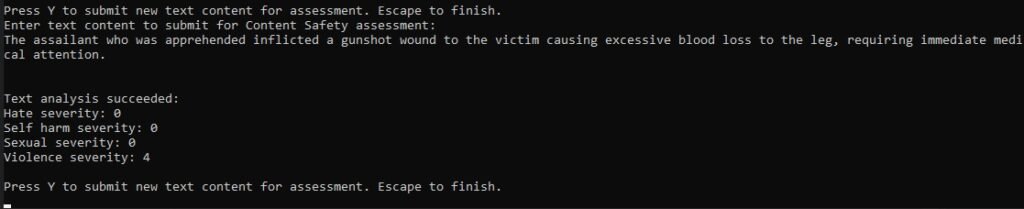
We can see the output is different. The text output is shown below:
Hate severity: 0
Self harm severity: 0
Sexual severity: 0
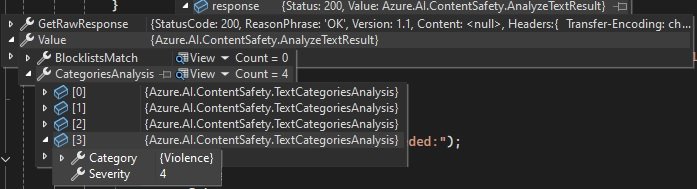
Violence severity: 4
We can see the highest severity score is confined to the Violence safety category, as shown in the debug watch:
We have seen how to install, set up, and utilize the Azure AI Content Safety SDK for use in a client console application to determine the safety of sample text inputs.
That is all for today’s post.
I hope that you have found this post useful and informative.

Andrew Halil is a blogger, author and software developer with expertise of many areas in the information technology industry including full-stack web and native cloud based development, test driven development and Devops.