

Welcome to today’s post.
In today’s post I will be showing you how to use Azure Cognitive Services to translate text from one language to another.
The Azure resource that is used to perform translation of text from one language to another is the Azure AI Translation Service.
The language translation service is a useful feature within Azure Cognitive Services as it is used within different use-case scenarios.
In a previous post, where I showed how we use Azure AI Speech Services to convert audio speech into text, there are options to convert the speech into a language that is different from the default English destination language. This conversion occurs are the end of the conversion process, after the audio is accurately transcribed into the destination language(s). The ability to translate from a source language in audio into multiple languages as text content is also available in the Azure AI text to text language translation service.
Another service where you might think language translation is used is in sentiment analysis. In a previous post, I showed how to use Azure AI Language services to assess sentiment or feeling within a sentence. Sentiment analysis is available in a limited set of languages and does not use translation to convert a sentence into a base language, then determine its meaning before translating the sentiment back to the source language. It uses a combination of natural language processing (NLP) algorithms and machine learning models to determine sentiment in one of the available languages.
Explaining the Azure AI Text Translation Service
The Azure AI Text Translation Service is an SDK library that is available as a C# client library and a REST API.
The core feature of the service is to allow the translation of text between a source language to a destination language.
In addition, there is the capability to translate text between a source language into multiple destination languages.
Another feature of the text translation service is transliteration, which allows for the translation of non-alphabetic language script that is in non-Latin text into a phonetic form that is readable by English language readers, with a preservation of the original meaning. I will not be covering transliteration in this post.
The Microsoft Azure Translator service is an AI Service that can be created from the Azure Portal or from the Azure CLI.
The service allows for the translation of text between more than 60 languages.
Among some useful features of the language translation services include:
- Wide range of source languages.
- Wide range of destination languages.
- Translation to multiple destination languages.
- Transliteration from scripted languages to phonic text.
- Profanity actions including marking, deletion.
- Fallback to a pivot language.
In the next section, I will show how to create an instance of the translator service in the Azure Portal and test out the service with a sample translation.
Creation of an Azure AI Text Translation Service
In this section, I will show how to create an instance of the Azure AI Text Translation Service, then show the essential properties of the service that we will require later. I will then run a sample translation.
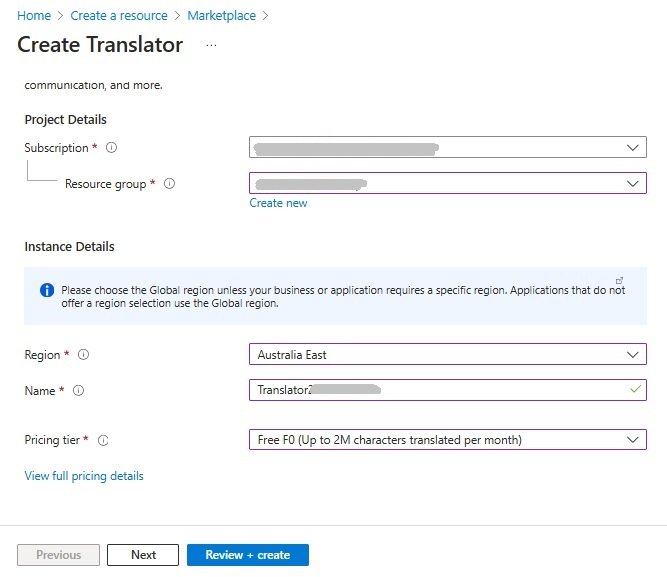
In the Marketplace, after searching “translator”, and selecting the Azure Translator service tile, then the Create action, you will see the first parameter screen, where you will be required to enter the subscription, resource group, instance region, instance name, and pricing tier.
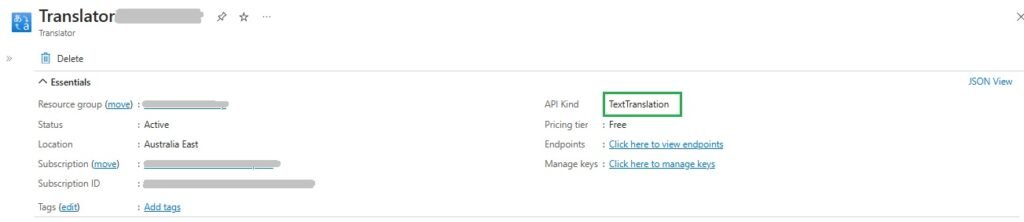
After the instance is created, the resource overview will show the instance API Kind as TextTranslation.
There are also endpoints that are available for connection to the service. When you view the endpoints, you will notice that there are two endpoints.
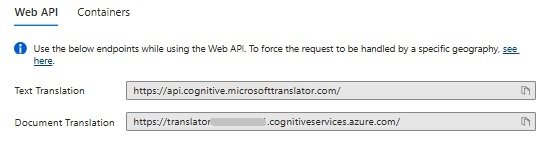
Initially, this is confusing, however, an explanation of the difference between the global endpoint and the custom endpoint of version 3.0 of the translator API is explained in the Azure AI Services reference.
The global endpoint URI for text translation is of the form:
https://api.cognitive.microsofttranslator.com/translate?api-version=3.0&to=es
The custom endpoint URI for document translation is of the form:
https://<your-resource-name>. cognitiveservices.azure.com/translator/text/v3.0/translate?api-version=3.0&to=es
Access to the Translator resource is authenticated through of one of the pair of access keys that are available.
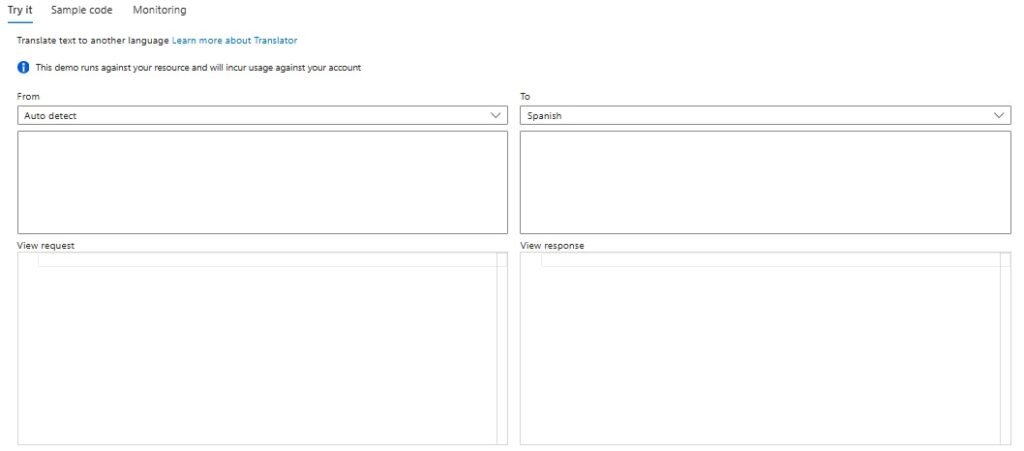
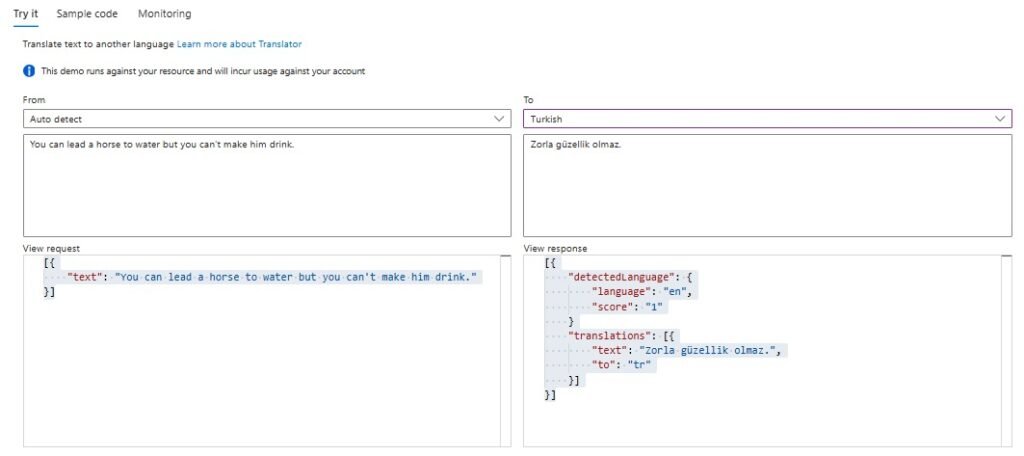
In the overview, below the header section you will see a tester form where you can attempt some sample translations from one language to another. Alternatively, you can select the option Auto detect to detect the language you are submitting:
Below is the response after submitting the English language sentence:
You can lead a horse to water but you can’t make him drink.
In the next section I will show how to use the Azure AI language translation service from within a client application.
Using the Azure AI Text Translation SDK in a Client Application
In this section, I will show how to use the translator service from within a C# client application. I will go through the steps on installation of the SDK, to library initialization, connection to the resource endpoint, and then execute sample translations though user inputs.
Installation of the Azure AI text translation SDK is through installation of the NuGet library Azure.AI.Translation.Text.

Connection to the Translator resource from our client application requires us to specify the endpoint and one of the resource access keys. To connect to the Azure AI Text Translation service endpoint requires us to use the custom endpoint.
If we were to attempt to use the global endpoint, you would get the following application error following an attempt to connect to the resource:
Azure.RequestFailedException: 'Service request failed.
Status: 401 (Unauthorized)

Headers:
Date: [date and time details]
Transfer-Encoding: chunked
Connection: keep-alive
Access-Control-Expose-Headers: REDACTED
x-requestid: [a GUID identifier]
X-Content-Type-Options: REDACTED
x-envoy-upstream-service-time: REDACTED
Strict-Transport-Security: REDACTED
Before we can use the SDK for library connectivity and method executions, we will need to specify the namespace:
Azure.AI.Translation.Text
To be able to obtain the Azure key credentials using the endpoint key will require specifying the namespace:
Azure
Below is the first part of the application with the main block and a variable initialization method InitializeVariables() for the endpoint and key, with the variable initializations called from within the main() block:
using System.Net;
using System.Transactions;
using Azure;
using Azure.AI.Translation.Text;

namespace TextTranslationDemo
{
    internal class Program
    {
        static string textTranslationEndpoint = String.Empty;
        static string textTranslationKey = String.Empty;

        private static void InitializeVariables()
        {
            textTranslationEndpoint = Environment.GetEnvironmentVariable("TEXT_TRANSLATION_ENDPOINT");
            textTranslationKey = Environment.GetEnvironmentVariable("TEXT_TRANSLATION_KEY");
        }

        static void Main(string[] args)
        {
            InitializeVariables();
            …
        }
    }
    …
}
The main() method starts with a menu, then executes a method, PromptUserForContent() that requests the translation inputs from the user:
static void Main(string[] args)
{
    InitializeVariables();

    bool isFinished = false;

    while (!isFinished)
    {
        ConsoleKeyInfo consoleKeyInfo;

        Console.WriteLine("Text Translation Menu");
        Console.WriteLine("---------------------");
        Console.WriteLine();
        Console.WriteLine("Press T to submit text content for translation.");
        Console.WriteLine("Press Escape to finish.");
        Console.WriteLine();

        consoleKeyInfo = Console.ReadKey(true);
        if (consoleKeyInfo.Key == ConsoleKey.Escape)
        {
            Console.WriteLine("Escape Key Pressed.");
            isFinished = true;
        }
        if (consoleKeyInfo.Key == ConsoleKey.T)
        {
            Task translateTask = PromptUserForContent();
            Task.WaitAll(translateTask);
        }
    }
}
The PromptUserForContent() method initializes the key credential with the access key, then connects to the translation service with the credential and endpoint.
The user inputs the language codes that will be used for the destination language translations. Each language code is then appended to the list, targetLanguageList().
The user inputs text content source to be translated, which is then stored in the userMessage string, then white-space is then trimmed off the end and stored in variable sanitizedUserMessage.
In the next section, I will show how the translation to a single destination language works.
Translation to a Single Destination Language
Depending on the number of target language codes entered, one of two methods RunTextTranslation() or RunTextTranslationMulti() are called. When a single target language code is specified, the following method is called:
RunTextTranslation(
    TextTranslationClient client,
    string targetLanguage,
    string contentString
);
When the number of target language codes entered is more than one, the following method is called:
RunTextTranslationMulti(
    TextTranslationClient client,
    List<string> targetLanguageList,
    string sanitizedUserMessage!
);
The PromptUserForContent() method is shown below:
/// <summary>
/// PromptUserForContent()
/// </summary>
static async Task PromptUserForContent()
{
    Uri endpoint = new(textTranslationEndpoint);
    AzureKeyCredential credential = new(textTranslationKey);
    TextTranslationClient client = new(credential, endpoint);

    string? userMessage = String.Empty, messageLine = String.Empty, targetLanguage = String.Empty;
    List<string> targetLanguageList = new List<string>();

    ConsoleKeyInfo consoleKeyInfo;
    bool isFinished = false;

    while (!isFinished)
    {
        userMessage = String.Empty;
        targetLanguage = String.Empty;
        targetLanguageList.Clear();

        Console.WriteLine("Enter one or more target language 2 letter codes");
        Console.WriteLine("Examples: en(English), (fr)French, (de)German, (ja)Japanese, (es)Spanish, (tr)Turkish");

        bool finishedLanguageInput = false;
        while (!finishedLanguageInput)
        {
            Console.WriteLine("Enter a target language:");
            targetLanguage = Console.ReadLine();
            if (!String.IsNullOrEmpty(targetLanguage))
                targetLanguageList.Add(targetLanguage.Trim());
            finishedLanguageInput = (targetLanguage == null || targetLanguage.Length == 0);
        }

        Console.WriteLine();

        if (targetLanguageList.Count() == 0)
        {
            Console.WriteLine("Please specify one or more valid target languages.");
            return;
        }

        Console.WriteLine("Enter text content to submit for translation:");
        bool finishedInput = false;
        while (!finishedInput)
        {
            messageLine = Console.ReadLine();
            if (messageLine != null)
                userMessage = userMessage + messageLine + Environment.NewLine;
            finishedInput = (messageLine == null || messageLine.Length == 0);
        }

        string sanitizedUserMessage = userMessage!.TrimEnd(new char[] { '\r', '\n' });

        if (sanitizedUserMessage == String.Empty || sanitizedUserMessage?.Length == 0)
        {
            Console.WriteLine("Please specify valid content text.");
            return;
        }

        if (targetLanguageList.Count() == 1)
            await RunTextTranslation(client, targetLanguageList.First().ToString(), sanitizedUserMessage!);
        else
            await RunTextTranslationMulti(client, targetLanguageList, sanitizedUserMessage!);

        Console.WriteLine();
        Console.WriteLine("Press Y to submit new text content for translation. Escape to finish.");
        consoleKeyInfo = Console.ReadKey(true);
        if (consoleKeyInfo.Key == ConsoleKey.Escape)
        {
            Console.WriteLine("Escape Key Pressed.");
            isFinished = true;
        }
    }
}
The method for executing translation from a source language to a single destination language is shown below:
/// <summary>
/// RunTextTranslation()
/// </summary>
/// <param name="client"></param>
/// <param name="targetLanguage"></param>
/// <param name="text"></param>
private static async Task RunTextTranslation(TextTranslationClient client,
string targetLanguage, string text)
{
     Console.WriteLine();

    try
    {
        Response<IReadOnlyList<TranslatedTextItem>> response =
            await client.TranslateAsync(targetLanguage, text).ConfigureAwait(false);

        IReadOnlyList<TranslatedTextItem> translatedTextItems = response.Value;

        TranslatedTextItem translatedText = translatedTextItems[0];

        string sourceLanguage = translatedText.DetectedLanguage.Language;
        Console.WriteLine($"'{text}' translated from {sourceLanguage} to {translatedText.Translations[0].TargetLanguage} as '{translatedText.Translations[0].Text}'.");
    }
    catch (RequestFailedException exception)
    {
        Console.WriteLine($"Error Code: {exception.ErrorCode}");
        Console.WriteLine($"Message: {exception.Message}");
    }
}
Single language text translations make use of the TranslateAsync() method of the TextTranslationClient SDK class. Below is the method definition including its return type:
Task<Response<IReadOnlyList<TranslatedTextItem>>>
    TranslateAsync(string targetLanguage, string text);
Below is a sample submission text to a single destination language:
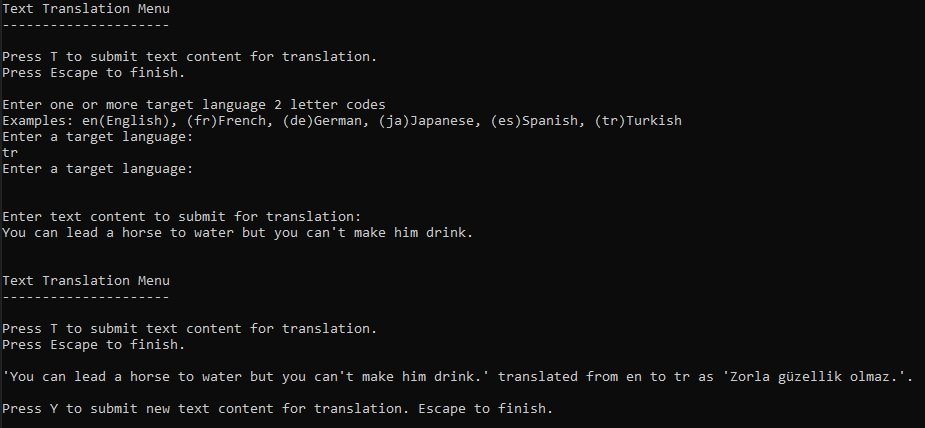
The source text submitted was:
You can lead a horse to water but you can’t make him drink.
With the target language being tr (Turkish).
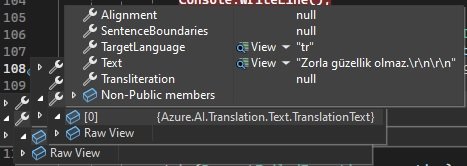
A sample of the response object variable, response is shown below:
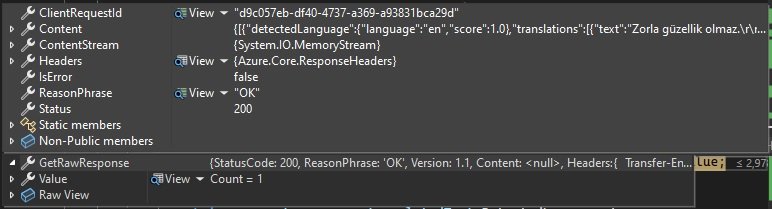
The value returned from the response (response.Value) is of type TranslatedTextItem (in namespace Azure.AI.Translation.Text) with the following properties:
DetectedLanguage
SourceText
Translations
Where:
DetectedLanguage is the source language and is of type Azure.AI.Translation.Text.DetectedLanguage.
SourceText is the text of the sentence to translate.
Translations is a collection of translations in the destination language and is of type Azure.AI.Translation.Text.TranslationText.

The Azure.AI.Translation.Text.DetectedLanguage type has the following properties:
Confidence
Language
Where:
Confidence is a floating-point number between 0 and 1 that indicates the level of confidence in the detection of the source language.
Language is the two character language code of the detected source language.

The Azure.AI.Translation.Text.TranslationText type has the following properties:
Alignment
SentenceBoundaries
TargetLanguage
Text
Transliteration
Where:
TargetLanguage is the two character code of the target language.
Text is the string of the translation text in the destination language.
Transliteration is the transliteration of the source text into phonetic form.
In the next section, I will show how the translation to a multiple destination language works.
Translation to a Multiple Destination Languages
The method for executing translation from a source language to multiple destination languages is shown below:
/// <summary>
/// RunTextTranslationMulti()
/// </summary>
/// <param name="client"></param>
/// <param name="targetLanguageList"></param>
/// <param name="text"></param>
private static async Task RunTextTranslationMulti(TextTranslationClient client,
    List<string> targetLanguageList, string text)
{
    try
    {
        Console.WriteLine();

        List<string> contentList = new List<string>() { text };

        TextTranslationTranslateOptions translateOptions =
            new TextTranslationTranslateOptions(
                targetLanguageList, contentList
            );

        Response<IReadOnlyList<TranslatedTextItem>> response =
            await client.TranslateAsync(translateOptions)
            .ConfigureAwait(false);

        IReadOnlyList<TranslatedTextItem> translatedTextItems = response.Value;

        // Loop through translated text items.
        foreach (TranslatedTextItem translatedText in translatedTextItems)
        {
            string sourceLanguage = translatedText.DetectedLanguage.Language;

            // Loop through each language translation and output each source language,
            // target language, and the text translation.
            foreach (TranslationText translation in translatedText.Translations)
            {
                Console.WriteLine($"'{text}' translated from {sourceLanguage} to {translation.TargetLanguage} as '{translation.Text}'.");
            }
        }
    }
    catch (RequestFailedException exception)
    {
        Console.WriteLine($"Error Code: {exception.ErrorCode}");
        Console.WriteLine($"Message: {exception.Message}");
    }
}
Multiple language text translations make use of an overloaded form of the TranslateAsync() method of the TextTranslationClient SDK class. Below is the method definition including its return type:
Task<Response<IReadOnlyList<TranslatedTextItem>>>
    TranslateAsync(TextTranslationTranslateOptions translateOptions);
Where:
TextTranslationTranslateOptions is a structure class with the following properties:
TargetLanguages is a list of the two-character language codes of target languages.
Content is a list of the source content to be translated.
SourceLanguage is the two-character language code of the source language.
TextType is the text type: plain or html.
Category is the category or domain of the translation. Default is general.
ProfanityAction is an enumerated type on dealing with profanities in the translation. Possible values are NoAction, Marked, or Deleted.
ProfanityMarker is the marker for profanities in the translation. Possible values are Asterix or Tag.
AllowFallback is for dealing with custom translation systems.
Below is the created instance of the translation options with the target language list and content specified in the constructor:
TextTranslationTranslateOptions translateOptions =
    new TextTranslationTranslateOptions(
        targetLanguageList, contentList
    );
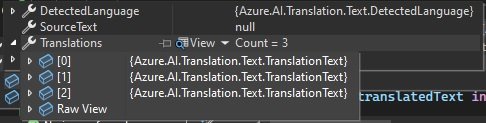
The return object from the response is identical in structure as for single destination languages. The only difference is the number of translations populated within the Translations (of type Azure.AI.Translation.Text.TranslationText) property of the Azure.AI.Translation.Text.TranslatedTextItem object.
Below is a sample submission text to multiple destination languages:
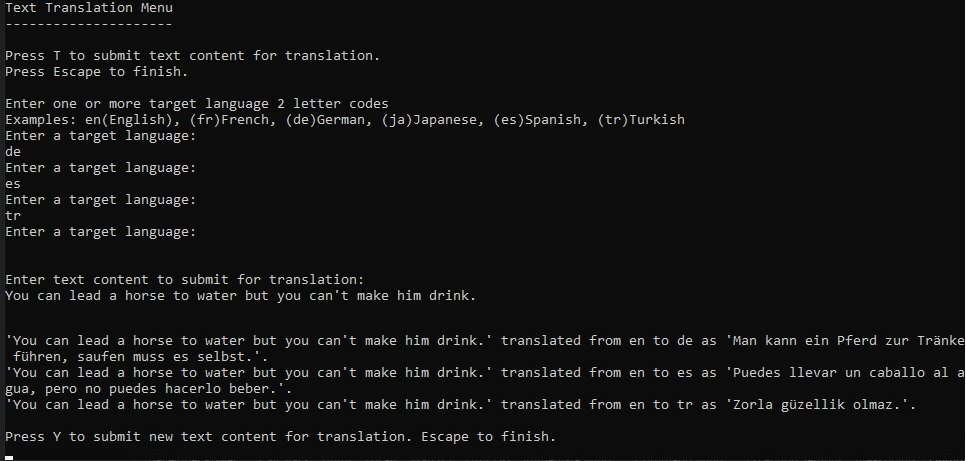
The source text submitted was:
You can lead a horse to water but you can’t make him drink.
With the target languages being de (German), es (Spanish), and tr (Turkish).
In this case, there are three translations:
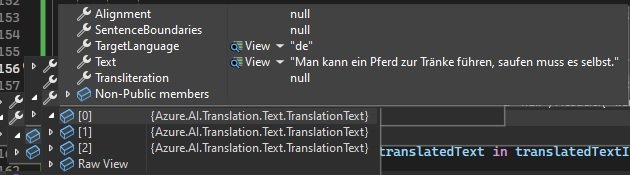
Below, you can see the translation text for one of the three translations:
We have seen from the above overview, how to provision resources, install, configure, connect to, then run language translations for single and multiple destination languages using the Azure AI Translation Service within a C# client application.
That is all for today’s post.
I hope that you have found this post useful and informative.

Andrew Halil is a blogger, author and software developer with expertise of many areas in the information technology industry including full-stack web and native cloud based development, test driven development and Devops.