

Welcome to today’s post.
In today’s post, I will be explaining how the search for indexed documents can be improved with Azure AI Cognitive Skills.
In a previous post, I showed how to create an indexed search solution using the Azure Search Service within the Azure Portal, which also utilized useful pre-built cognitive skills within the Azure AI Service during the index creation process.
One aspect I did not cover in any depth was what the cognitive skills are, how they are used, what the outputs are, and how we can extend a search to include additional cognitive skills.
In the first section, I will explain what AI enrichment is in the document indexing process and how it relates to the types of content we are indexing.
AI Enrichment in the Document Indexing Process
The process of search improvement using cognitive skills is known as AI enrichment. What this means is that when indexes are populated, the content is loaded with the searchable raw content, then loaded with content which is not searchable.
The most common types of raw content that we may want to make searchable within documents through enrichment are images and unstructured free text.
By analyzing the raw content, the Azure AI service can infer structure from the raw content and extract key terms that can be output into an indexed document, which is structured and easier to search.
The prebuilt cognitive skills that are available within Azure AI services are applied in different ways to transform the raw content to structured, indexed, searchable outputs.
The different types of pre-built skills that are available within Azure AI services include:
- Language detection.
- Language translation.
- Document sentiment.
- Entity recognition.
- Key phrase extraction.
- Text character recognition within images using OCR.
- Image analysis to produce text descriptions, captions and tags.
In the next section, I will explain how the Document Indexing Process works within the Azure Search Service.
Explaining the Document Indexing Process with the Azure Search Service
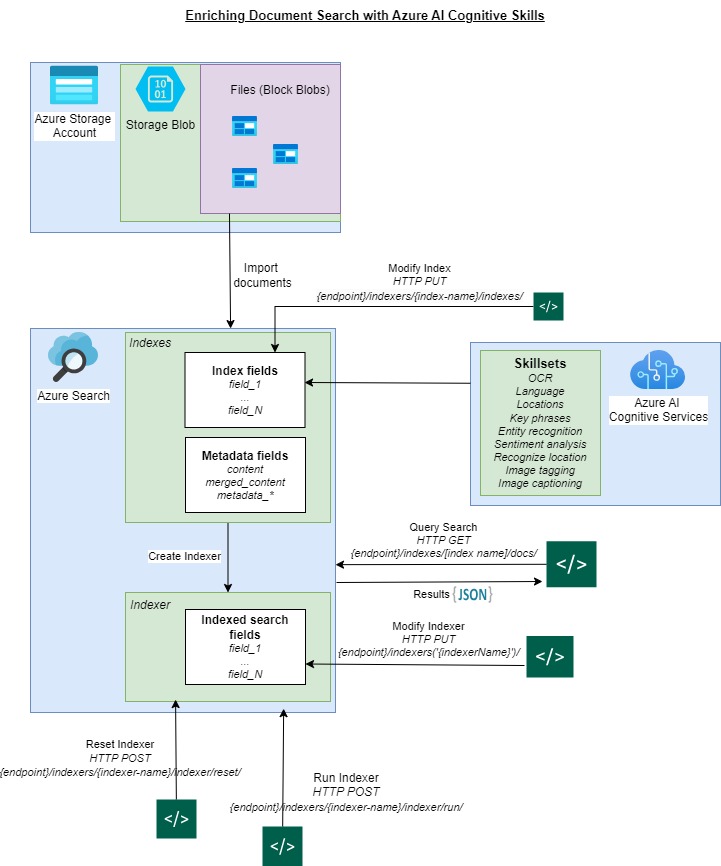
The steps in the document indexing process are:
- Document cracking. The indexer cracks the document by extracting any images and text data.
- Cognitive skills application. Each skill that is defined in the skillset definition is then applied to the appropriate piece of extracted document data.
Images are processed by image analysis skills.
Text is processed by natural language processing skills.
- Source Field Index mapping. Document source fields are mapped to search indexes.
- Output Field Index mapping. Enriched document paths mapped to search indexes.
- Indexer mapping. Map outputs of enriched content to search indexes.
- Indexing process. Both raw and enriched content is ingested into search index structures.
An overview of the process is diagrammed below:
I will give an overview of Cognitive Skillsets in the next section.
Overview of Cognitive Skillsets
The cognitive skillsets available include:
Language Detection, Text Translation, Sentiment Analysis, Image Analysis, Key Phrase Extraction, Entity Recognition, and OCR.
Each cognitive skill requires an OData type to define skillsets. They are shown in the table below:
| Cognitive Skill | OData Type |
| Language Detection | Microsoft.Skills.Text.LanguageDetectionSkill |
| Text Translation | Microsoft.Skills.Text.TranslationSkill |
| Sentiment Analysis | Microsoft.Skills.Text.V3.SentimentSkill |
| Image Analysis | Microsoft.Skills.Vision.ImageAnalysisSkill |
| Key Phrase Extraction | Microsoft.Skills.Text.KeyPhraseExtractionSkill |
| Entity Recognition | Microsoft.Skills.Text.V3.EntityRecognitionSkill |
| OCR | Microsoft.Skills.Vision.OcrSkill |
Some of the cognitive skills are explained below with examples:
Language Detection (Microsoft.Skills.Text.LanguageDetectionSkill)
With language detection, input text is processed with the result being the language of the input text.
An example language detection skillset JSON definition is shown below:
Skillset.json
{
      "@odata.type": "#Microsoft.Skills.Text.LanguageDetectionSkill",
      "name": "#3",
      "description": null,
      "context": "/document",
      "defaultCountryHint": null,
      "modelVersion": null,
      "inputs": [
        {
          "name": "text",
          "source": "/document/merged_content"
        }
      ],
      "outputs": [
        {
          "name": "languageCode",
          "targetName": "language"
        }
      ]
},
The indexer JSON definition showing the output field mappings from source to target field is shown below:
Indexer.json
"outputFieldMappings": [
    …
   {
      "sourceFieldName": "/document/language",
      "targetFieldName": "language"
    },
Below is an example output of the language field from the search result and the merged_content field, which was the original source field used as input into the language translation skill:
Output
{
    …
    ],
      "language": "en",
      "merged_content": "\nhttps://www.nationalparks.nsw.gov.au/visit-a-park/parks/sturt-national-park \n\nSturt National Park \n \n\nOverview \nHead to Sturt National Park on your journey into the Australian outback. Camp for a few \ndays to really explore the landscape and historic heritage of the park. \n\nSturt National Park … …Distance: 110km loop \n\nTime: 3hrs \n\n \n\n\n",
    …
}
Key Phrase Extraction (Microsoft.Skills.Text.KeyPhraseExtractionSkill)
The key phrase extraction skill is used to extract key phrases from an input field. These include multi-word expressions that are extracted from the merged content of the search index. The key phrase extraction skillset requires two inputs for it to process and extract sentiment:
1. Merged content,
2. Language code.
An example language detection skillset JSON definition is shown below:
Skillset.json
{
      "@odata.type": "#Microsoft.Skills.Text.KeyPhraseExtractionSkill",
      "name": "#2",
      "description": null,
      "context": "/document/merged_content",
      "defaultLanguageCode": "en",
      "maxKeyPhraseCount": null,
      "modelVersion": null,
      "inputs": [
        {
          "name": "text",
          "source": "/document/merged_content"
        },
        {
          "name": "languageCode",
          "source": "/document/language"
        }
      ],
      "outputs": [
        {
          "name": "keyPhrases",
          "targetName": "keyphrases"
        }
      ]
},
The indexer JSON definition showing the output field mappings from source to target field is shown below:
Indexer.json
"outputFieldMappings": [
    {
      "sourceFieldName": "/document/merged_content/locations",
      "targetFieldName": "locations"
    },
    {
      "sourceFieldName": "/document/merged_content/keyphrases",
      "targetFieldName": "keyphrases"
    },
Below is an example output of the keyphrases field from the search result and the merged_content field, which was the original source field used as input into the language translation skill:
Output
"keyphrases": [
      "450 million year old granite tors",
      "rolling red sand dunes",
      "majestic red river gums",
      "Dead Horse Gully campground",
      "Sturt National Park Overview",
      "Mount Wood hills",
      "big bandicoot’ sculpture",
      "Mount Wood campground",
      "Olive Downs campground",
      "Camper trailer site",
      …
],
Image Analysis Skill: Microsoft.Skills.Vision.ImageAnalysisSkill
The image analysis extraction skill is used to extract captions and tags from normalized images that are extracted from a document. The captions and tags describe the content of the image, which are then included as a search term in the search index.
An excerpt of one of the example documents containing an image during the indexing process is shown below:
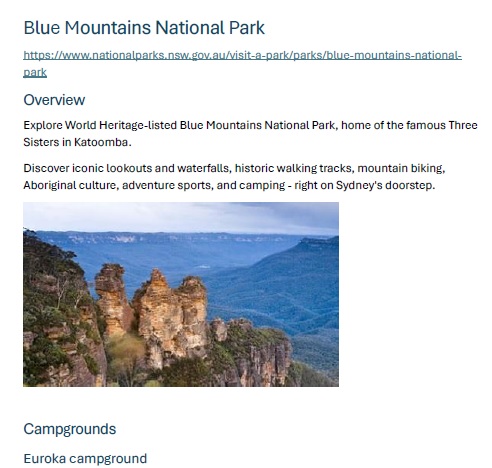
Image analysis skillset requires one or two inputs for it to process and extract sentiment:
1. Merged content,
2. Language code (optional).
If the language code is omitted, the default language en is used.
An example image analysis skillset JSON definition is shown below:
Skillset.json
{
      "@odata.type": "#Microsoft.Skills.Vision.ImageAnalysisSkill",
      "name": "#6",
      "description": null,
      "context": "/document/normalized_images/*",
      "defaultLanguageCode": "en",
      "visualFeatures": [
        "tags",
        "description"
      ],
      "details": [],
      "inputs": [
        {
          "name": "image",
          "source": "/document/normalized_images/*"
        }
      ],
      "outputs": [
        {
          "name": "tags",
          "targetName": "imageTags"
        },
        {
          "name": "description",
          "targetName": "imageCaption"
        }
      ]
}
The indexer JSON definition showing the output field mappings from source to target field is shown below:
Indexer.json
"outputFieldMappings": [
    …
    {
      "sourceFieldName": "/document/normalized_images/*/imageTags/*/name",
      "targetFieldName": "imageTags"
    },
    {
      "sourceFieldName": "/document/normalized_images/*/imageCaption",
      "targetFieldName": "imageCaption"
    }
],
Below is an example output of the imageTags and imageCaptions fields from the search result and the normalized_images field, which was the original source field used as input into the language translation skill:
Output
"imageTags": [
        "landscape",
        "outdoor",
        "mountain",
        "nature",
        "escarpment",
        "sky",
        "outcrop",
        "national park",
        "wilderness",
        "batholith",
        …
       "ravine",
        "canyon",
        "cliff",
        "rock"
      ],
      "imageCaption": [        "{\"tags\":[\"mountain\",\"nature\",\"outdoor\",\"valley\",\"rock\",\"canyon\",\"rocky\",\"hillside\",\"ravine\"],\"captions\":[{\"text\":\"a rocky cliff with trees and water below with Three Sisters in the background\",\"confidence\":0.3170657753944397}]}"
      ],
]
Sentiment Analysis (Microsoft.Skills.Text.V3.SentimentSkill)
Sentiment analysis is a natural language processing skill, which is used to determine the sentiment (or feeling) of the text within the indexed document. The output can be positive, negative, or neutral. The most common type of document used for sentiment analysis are customer or client reviews.
Sentiment analysis skillset requires two inputs for it to process and extract sentiment:
1. Merged content,
2. Language code.
An example image analysis skillset JSON definition is shown below:
Skillset.json
{
      "@odata.type": "#Microsoft.Skills.Text.V3.SentimentSkill",
      "name": "get-sentiment",
      "description": "New skill to evaluate sentiment",
      "context": "/document",
      "defaultLanguageCode": "en",
      "inputs": [
            {
              "name": "text",
              "source": "/document/merged_content"
            },
           {
             "name": "languageCode",
             "source": "/document/language"
           }
          …
      ],
      "outputs": [
          {
            "name": "sentiment",
            "targetName": "sentimentLabel"
          }
      ]
}
The indexer JSON definition showing the output field mappings from source to target field is shown below:
Indexer.json
"outputFieldMappings": [
      …
      {
        "sourceFieldName": "/document/sentimentLabel",
        "targetFieldName": "sentiment"
      }
]
Below is an example output of the sentiment field from the search result and the merged_content field, which was the original source field used as input into the language translation skill:
Output
{
      "@search.score": 1,
      "merged_content": "\nhttps://www.nationalparks.nsw.gov.au/visit-a-park/parks/sturt-national-park \n\nSturt National Park \n \n\nOverview \nHead to Sturt National Park on your journey into the Australian outback. Camp for a few \ndays to really explore the landscape and historic heritage of the park. … ”,
      "sentiment": "positive"
}
Entity Recognition (Microsoft.Skills.Text.V3.EntityRecognitionSkill)
Entity recognition analysis is a natural language processing skill, which is used to extract entities that match specified input categories within the text content within the indexed document. The extracted entities are then used for searches and filtering in the search index.
Entity recognition analysis is a natural language processing skill, which is used to extract entities that match specified input categories within the text content within the indexed document. The extracted entities are then used for searches and filtering in the search index.
An entity recognition skillset requires two inputs for it to process and extract entities:
1. Merged content,
2. Language code.
An entity recognition skillset JSON definition is shown below:
Skillset.json
{
      "@odata.type": "#Microsoft.Skills.Text.V3.EntityRecognitionSkill",
      "name": "#1",
      "description": null,
      "context": "/document/merged_content",
      "categories": [
        "URL",
        "Quantity",
        "Event",
        "Email",
        "PhoneNumber",
        "Product",
        "PersonType",
        "Skill",
        "Location",
        "IPAddress",
        "Person",
        "DateTime",
        "Organization",
        "Address"
      ],
      "defaultLanguageCode": "en",
      "minimumPrecision": null,
      "modelVersion": null,
      "inputs": [
        {
          "name": "text",
          "source": "/document/merged_content"
        },
        {
          "name": "languageCode",
          "source": "/document/language"
        }
      ],
      "outputs": [
        {
          "name": "locations",
          "targetName": "locations"
        }
      ]
},
The indexer JSON definition showing the output field mappings from source to target field is shown below:
Indexer.json
"outputFieldMappings": [
    {
      "sourceFieldName": "/document/merged_content/locations",
      "targetFieldName": "locations"
    },
Below is an example output of the location entity field from the search result and the merged_content field, which was the original source field used as input into the language translation skill:
Output
{
      "@search.score": 1,
      "merged_content": "\nhttps://www.nationalparks.nsw.gov.au/visit-a-park/parks/mungo-national-park \n\nMungo National Park \n\nOverview \nVisit World Heritage Mungo National Park, home of the famous Mungo Lady and Mungo \nMan, and explore a place rich in Aboriginal history. Enjoy a walk or picnic, or camp near \nLake Mungo. \n\n \n\n \n\nCampgrounds \n\nMain Camp campground  …”,
      "locations": [
        "Mungo National Park",
        "World Heritage Mungo National Park",
        "Mungo Lady",
        "Mungo",
        "Lake Mungo",
        "Campgrounds",
        "Main Camp campground",
        "campgrounds",
        "campground",
        "Main Camp",
        "Willandra Lakes",
        …
In the next section, I will show how to use REST API to extend document index skillsets.
Extending Document Search Indexes with the REST API
In this section, I will show how to use REST API to extend document index skillsets. From the Azure Portal, we can add indexes to the search index resource, however, updating the indexer and skillset is not possible within the portal. The alternative from the portal would be to delete the search resource and recreate the indexes, indexers, and skillets from scratch. However, there is another approach which allows you to not only recreate these index objects, but also modify them. This approach uses the Search Service REST API.
Updating Cognitive Skillset Definitions
Before we can use the REST API to update the cognitive skillset, open the existing skillset in the search resource, then open the Skillset Definition (JSON) as shown:
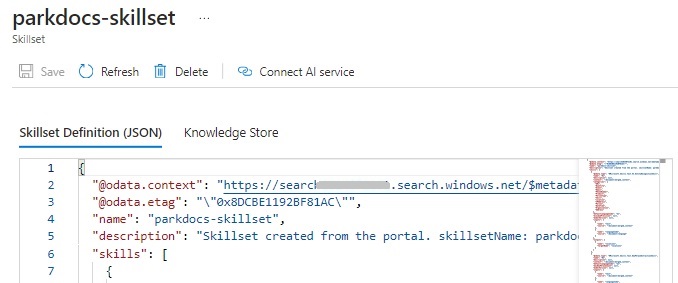
Copy the contents of the JSON definition. Create a new file skillset.json and paste the definition into the file. We then apply the following tasks:
First, remove the @odata.context and @odata.etag key/values from the JSON definition.
Next, below the description key, add the following cognitiveServices key with the placeholder [AI cognitive services key], paste in your AI Cognitive Services multi-account access key:
"cognitiveServices": {
      "@odata.type": "#Microsoft.Azure.Search.CognitiveServicesByKey",
      "description": "Azure AI services",
      "key": "[AI cognitive services key]"
},
Next, Inside the JSON skills array, add the sentiment skill field as shown:
{
      "@odata.type": "#Microsoft.Skills.Text.V3.SentimentSkill",
      "name": "get-sentiment",
      "description": "New skill to evaluate the sentiment",
      "context": "/document",
      "defaultLanguageCode": "en",
      "inputs": [
        {
          "name": "text",
          "source": "/document/merged_content"
        },
        {
          "name": "languageCode",
          "source": "/document/language"
        }
      ],
      "outputs": [
        {
          "name": "sentiment",
          "targetName": "sentimentLabel"
        }
      ]
}
Save the file as skillset.json.
We run the REST API method skillset with an HTTP PUT request as shown with your search service and access key provided:
curl -X PUT https://[search-service-name].search.windows.net/skillsets/parkdocs-skillset?api-version=2024-07-01
-H "Content-Type: application/json"
-H "api-key: [azure search resource key]" -d @skillset.json
Where the API key is the access key from your Azure Search resource.
After the REST request completes, you can confirm the skillset is created by opening and viewing the skillset in the search resource in the portal:
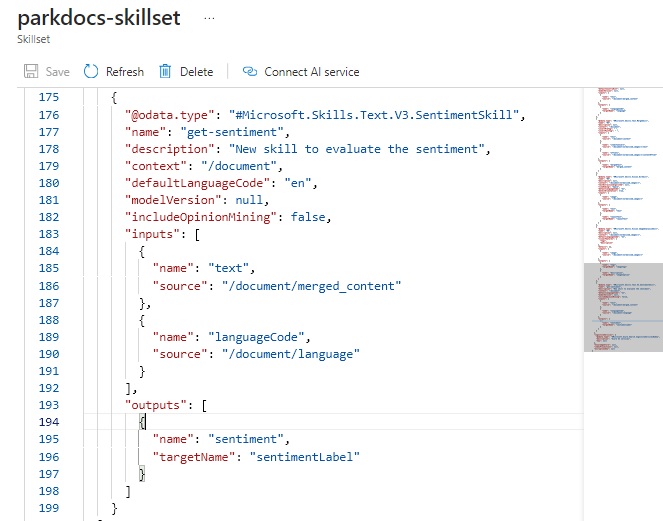
You will also notice that the number of skills within the search resource has increased:
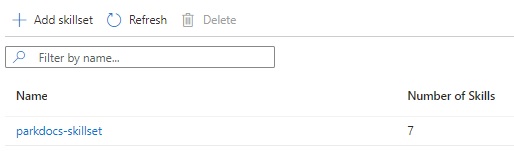
In the next section, I will show how to update the index definition.
Updating Index Definitions
To update the index definition, we first obtain the index JSON definition from the search resource in the portal:
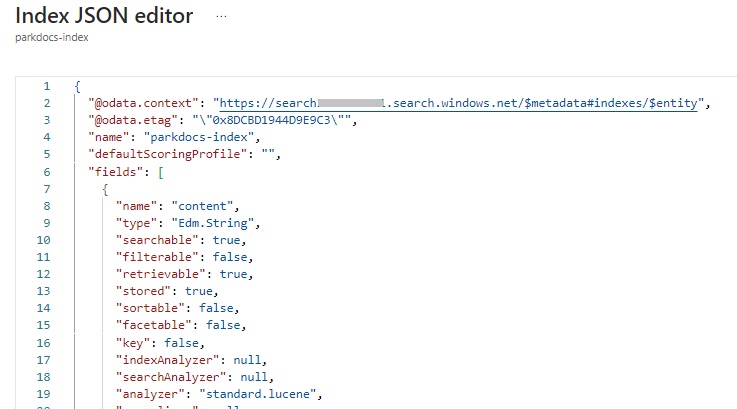
Copy the contents of the JSON definition. Create a new file index.json and paste the definition into the file.
We then apply the following tasks:
First, remove the @odata.context and @odata.etag key/values from the JSON definition.
Next, inside the JSON fields array, add the sentiment index field as shown:
{
      "name": "sentiment",
      "type": "Edm.String",
      "facetable": false,
      "filterable": true,
      "retrievable": true,
      "sortable": true
}
We run the REST API method indexes with an HTTP PUT request as shown with your search service and access key provided:
curl -X PUT https://[search-service-name].search.windows.net/indexes/parkdocs-index?api-version=2024-07-01
-H "Content-Type: application/json"
-H "api-key: [azure search resource key]"
-d @index.json
Where the API key is the access key from your Azure Search resource.
After the REST request completes, you can confirm the index is created by opening and viewing the index in the search resource in the portal:
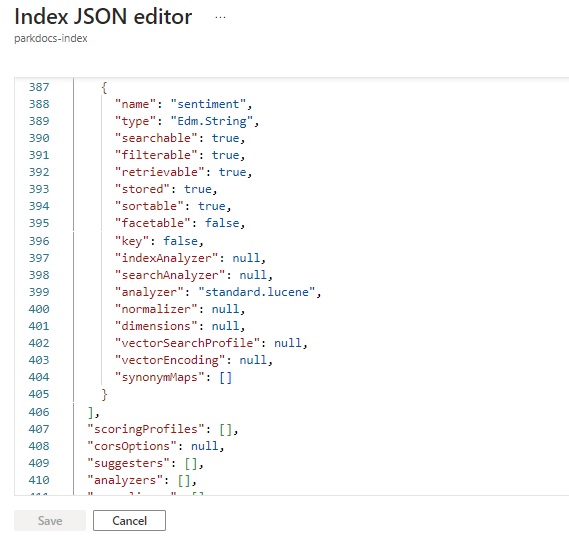
In the next section, I will show how to update the indexer definition.
Updating Indexer Definitions
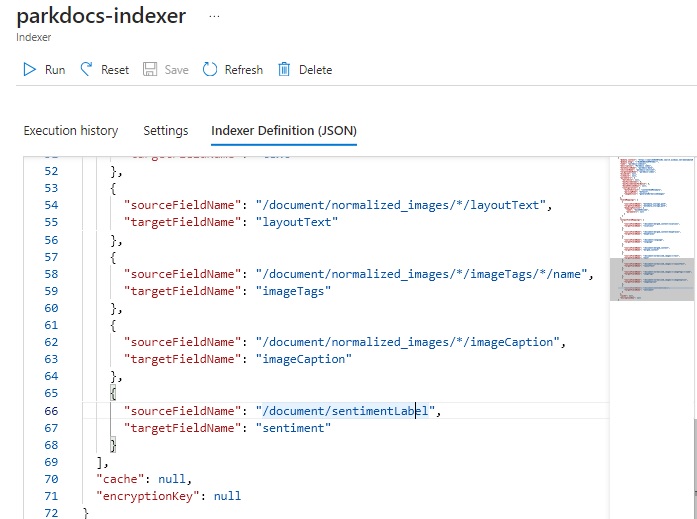
To update the indexer definition, we first obtain the indexer JSON definition from the search resource in the portal:
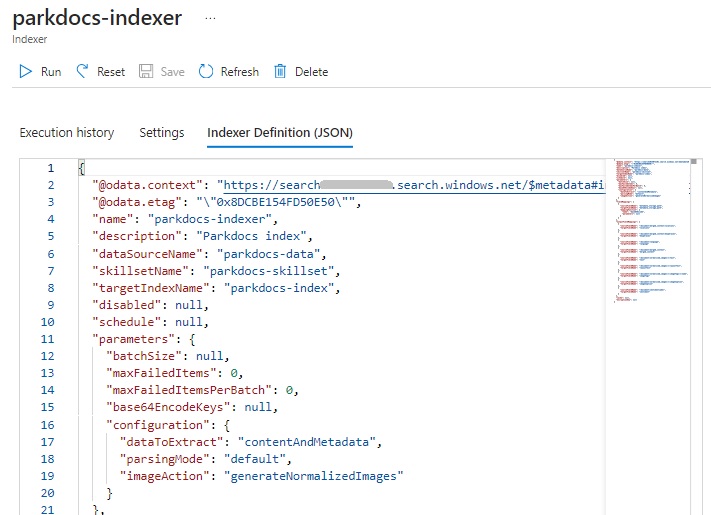
Inside the JSON outputFieldMappings array, add the sentiment indexer search field as shown:
{
      "sourceFieldName": "/document/sentimentLabel",
      "targetFieldName": "sentiment"
}
We run the REST API method indexers with an HTTP PUT request as shown with your search service and access key provided:
curl -X PUT https://[search-service-name].search.windows.net/indexers/parkdocs-indexer?api-version=2024-07-01
-H "Content-Type: application/json"
-H "api-key: [azure search resource key]"
-d @indexer.json
Where the API key is the access key from your Azure Search resource.
After the REST request completes, you can confirm the indexer is created by opening and viewing the indexer in the search resource in the portal:
In the next section, I will show how to reset and re-run the search using the REST API.
Resetting and Running the Indexed Search
In this section, I will show how to reset and re-run the indexed search using the REST API.
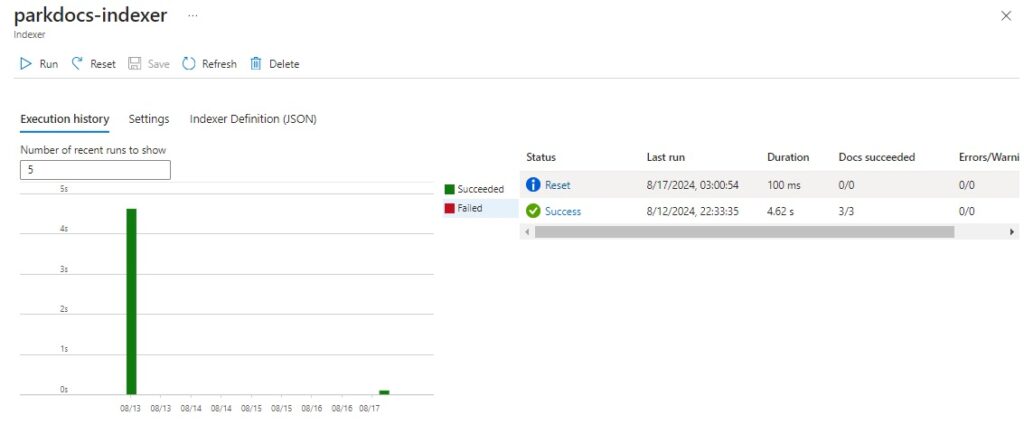
To reset the indexed search, we run the REST API method reset with an HTTP POST request as shown:
curl -X POST https://[search-service-name].search.windows.net/indexers/parkdocs-indexer/reset?api-version=2024-07-01
-H "Content-Type: application/json" -H "Content-Length: 0"
-H "api-key: [azure search resource key]"
After the REST request completes, you can confirm the search has been reset by opening and viewing the indexer in the search resource in the portal and opening the Execution history tab. The Reset status and last run will be shown.
To run the indexed search, we run the REST API method run with an HTTP POST request as shown:
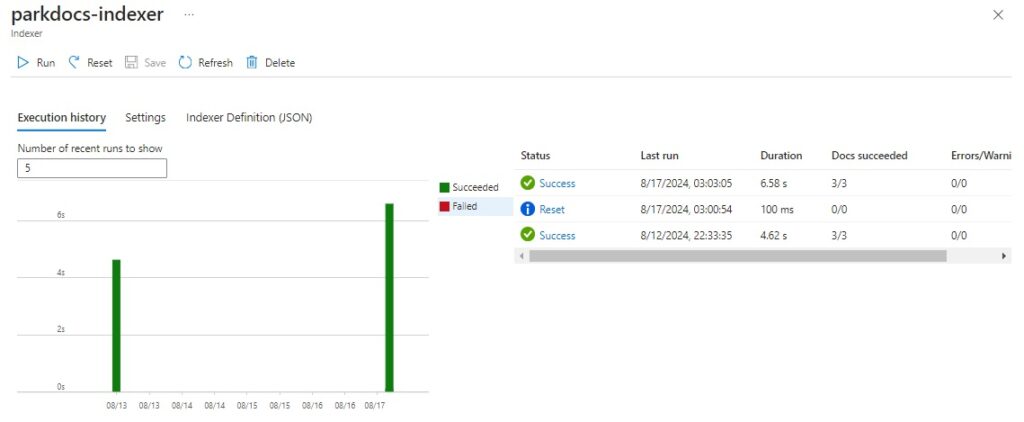
curl -X POST https://[search-service-name].search.windows.net/indexers/parkdocs-indexer/run?api-version=2024-07-01
-H "Content-Type: application/json" -H "Content-Length: 0"
-H "api-key: [azure search resource key]"
After the REST request completes you can confirm the search is running by opening and viewing the indexer in the search resource in the portal and opening the Execution history tab. The latest Success status and last run will be shown.
The above post has been an overview on what the cognitive skills are, how they are used in the search indexing process, and how they can be added to an existing Azure search resource using Azure Search REST API requests.
That is all for today’s post.
I hope that you have found this post useful and informative.

Andrew Halil is a blogger, author and software developer with expertise of many areas in the information technology industry including full-stack web and native cloud based development, test driven development and Devops.

