

Welcome to today’s post.
In today’s post, I will be explaining what Azure Document Intelligence is, what its purpose is in some business scenarios and analyse an example document. Azure Document Intelligence has been rebranded from what was previously known as Azure Forms Recognizer. This is partly due to Microsoft rebranding the existing Azure Cognitive Services as Azure AI Services.
We have already seen how images can be analyzed to extract information. In a previous post I showed how to use the Azure Vision Service to recognize and extract text from an image.
We have also seen how translator services are used to analyse streams of sound and provide a text output that consists of different language translations.
Given a document file, do we have a service that can make sense of what content is contained within the document and provide output that answers this question?
The answer is that there is a document intelligence service that can achieve this goal, which I will start explaining in the first section.
Defining Azure Document Intelligence
In this section, I will define what Azure Document Intelligence is.
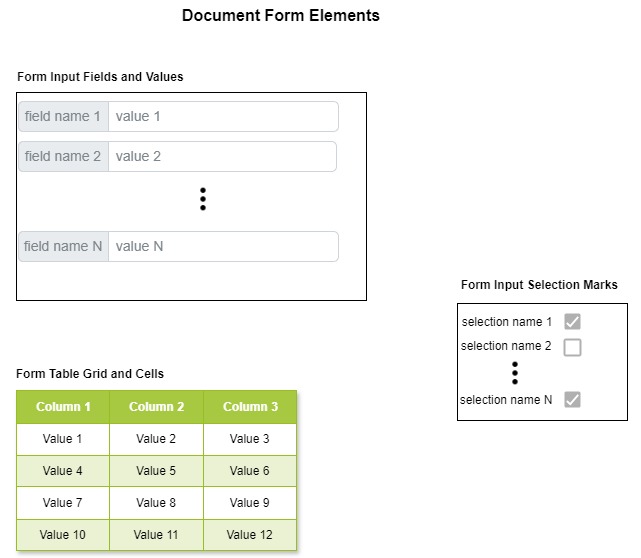
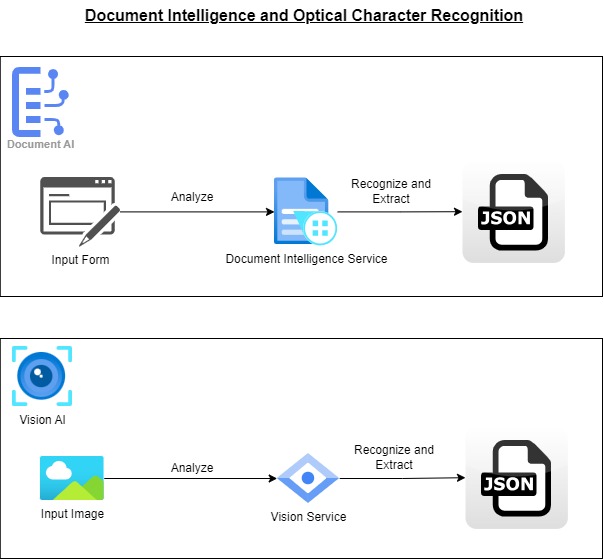
Document Intelligence is the process that takes a representation of a document form, which can be an image (for example a JPEG or PNG) or a PDF file, analyses it, then determines the position of the input fields and input values within the image of the form. It then applies optical character recognition within each recognized bounded region, and then determines the text within the regions. The text is then extracted and output as name and value pairs.
The actual process uses machine learning models to analyse the structure and content of the document form, then extract the definitions of the form structures and elements into output files which are readable from applications or reporting systems.
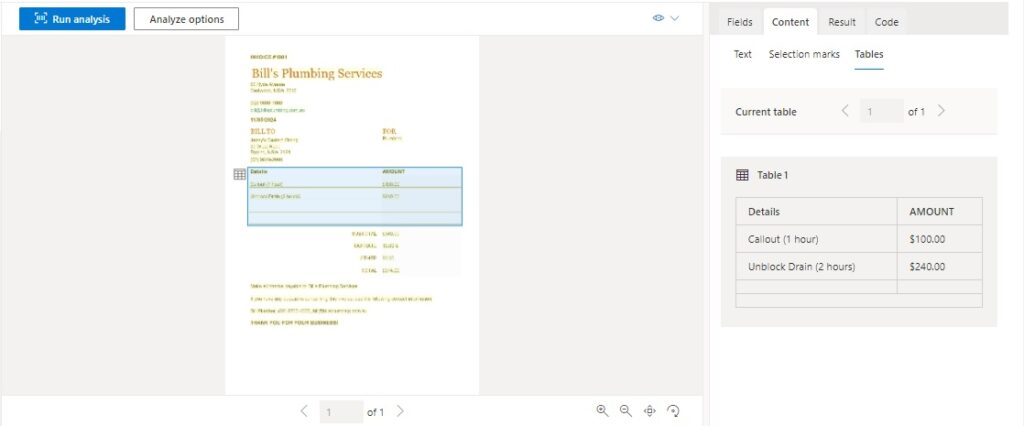
A document form can also contain tables, which also contain column headings and cells. Each cell then contains values, which can be extracted as name and value pairs.
Tables are typically used to represent the itemised details of an invoice or receipt that show a description of a billed task, and the amount charged for that task.
In the next section I will explain the difference between document intelligence and optical character recognition.
Difference between Optical Character Recognition and Document Intelligence
In this section, I will explain the difference between Optical Character Recognition (OCR) and Document Intelligence.
The Azure Vision Service uses a feature known as Optical Character Recognition (OCR) to analyze and run character recognition on images.
With OCR, we have an image that can contain images that contain text. The text can be contained within real-world objects such as street signs, packaged food, transportation and so on.
With Document Intelligence, we have an image of a form. The image of the form must contain a structure of aligned fields and values. For the form fields and values to be recognized by the document intelligence analyser, the same structure of form field, values and their respective positioning within the image must be the same across any analyzed form.
In the next section I will explain the difference types of document intelligence models that can be used for the analysis and extraction process.
Explaining the Different Types of Document Intelligence Models
In the previous sections, I mentioned the document form types, which included the following:
- Input field names and values
- Table grids
- Selection marks
When we analyse an input document with the Document Intelligence service, we specify a document intelligence resource and a mode. The model is either a prebuilt model or a custom trained model.
With prebuilt models, they are derived from one of three different document form layout models. These layout models are:
Layout document model
Read document model
General document model
The layout document model includes the extraction of the following document geometric objects:
Text
Tables
Figures
Selection marks
The document model also includes the extraction of the following text objects:
Titles
Headings
Footers
The read document model includes the extraction of the following document lists:
Pages
Paragraphs
Text
Lines
Words
The general document model, which has been deprecated since 02/2024, includes the extraction of the following objects:
Key-value pairs
Selection marks
Text
Tables
Document Structure (Pages, Paragraphs, Columns, Rows etc)
In the final section I will show how we can use the document intelligence studio to analyze a sample invoice document form and extract recognized field name and value pairs and table grid data.
Analyzing a Sample Form using a Prebuilt Document Model
In this section, I will show an example that shows you how to extract information from documents using Azure AI Document Intelligence Studio.
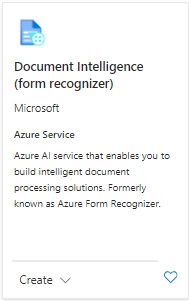
The first task we need to complete is to create an Azure Document Intelligence (Form Recognizer) resource. We search for “document intelligence” in the Azure portal, select the resource card as shown below:
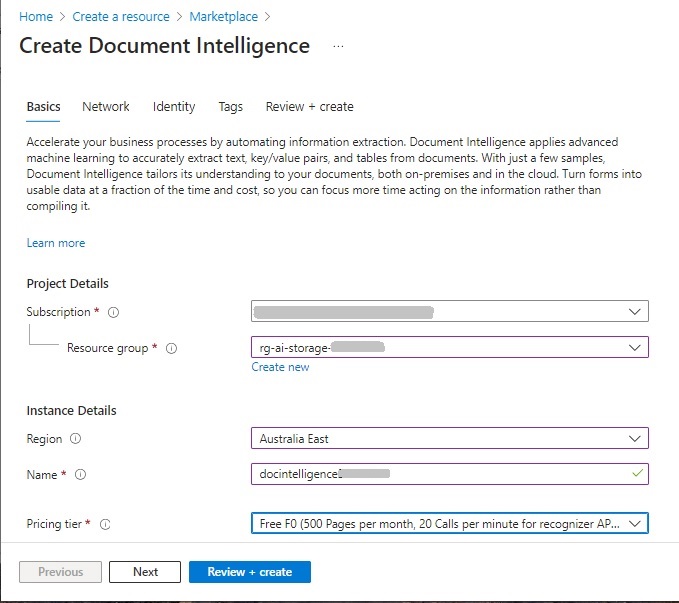
We then enter the details (subscription, resource group, instance name, region, and pricing tier) into the resource creation form as shown:
After the resource creation has completed, open the resource in the overview screen as shown:
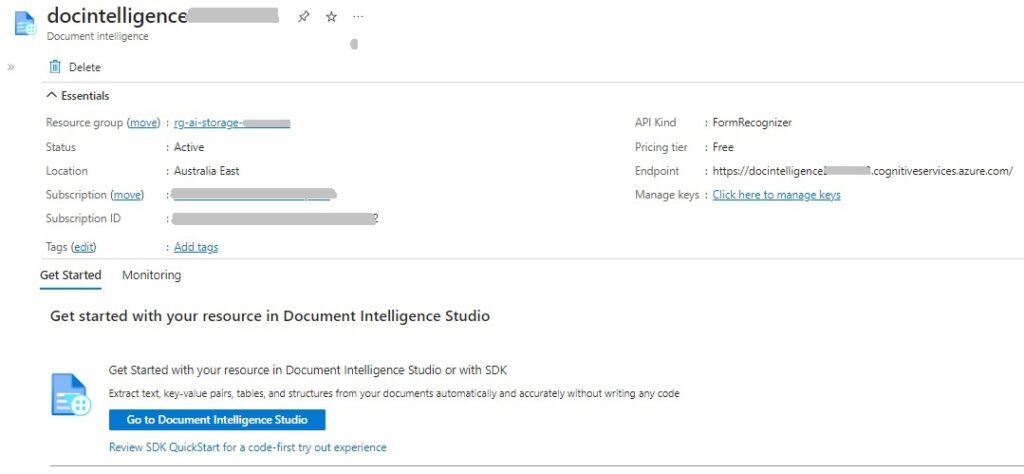
To access the Document Intelligence Studio, click on the blue button Go to Document Intelligence Studio.
Before the intelligence studio opens, you may get an error message that says you are not subscribed and need to enable 2-factor authentication. This just means that you have not set the default tenant of the document intelligence studio to the Azure tenant directory that has access and is billable to your Azure subscription.
In the intelligence studio settings menu, select the tenant directory that corresponds to your Azure subscription and click on the Switch Directory button. The intelligence studio will then be able to read your Azure subscription permissions and open the landing page.
The landing page shows the available document analysis models as shown:
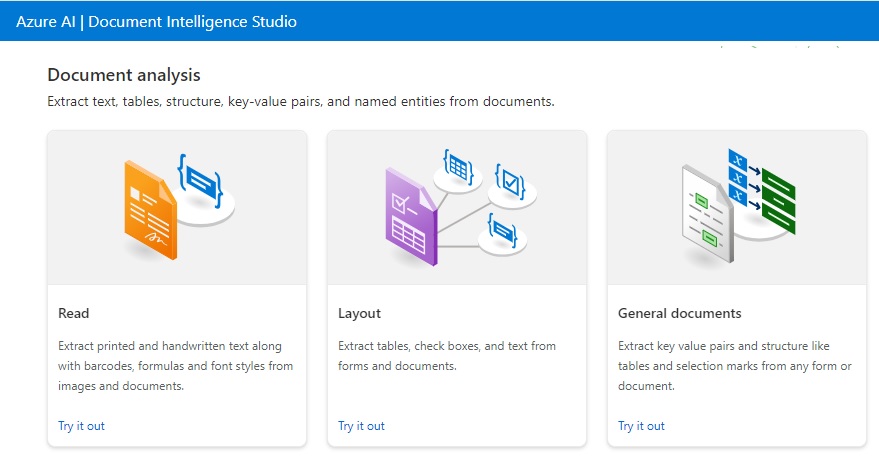
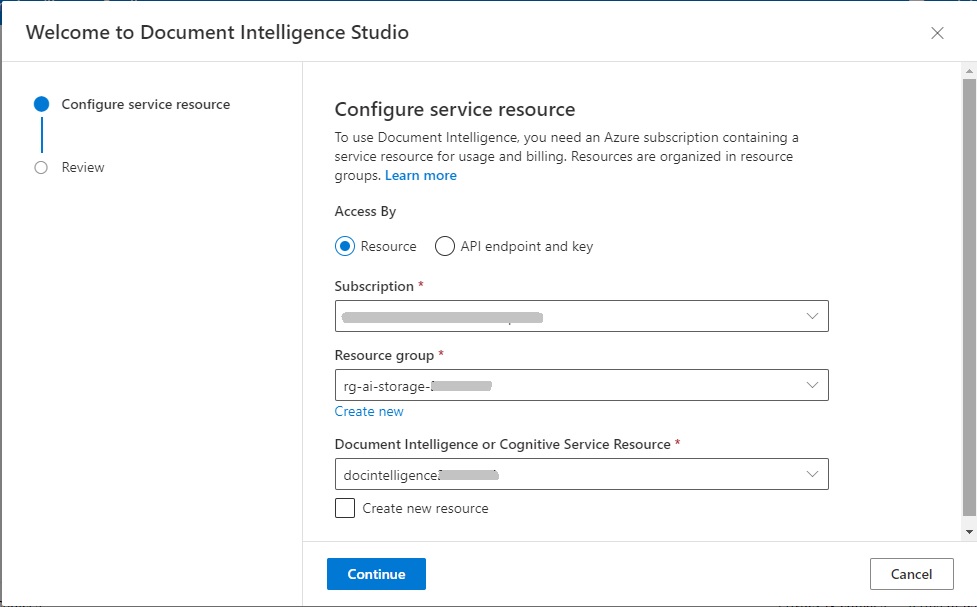
After selecting one of the above options (I chose to select the General documents option), you will be taken to the following form to setup the subscription, resource group, and document intelligence resource:
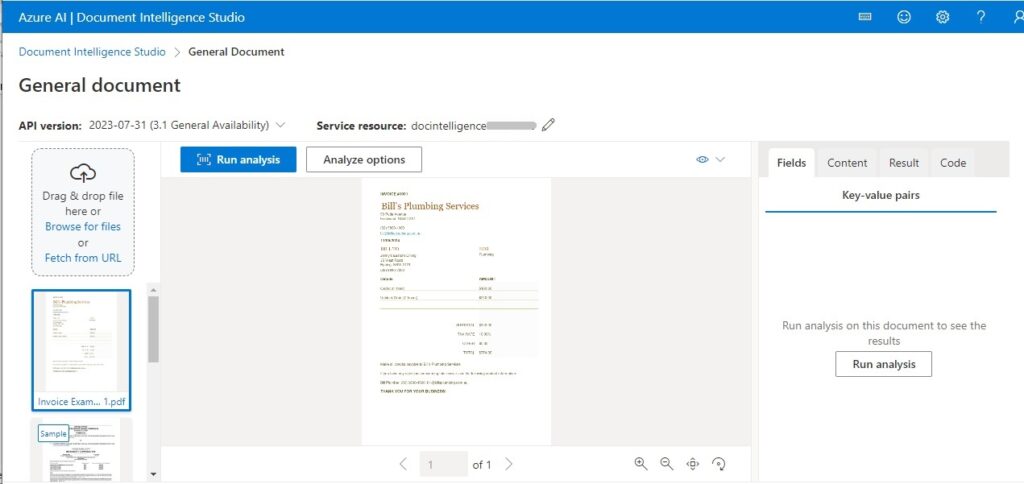
In the General document page, you will see a section for document inputs, a section for previewing the document, and output section for displaying output Fields, Content, Result and Code.
There are additional buttons labelled Run analysis, which when pressed will kick off the document analysis:
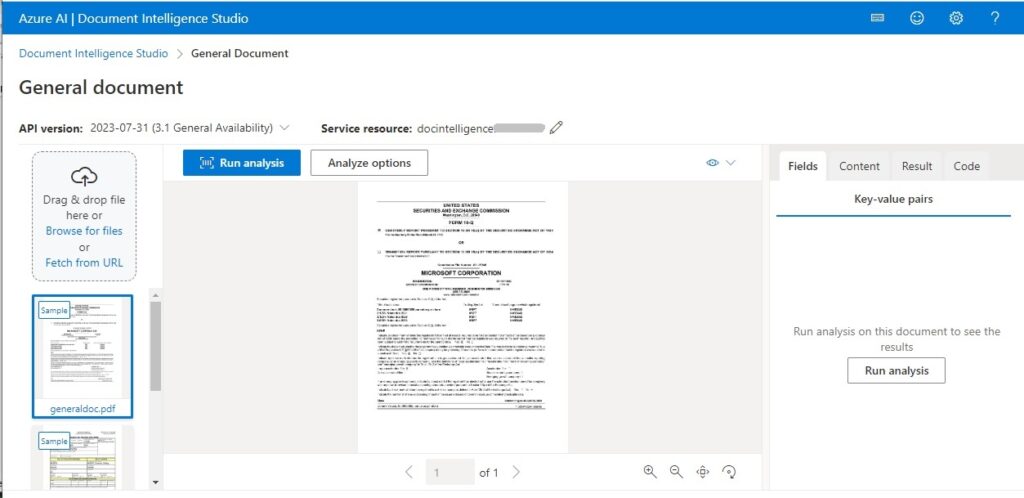
A sample document is previewed initially. To select one of your own input documents you can drag and drop or browse using the file input control on the left section.
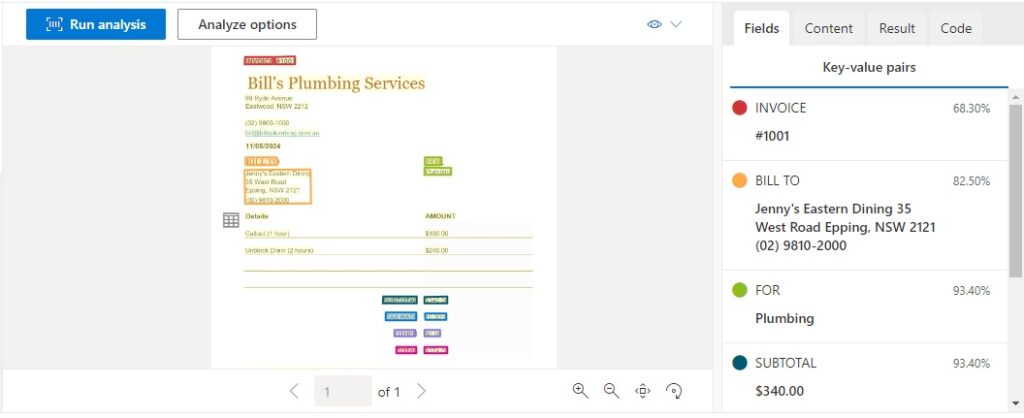
After actioning Run analysis, you will notice that the recognized fields and values within the document are highlighted within the document preview.
You will also notice that the content of the Fields tab populates with extracted fields and their associated content.
Below is the screenshot of the resulting document analysis and outputs:
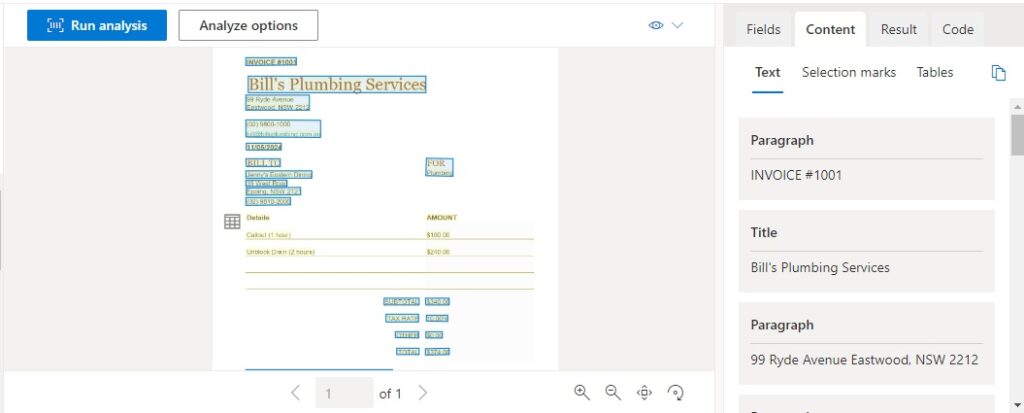
If you select the Content tab, then select the Text sub-tab, you will see the field labels and values highlighted in the preview document.
The input document form in this case does not have any selection mark (check box) elements, so the Selection mark sub-tab will give no values.
Select the Table sub-tab and you will notice the invoice items grid is highlighted within the document in blue and the structure of the table shows with Details and AMOUNT columns and their cell content values as shown:
To retrieve the results of the analysis, click on the Result tab, and the JSON output is displayed as shown:
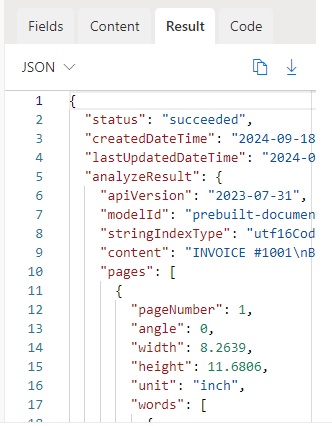
You can then copy the results using the copy icon or download it for further inspection.
What you will have noticed (shown in the screenshot below) is that the general document model analysis has extracted the business phone contact and email fields as one spanned field (first red arrow). These should have been extracted as two separate values.
You will also notice is that the customer address lines have been extracted as two separate values in two lines.
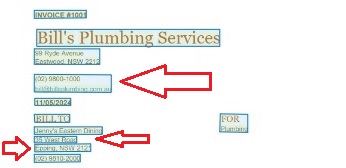
The reason for the above extraction anomalies is that the general document model has not been trained to understand which parts of the business contact lines are the phone contact and email address, and the customer address details has not been trained to be recognized as two lines, the street address line and a suburb, state, postcode line.
In the next post, I will show how we can train a custom model to understand the positioning of the different document form fields and values and other structures, including the detail items grid within our invoice documents.
That is all for today’s post.
I hope that you have found this post useful and informative.

Andrew Halil is a blogger, author and software developer with expertise of many areas in the information technology industry including full-stack web and native cloud based development, test driven development and Devops.

