Welcome to today’s post.
In today’s post, I will show how to generate images using a deployed OpenAI DALL-E-3 model within the Azure AI Studio.
In one of my previous posts, I showed how to use the OpenAI Chat Completion model, GPT Turbo 3.5 to generate natural language processed outputs from submitted prompts.
The GPT and DALL-E-3 OpenAI models are both generative AI models, which provide the following content generation capabilities:
- Natural language outputs.
- Source code outputs.
- Image outputs.
In a previous post I explained how natural language content is generated from Chat Completion prompts and how source code is generated from Chat Code Completion prompts. In the next section I will explain what the DALL-E model is, then later I will show how to use it to generate images.
Explaining the DALL-E Model
Unlike the OpenAI GPT generative AI models, which are trained with natural language and source code inputs, the DALL-E-3 model is a different pre-trained generative AI model which uses neural networks to be trained in the processing of images. The DALL-E-3 model can generate requested images from its trained model. It can also generate new images which are derived from any of the existing images that are within its pre-trained data set.
Unlike predictive vision models, which are trained and manually labelled, and provide object recognition capabilities and object classification capabilities, generative vision models provide the capability to generate new images from the existing pool of images that are used to re-train the model with special deep learning algorithms and machine learning models.
Predictive machine learning models rely on supervised learning, with human labelled (annotated) data required to train the model and provide predictive outputs from the resulting deployed model.
Generative deep learning (neural network) models rely on unsupervised learning to output new content based on existing data within the model data set.
As we can see, the purposes of predictive, machine learned models, and generative, deep-learning, neural-based models differ on the desired outcomes.
In the next section, I will show how to use the Azure AI Studio to generate a sample image from a prompt.
Deploying a DALL-E Model from Azure AI Studio
In this section I will show how to generate new images using a deployed DALL-E-3 generative AI model within the Azure AI Studio.
Before we can use the DALL-E-3 generative AI model to generate new images, we need to create an Azure OpenAI resource that is in one of the following regions:
East US
SwedenCentral
AustraliaEast (since 03/2024)
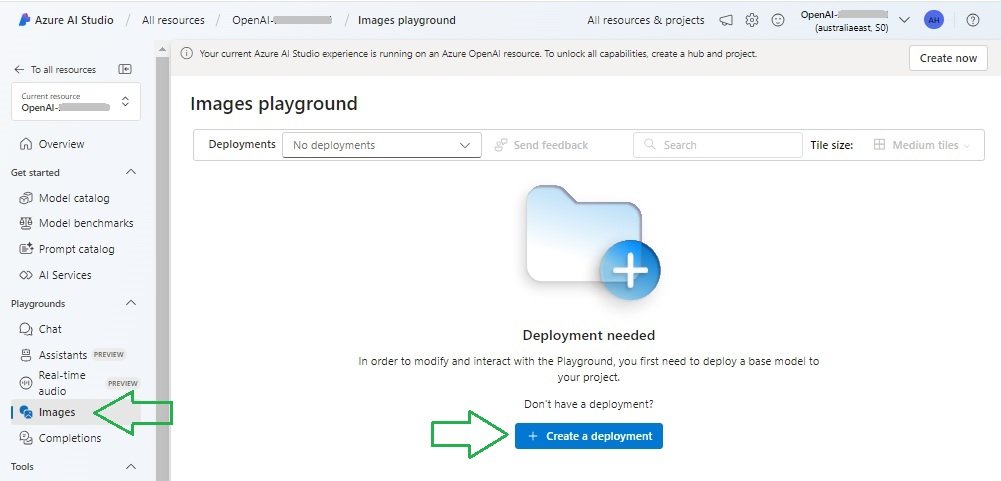
After opening the Azure OpenAI resource overview screen, and opening the Azure AI Studio, you will see the default Chat playground. On the side menu, select the Images sub-menu. The Images playground will display, and you will see no deployments. You will require at least one deployment for a DALL-E model to be selected before you can generate images from a DALL-E model.
Proceed to click on the Create a deployment button.
In the next dialog, you will see displayed the available DALL-E chat completion models. Currently, there are two DALL-E models:
DALL-E-2
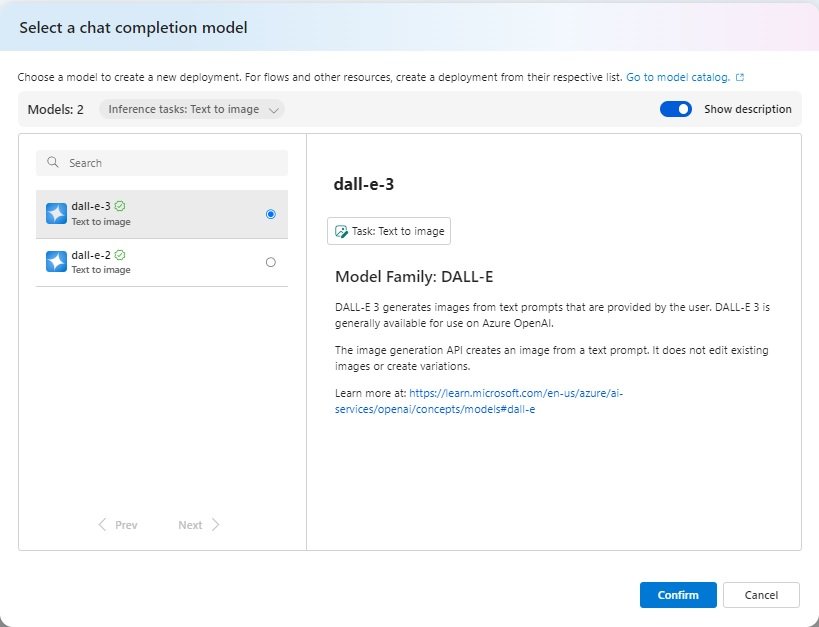
DALL-E-3
Currently, the DALL-E-2 model supports standard quality 1024×1024 generated output images, whereas DALL-E-3 model supports standard and HD quality 1024×1024, 1024×1792, and 1792×1024 generated output images. In addition, DALL-E-2 models support a maximum 1,000 characters prompt request, and DALL-E-3 models support a maximum 4,000 characters prompt request.
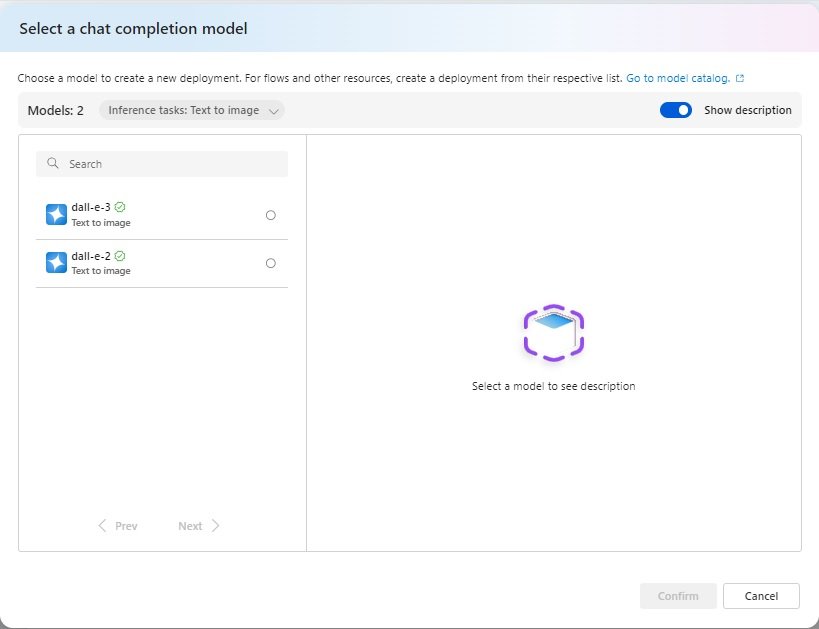
When selecting each model, the description explains that each model takes a text input and returns an image as output.
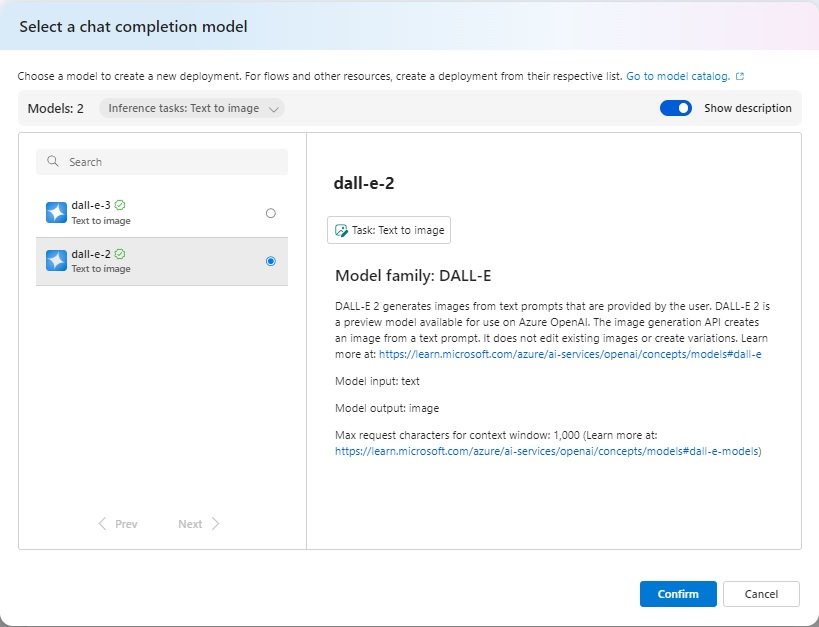
In addition, the outputs are generated directly from the prompt and cannot alter existing images or create variations from the Azure OpenAI DALL-E model implementations.
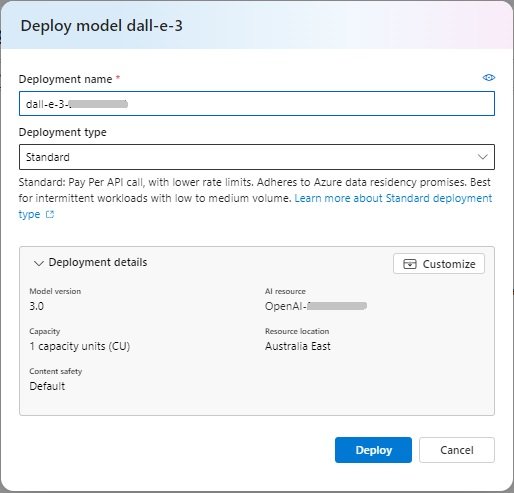
In this case, I confirm selection of the DALL-E-3 model. In the deployment dialog, enter a unique name for the DALL-E-3 model that is to be deployed, then the deployment type (I use the Standard option), then click on the Deploy action as shown:
In the next section, I will explain how image generation is executed through a prompt.
Generation of Images from the Deployed DALL-E Model
In this section, I will show how image generation is executed through a prompt. Recall that both the DALL-E-2 and DALL-E-3 OpenAI models that are available in the Azure portal, REST API and SDK are implementations from Azure that use the OpenAI SDK. As mentioned in the model descriptions, there are some limitations on what we can do with editing and variation generation. Being able to edit existing images is currently only supported within the OpenAI implementation, and requires an image file, prompt, mask image file, model, number of images and image size. The mask file is a transparent image that indicates what parts of the supplied image are to be edited.
The capability of image editing is already part of the OpenAI ChatGPT consumer product. This editing feature is known as DALLE3 Inpainting which was announced in April 2024.
Continuing from the previous section, following deployment, you are taken to the Images playground, where you will see a prompt editable field, and a greyed out Generate button:
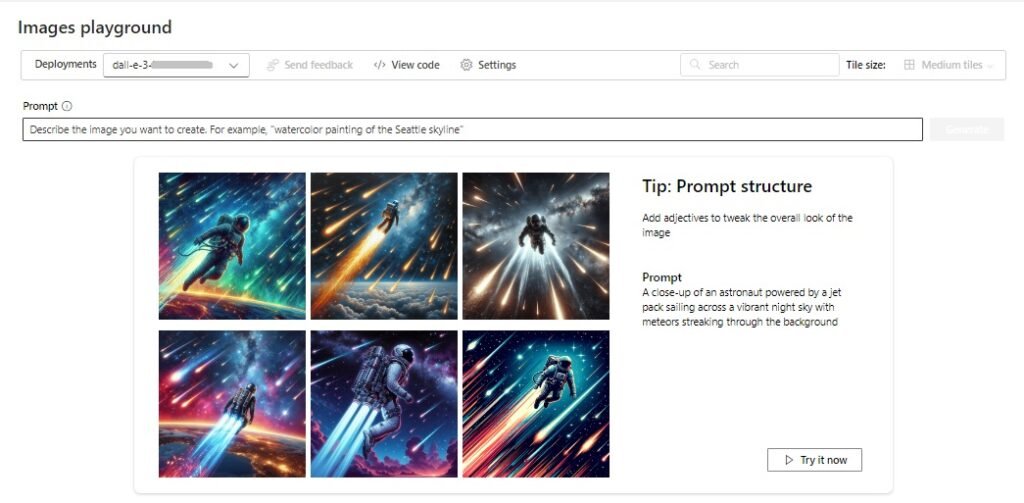
I enter the following prompt:
Tiger under a coconut tree with a sandy beach background.
After entering the prompt text, you will see the Generate button enabled as shown:

Then click on the Generate button.

You will then see the image panel under the prompt generating the image. It should churn on for at least a few seconds before you see a result.
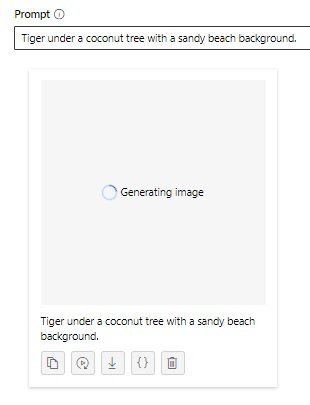
Finally, the resulting image will be displayed in the image panel, and it looks quite impressive!
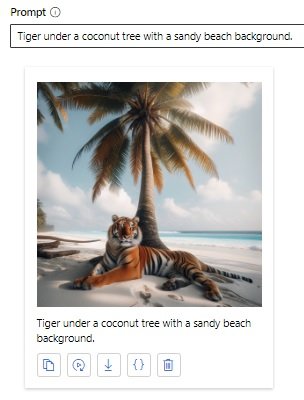
As I mentioned earlier, there are no options to allow you to edit the image and have masked areas edited. There is no option to generate multiple variations of the same image, but only an option to re-generate the image from the re-submission of the prompt.
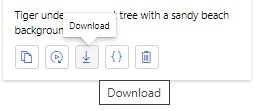
Below the generated image there are five useful options available:
- Copy prompt
- Generate new image
- Download
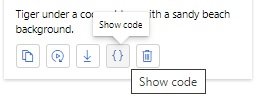
- Show code
- Delete
The copy prompt option allows you to copy the prompt text for reuse.
The generate new image option allows you to re-generate another image with the same prompt.
The download option allows you to download the generated image to your device.
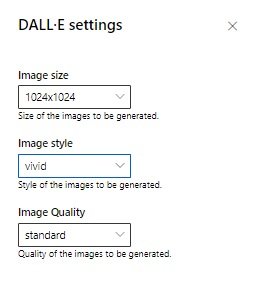
The size and quality of the generated image that is downloaded is determined by the settings in the image playground. The default settings are as shown:
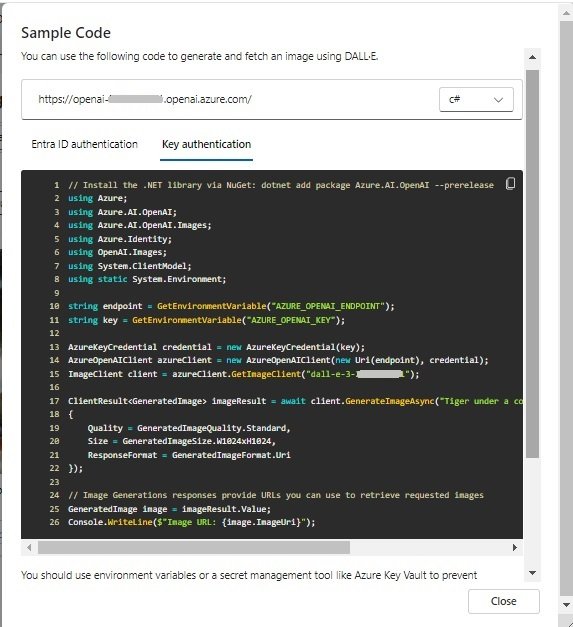
The option show code displays a dialog that contains the SDK code in a selectable language that can be used for implementation of image generation within a client application.
Below is a screenshot of the boilerplate C# code for the image generation:
In a future post I will show how to set up and use DALL-E image generation using the Azure OpenAI Image SDK within a client application.
The final option allows you to delete the generated image.
In the next section, I will explain the ownership of images generated by the OpenAI DALL-E model.
Ownership of Images Generated by DALL-E
There are some questions you may have pondered over after generating images with the DALL-E model with Azure AI Studio, in a client application using the Azure OpenAI Image SDK, or even using the ChatGPT consumer product.
One of these is the issue of copyright for images that are generated by the DALL-E generative AI model.
Recall that the definition of copyright and ownership of content is that the creator of the original content is the owner of the content. As the copyright holder, you have the right to control the reproduction and distribution of the content.
With content that is generated by non-humans, however, the ownership is quite clear: Since a machine has generated the content, there is no human creator of the generated content, what this means is that if someone else happened to use machine assisted means to generate content that looked identical to the content that you generated, then both of you have the rights to reproduce and distribute the content. In addition, you have the right to even profit from selling generated content. This is confirmed by the OpenAI Content Policy.
Also. If you have generated content using the DALL-E generative AI model, then being transparent by disclosing that AI is involved in the creation of the works should be encouraged.
This post has shown you how to use the OpenAI DALL-E model to generate images from within Azure AI Studio.
That is all for today’s post.
I hope that you have found this post useful and informative.
Andrew Halil is a blogger, author and software developer with expertise of many areas in the information technology industry including full-stack web and native cloud based development, test driven development and Devops.