

Welcome to today’s post.
In today’s post, I will be showing you how to use the Azure OpenAI SDK to run chat completions against OpenAI Generative AI Chat models.
In my most recent post, I showed how to use and deploy an Open AI GPT model within the Azure AI Studio.
If you have been using the Chat GPT search, which is a consumer product, you will know that it is a product that is developed by the OpenAI research group using a Large Language Model with Generative AI.
I also explained what a Chat Completion call was and how the context of the conversation affected the response generated from the model.
Explaining Stateful and Stateless GPT Chat Completions
With Generative AI Chat conversations using the GPT models, we can either submit prompts that are processed with the initial system message with only the user prompts, or we can append subsequent user prompts and model assistant responses to the conversation history. What this did to the generative AI model was to allow it to use the context of the conversation history to make the responses to the prompts more relevant to the derived content within the model’s responses.
In the conversation that is submitted to the model, there are three roles that are used:
system
user
assistant
Each of the roles is encapsulated within a JSON object that contains a content field. The content field contains the text of the system message, user prompt, or response from the assistant (model).
The example below shows how it’s structured:
{
    {
        "role": "system",
        "content": "You are an AI assistant that helps people find information."
    },
    {
        "role": "user",
        "content": "How can I use generative AI to help me improve as a software developer?"
    },
    {
        "role": "assistant",
        "content": "Generative AI can be a useful tool for software developers to improve their skills. Here are a few ways…”
    },
    …
}
Each subsequent user content prompts and assistant content responses are appended to the conversation history as shown:
{
    "role": "user",
    "content": "What resources are there to learn these skills?"
},
{
    "role": "assistant",
    "content": "There are several resources available to learn various skills. Here are a few:\n\n1. …”
},
This type of adaptive response is what differentiates the GPT Chat Completion from GPT Completion.
I will show how to provide both scenarios into submitted prompts. In addition, I will show how to adjust the creativity of the model’s chat responses.
Setup and Configuration of the Azure OpenAI SDK Library
In this section, I will show how to install the NuGet library to access the Azure OpenAI SDK.
To install the Azure OpenAI NuGet package, install the following NuGet package from the package manager within Visual Studio:
Azure.AI.OpenAI
To be able to access the OpenAI libraries for the Chat model, we will need to declare the following namespaces in our program as shown:
Azure.AI.OpenAI
OpenAI.Chat
After installing the NuGet package, we will need to configure a connection to the Azure OpenAI SDK. The connection requires the following parameters:
Endpoint
Key
Deployment Name
Where:
The Endpoint is the URL of the Azure OpenAI Service resource. It is of the form:
https://[openai-service-name].openai.azure.com/
The Access Key is one of the access keys within the Azure OpenAI Service resource.
The Deployment Name is the deployment name used in the deployment of the OpenAI generative AI model within the Azure AI Studio.
To use the above parameters that are required to connect to the OpenAI resource from our source, we will need to either have then stored securely within Azure Key Vault or in environment variables. In this case, I am storing them in environment variables that are accessible from the program as shown:
using Azure.AI.OpenAI;
using OpenAI.Chat;
using System;
using System.ClientModel;

namespace OpenAIChatGPTDemo
{
    internal class Program
    {
        static string? endpoint = Environment.GetEnvironmentVariable("OPENAI_ENDPOINT");
        static string? key = Environment.GetEnvironmentVariable("OPENAI_KEY");
        static string? deploymentName = Environment.GetEnvironmentVariable("OPENAI_DEPLOYMENT_NAME");
        …
To store chat conversation messages while the program runs, we can declare the following list:
static List<ChatMessage> chatMessageList = new List<ChatMessage>();
In our main block, we set a connection to the Azure OpenAI client by using the endpoint and key as shown:
// Get OpenAI client
AzureOpenAIClient client = new AzureOpenAIClient(
    new Uri(endpoint!),
    new ApiKeyCredential(key!)
);
We then obtain a connection to the chat client using the following call:
// Get the chat client
ChatClient chatClient = client.GetChatClient(deploymentName);
The ChatClient object will then be used to run the chat completions on the deployed GPT model.
Submitting User Prompts to the Chat Completion API
To submit prompts to the Chat Completion API, we will need to provide the initial system message, which guides the conversation with context, instructions, personality, guidelines on what the model can and cannot respond in its answer.
string systemMessage = "You are an AI assistant that helps people find information.";
We will also need to provide a user message, which is the prompt that is submitted by the user. Initially we set this to empty before we store inputs:
string? userMessage = String.Empty;
In the chat message list, which is of type List<ChatMessage>, weappend messages of type SystemChatMessage, UserChatMessage, or AssistantChatMessage, which represent the system, user and assistant roles.
In the code below, we set the initial system message, request the prompt input message from the user, add the prompt message to the chat message list, then call a custom method to run a chat completion with the chat client and chat message list:
// Add system message.
chatMessageList.Add(new SystemChatMessage(systemMessage));

Console.WriteLine("System: " + systemMessage + "\n");

ConsoleKeyInfo consoleKeyInfo;
bool isFinished = false;

while (!isFinished)
{
    Console.WriteLine("Enter a prompt to submit to the Chat Assistant:");
    userMessage = Console.ReadLine();

    if (userMessage == String.Empty || userMessage?.Length == 0)
    {
        Console.WriteLine("Please specify a valid prompt message.");
        return;
    }

    chatMessageList.Add(new UserChatMessage(userMessage));

    RunChatCompletion(chatClient, chatMessageList);

    Console.WriteLine("Press Y to submit another prompt. Escape to finish.");
    consoleKeyInfo = Console.ReadKey(true);
    if (consoleKeyInfo.Key == ConsoleKey.Escape)
    {
        Console.WriteLine("Escape Key Pressed.");
        isFinished = true;
    }
}
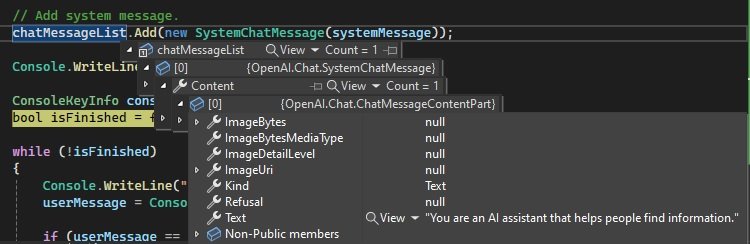
Below is the structure of a message of type SystemChatMessage being added to the chat message list:
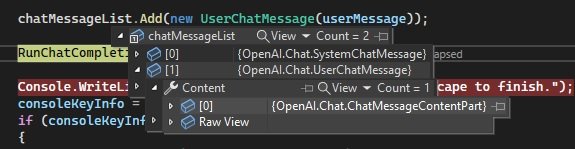
Below is the first user prompt entered to the Chat Assistant:

The structure of a message of type UserChatMessage being added to the chat message list:
Before I show the custom method that submits the prompt to the chat completion, I will explain the API calls.
The ChatClient class has a method, CompleteChat() which takes as input, the chat messages list of type List<ChatMessage>, and an object of type ChatCompletionOptions whose properties define the chat completion options.
ChatCompletion ChatClient.CompleteChat(
    List<ChatMessage>,
    ChatCompletionOptions
);
The ChatCompletionOptions class has a number of properties that allow you to control aspects of the answers returned from the assistant. Some of these include:
Temperature
PresencePenalty
FrequencyPenalty
The Temperature property is of floating-point type, which is a sample temperature that is a control for the creativity of generated chat completions. The ranges are from 0.0 to 2.0, with a default of 1.0 when the value is not specified.
The PresencePenalty property is a floating-point value, that affects the probability of generated tokens appearing when they are present in the generated text. It has a range of -2.0 to 2.0. Positive values mean that tokens will appear less often when they already exist in generated text and cause new topics to be output.
The FrequencyPenalty property is a floating-point value, that affects the probability of generated tokens appearing based on cumulative frequency in generated text. It has a range of -2.0 to 2.0. Positive values mean that tokens will appear less often when their frequency increases and cause the model to decrease repeating the same statements.
In the code snip below, I have set the creativity level to 0.8 of the call completion options, then make the call to the chat completion API:
ChatCompletionOptions chatCompletionOptions = new ChatCompletionOptions()
{
    Temperature = (float)0.8,
    FrequencyPenalty = (float)0,
    PresencePenalty = (float)0
};

// Chat completion object
ChatCompletion chatCompletion = chatClient.CompleteChat(
    chatMessages,
    chatCompletionOptions
);
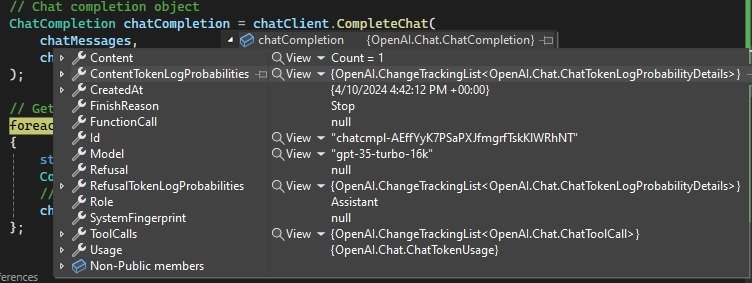
Below is the result from the response returned from a chat completion call:
One useful property in the returned ChatCompletion object is the Usage property, which tells us the running input token count, output token count, and total token count:
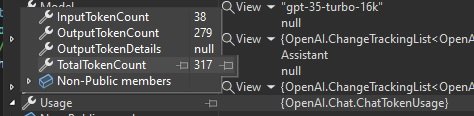
The running total token count can then be compared against the token limit that was configured for the deployed GPT model.
The custom method that runs the chat completion is shown below:
static async void RunChatCompletion(
    ChatClient chatClient,
    List<ChatMessage> chatMessages)
{
    // Chat completion options
    ChatCompletionOptions chatCompletionOptions = new ChatCompletionOptions()
    {
        Temperature = (float)0.8,
        FrequencyPenalty = (float)0,
        PresencePenalty = (float)0
    };

    // Chat completion object
    ChatCompletion chatCompletion = chatClient.CompleteChat(
        chatMessages,
        chatCompletionOptions
    );

    // Get messages from the model response..
    foreach (var item in chatCompletion.Content)
    {
        string completionMessage = item.Text;
        Console.WriteLine("Response: " + completionMessage + "\n");
        // Append completion to the chat history.
        chatMessages.Add(completionMessage);
    };
}
When the chat completion is returned, it has a type ChatCompletion, whichhas a Content array property. Each item in the Content array property has a Text property that contains the string of the content.
The completion is appended to the chat history as shown:
chatMessages.Add(completionMessage);
and the message in the chat message list is an object with role Assistant:
{
    "role": "assistant",
    "content": "Generative AI can be a useful tool for software developers to improve their skills. Here are a few ways..”
}
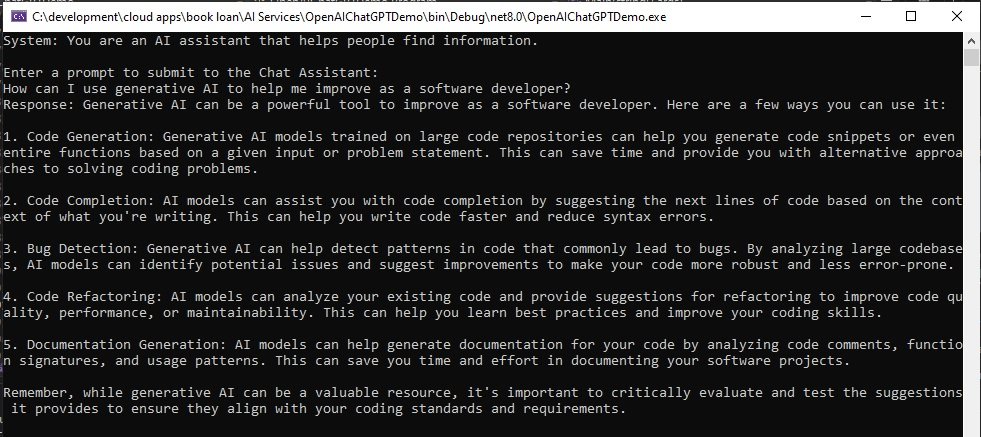
Below is the sample output from the first user prompt:
And below is the sample output from the second user prompt:
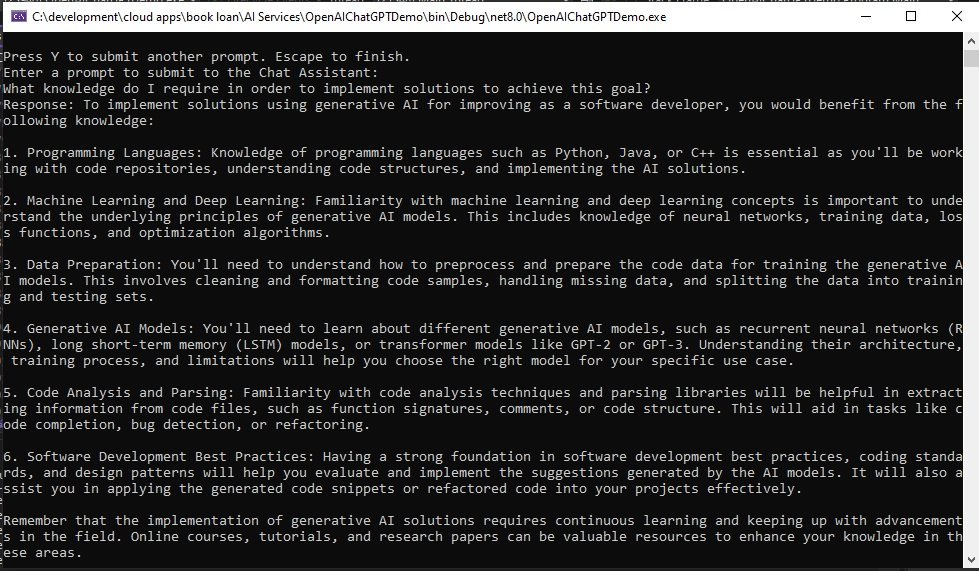
As we can see, the second assistant response output mentions AI Models, Machine Learning, and Deep Learning which are related to the first assistant response, which mentioned Generative AI Models.
We have seen how to use the Azure OpenAI SDK in a .NET client application to run Chat Completions on a deployed OpenAI GPT model.
That is all for today’s post.
I hope that you have found this post useful and informative.

Andrew Halil is a blogger, author and software developer with expertise of many areas in the information technology industry including full-stack web and native cloud based development, test driven development and Devops.