

Welcome to today’s post.
In today’s post I will be showing you how to use the Azure OpenAI SDK to run chat code completions against OpenAI Generative AI GPT Chat models.
In my most recent post, I showed how to use and deploy an Open AI GPT model within the Azure AI Studio.
The OpenAI GPT 3.5 Turbo model once deployed can be used for both natural language chat completions and code completions.
Single Line Natural Language vs Multiline Code Prompts
In one of my previous posts, I showed how to use the deployed OpenAI GPT Turbo 3.5 model within a client application that called the Chat Completion API through the Azure OpenAI Service SDK to submit single prompts to the model. We then received responses that contained the content as natural language with suggested advice for the problem within the prompt.
We were able to submit single line prompts to the model, then receive responses, which were then added to the conversation history. From the conversation history, the model is then able to answer contextual prompts based on content within the conversation history. This type of contextual chat conversation is stateful, as opposed to stateless chat conversations, where the model is unaware of the past conversational history. The stateful chat conversations are analogous to what we experience as humans when chatting.
A typical single-line chat prompt submitted to the GPT model with JSON responses is shown below:
{
    {
        "role": "system",
        "content": "You are an AI assistant that helps people find information."
    },
    {
        "role": "user",
        "content": "How can I use generative AI to help me improve as a software developer?"
    },
    {
        "role": "assistant",
        "content": "Generative AI can be a useful tool for software developers to improve their skills. Here are a few ways…”
    },
    …
}
We can also submit multi-line prompts, which allow us to submit sample code along with prompts that prime the model to deliver a response that parses the natural language part of the prompt and the code section of the prompt.
With a multi-line chat code prompt submitted to the GPT model with JSON responses is shown below:
[
    {
        "role": "system",
        "content": "You are an AI assistant that helps people find information."
    },
    {
        "role": "user",
        "content": "Write four unit tests for the following function.\n
---\n
\n
/// <summary>\n
/// ItemFrequency()\n
/// </summary>\n
/// <param name=\"a\"></param>\n
/// <returns></returns>\n
static Hashtable ItemFrequency(int[] a)\n
{\n
    if (a.Length == 0)\n
        return new Hashtable();\n
\n
    Hashtable rslt = new Hashtable();\n
\n
    for (int i = 0; i < a.Length; i++)\n
    {\n
        int val = a[i];\n
        if (!rslt.ContainsKey(val))\n
            rslt.Add(val, 0);\n
        rslt[val] = Convert.ToInt16(rslt[val])+1;\n
    }\n
\n
    return rslt;\n
}"
    },
    {
        "role": "assistant",
        "content": "Here are four unit tests for the given function:\n
\n
1. Test case for an empty array:\n
   Input: int[] a = new int[0];\n
   Expected output: an empty Hashtable\n
   Assertion: Assert.AreEqual(ItemFrequency(a).Count, 0);\n
\n
...
    }
]
You will have noticed that the difference between a single line prompt and the multi-line prompt are the inclusion of carriage return characters \n and the separator sequences such as — or “`. Each line within the prompt must either end with a carriage return character or have one of the separator sequences on its own line.
In the next section, I will show how I amend the user prompt code to support multi-line prompt submissions.
Submitting User Prompts to the Chat Code Completion API
In one of my previous posts, where I showed how to call Chat Completions with the Azure OpenAI SDK, I read in prompts one line at a time and submitted each one directly to the model through the SDK method CompleteChat() in the custom method PromptUserForCode().
A modified version of PromptUserForCode() that supports the multi-line prompt is shown below:
/// <summary>
/// PromptUserForCode()
/// </summary>
static void PromptUserForCode()
{
    // Get OpenAI client
    AzureOpenAIClient client = new AzureOpenAIClient(
        new Uri(endpoint!),
        new ApiKeyCredential(key!)
    );

    // Get the chat client
    ChatClient chatClient = client.GetChatClient(deploymentName);

    string systemMessage = "You are an AI assistant that helps people find information.";
    string? userMessage = String.Empty, messageLine = String.Empty;

    // Add system message.
    chatMessageList.Add(new SystemChatMessage(systemMessage));

    Console.WriteLine("System: " + systemMessage + "\n");

    ConsoleKeyInfo consoleKeyInfo;
    bool isFinished = false;

    while (!isFinished)
    {
        userMessage = String.Empty;

        Console.WriteLine("Enter a code prompt to submit to the Chat Assistant:");
        bool finishedInput = false;
        while (!finishedInput)
        {
            messageLine = Console.ReadLine();
            if (messageLine != null)
                userMessage = userMessage + messageLine + Environment.NewLine;
            finishedInput = (messageLine == null || messageLine.Length == 0);
        }

        if (userMessage == String.Empty || userMessage?.Length == 0)
        {
            Console.WriteLine("Please specify a valid prompt message.");
            return;
        }

        chatMessageList.Add(new UserChatMessage(userMessage));

        RunChatCompletion(chatClient, chatMessageList);

        Console.WriteLine("Press Y to submit another code prompt. Escape to finish.");
        consoleKeyInfo = Console.ReadKey(true);

        if (consoleKeyInfo.Key == ConsoleKey.Escape)
        {
            Console.WriteLine("Escape Key Pressed.");
            isFinished = true;
        }
    }
}
What I did was to build a single string variable userMessage, that we append to with each console line input, with each string input from the standard input appended with a carriage return. The string definition is completed when an empty line is entered.
The method that executes the call to the Chat Completion is unchanged as is shown below:
static async void RunChatCompletion(
    ChatClient chatClient,
    List<ChatMessage> chatMessages)
{
    // Chat completion options
    ChatCompletionOptions chatCompletionOptions = new ChatCompletionOptions()
    {
        Temperature = (float)0.8,
        FrequencyPenalty = (float)0,
        PresencePenalty = (float)0
    };

    // Chat completion object
    ChatCompletion chatCompletion = chatClient.CompleteChat(
        chatMessages,
        chatCompletionOptions
    );

    // Get messages from response..
    foreach (var item in chatCompletion.Content)
    {
        string completionMessage = item.Text;
        Console.WriteLine("Response: " + completionMessage + "\n");
        // Append completion to the chat history.
        chatMessages.Add(completionMessage);
    };
}
In the final section, I will show how a multi-line code prompt works in a sample run within the client application.
Submission of Multiline Prompts to the Chat Code Completion Model
In this section, I will show how a multi-line prompt when submitted to the GPT Chat Completion model responds from the client application.
In the application that I created in the previous post on where I showed how to use the Azure OpenAI SDK for Chat GPT Completions and the changes to the PromptUserForCode() from the previous section, we rebuild and run. The following screenshot shows the prompt submitted with multi-line content.
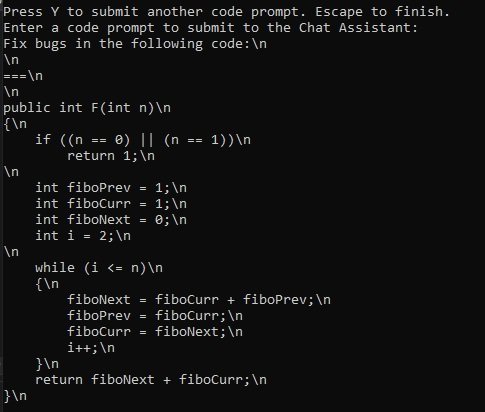
To make things easier during the input, you can copy and paste the code with trailing carriage returns as shown:
Fix bugs in the following code:\n
\n
===\n
\n
public int F(int n)\n
{\n
    if ((n == 0) || (n == 1))\n
        return 1;\n
\n
    int fiboPrev = 1;\n
    int fiboCurr = 1;\n
    int fiboNext = 0;\n
    int i = 2;\n
\n
    while (i <= n)\n
    {\n
        fiboNext = fiboCurr + fiboPrev;\n
        fiboPrev = fiboCurr;\n
        fiboCurr = fiboNext;\n
        i++;\n
    }\n
    return fiboNext + fiboCurr;\n
}\n
Then the prompt is submitted with the additional blank line, after a few seconds you will see a response returned from the model:
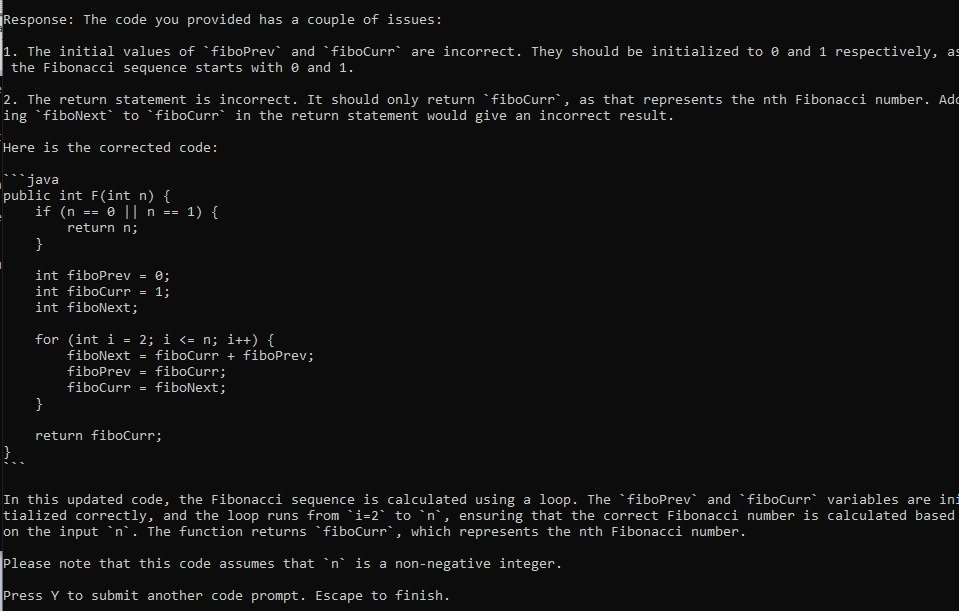
The above sections have shown us how to construct a generative AI client application that uses the Azure OpenAI SDK and a deployed GPT 3.5 Turbo model to submit code prompts to the model and in turn receive responses that can also include code.
The application could be used in conjunction during software development to assist with code generation, refactoring, improvement, bug fixes, and documentation. Ideally, integration of the same calls into your development environment would increase the efficiency of your development.
That is all for today’s post.
I hope that you have found this post useful and informative.

Andrew Halil is a blogger, author and software developer with expertise of many areas in the information technology industry including full-stack web and native cloud based development, test driven development and Devops.