

Welcome to today’s post.
In today’s post I will be showing you how to create a Custom Question and Answer Natural Language Processing Knowledge Base with Azure Language Services.
We have seen with other types of language services, such when we build a Conversational Language Understanding (CLU) model, the data that we upload and/or import into the project is then the model is trained by labelling the data to improve its prediction capabilities.
With a Custom Question and Answer project, we have a data layer, which is not a trained model. The responses from the Prediction API are determined by answers located within the imported question and answer data pairs by using Azure Search, which can return one or more possible answers.
Before I show you how to create a Question and Answer / Knowledge Base (KB). I will explain differences between questions and answers, knowledge bases, and FAQs. A custom question and answer conversation within a chat bot consists of static content and predefined responses, with the conversation flow being pre-determined.
Comparing Knowledge Bases, FAQs and Questions and Answers
A knowledge base, also abbreviated as KB, is a very large and detailed searchable list of records containing many known facts, problems, diagrams, images, documents, and so on. Typically, knowledge bases are used and updated by specialists and subject domain experts to provide knowledge to the expert in their line of work.
An example of a KB is a library of information that a technical specialist would use to research topics so that they can be included in their area of work. A KB can also be used as a problem-solving tool, where each of the known issues has also a list of answers or known resolutions to the issues.
An FAQ, also known as frequently asked questions, is a list of key/value pairs that consist of the most common, frequently asked questions and answers that are used to provide users with the most likely matching answer to their question.
Unlike the KB, a FAQ does not have a search facility, as the amount of data stored to accommodate an FAQ is not large enough to require searches.
An example of an FAQ is when the most common questions and answers are provided on a custom support web site.
Question and answer (or QnA) lists are very similar to an FAQ, in that there are a larger number of questions and answers that cover a subject domain, and they are not yet shortlisted to be used as part of a user FAQ.
FAQs are more commonly used by a business to provide customers and potential customers with help on many topics. The answers provided for each question can consist of the following formats:
- Plain text answers to questions.
- Unstructured text answers to questions.
- URL links to site or web references.
- URL links to useful PDF documents.
With Azure Language Services, we can create an FAQ project and deploy it to be used in client applications or web site chatbots.
In the next section, I will give a brief overview of the architecture and the resources we use to implement the Custom Question Answer resource.
Overview of the Custom Question and Answer Architecture and Process
The setup of the KB Web Chat Bot requires an Azure Language Service resource that contains a Custom Question Answer project resource, which has imported questions and answers from TSV or XLSX source files. The Custom Question Answer project is connected to an Azure Search resource that generates the search results from a submitted question.
A deployed Prediction API returns the results of a supplied input question from a client application.
The resources are shown below:
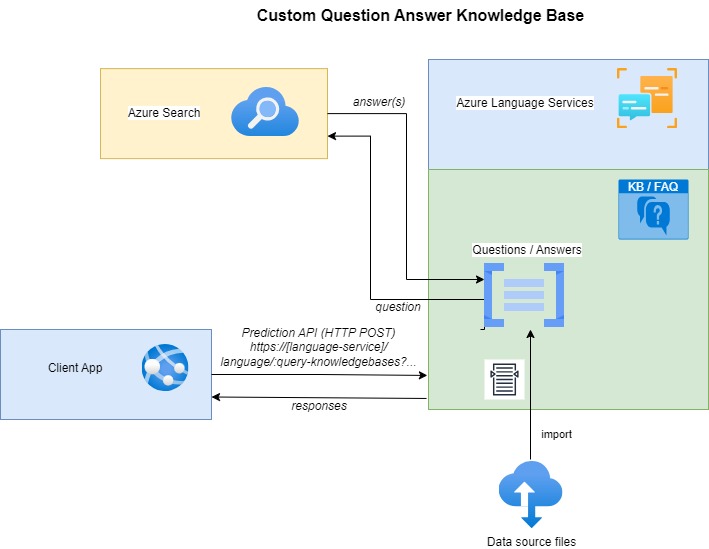
In the next section, I will show how to create a custom Question and Answer Knowledge Base using the Azure Language Studio.
Creating Custom Question and Answer Knowledge Bases
In this section, I will show how to create a custom question and knowledge base that can be used within an application or a web chat bot as an FAQ.
In the Azure Language Studio, under the Understand questions and conversational language tab, you will see the Custom question answering feature.
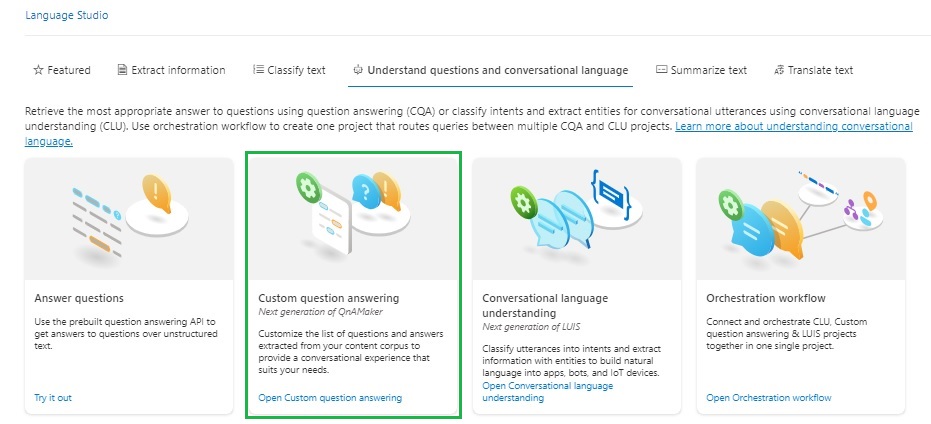
After selecting the above feature, you will see the following information displayed in the screen. You will notice that there is a Connect to Azure search hyperlink.
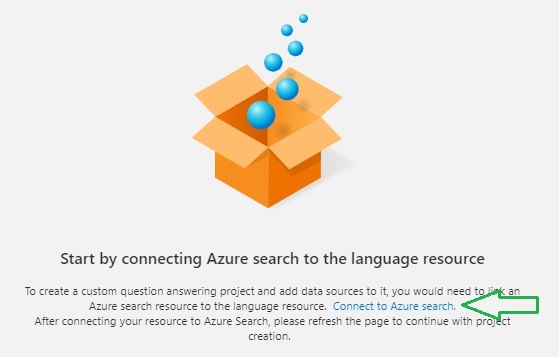
After selecting the hyperlink, you will be taken to the Azure Search page:
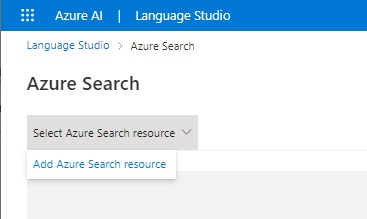
Click on the Add Azure Search resource.
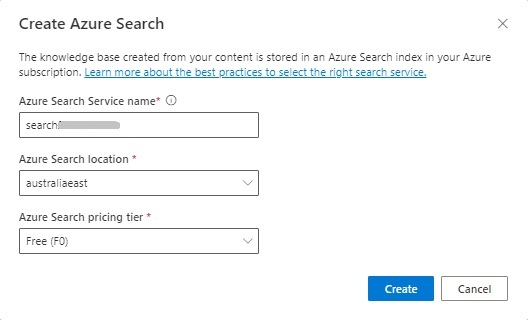
Enter the search service name, select a search location, and pricing tier.
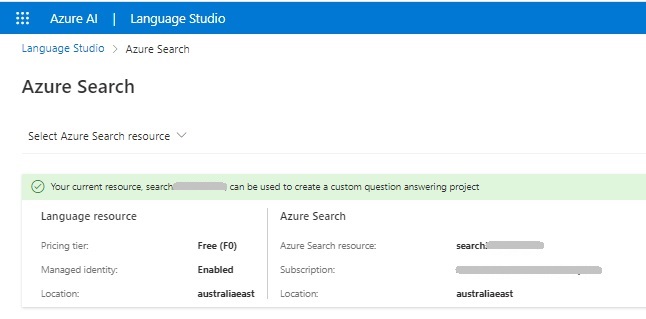
The Azure search resource is used to store the records from our question-and-answer data and provides the first matching answer. Subsequent matching answers are provided by processing through the custom QA NLP layer and providing confidence scores.
Now that our Azure search resource has been created, we will be able to create a new question and answer project.
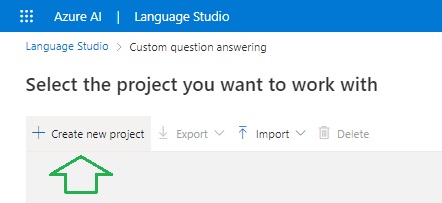
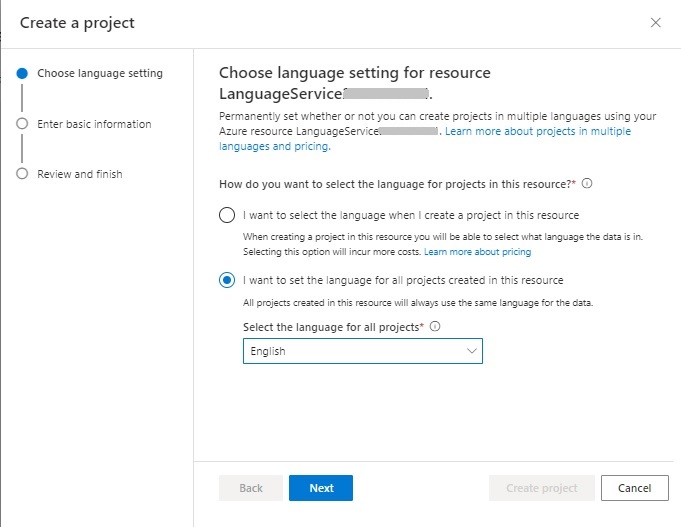
After creating a new project, you will be presented with some options for the language setting. You can either set the language for each project or set the language for all projects. Setting the language for each project can incur a higher cost, so I will set the language, English for all projects.
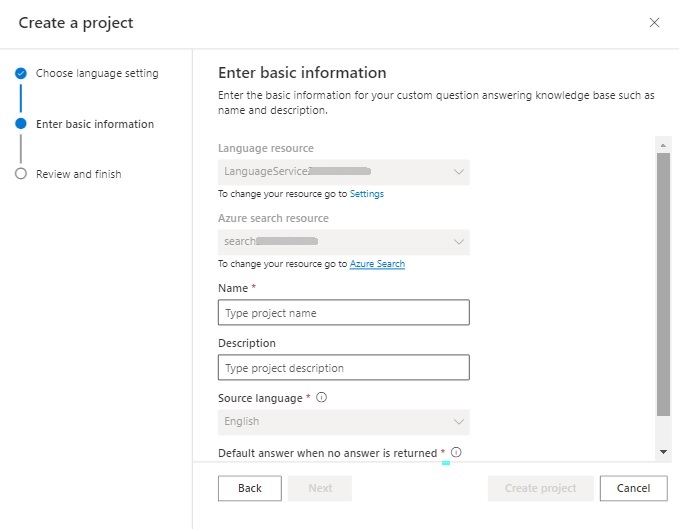
Next, enter the project name and description. The rest of the fields are prefilled:
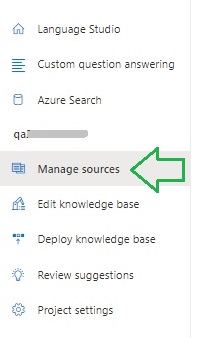
After the project is created, the landing page will display some options in the left menu. We will need to first add some data sources to the project. Select the Manage sources option.
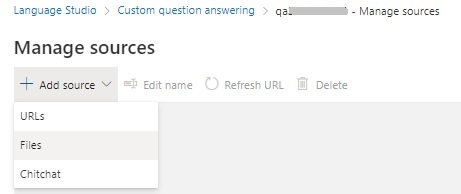
Under the Manage sources menu, in the Add source drop down menu, select the Files option:
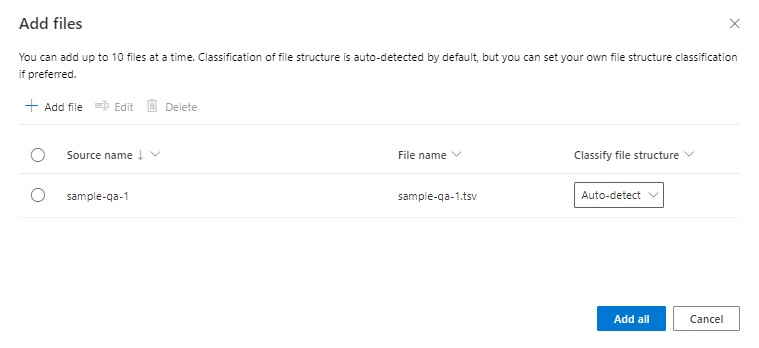
From the Add files pane, you can then add source files that define the knowledge base of question and answers for the dataset:
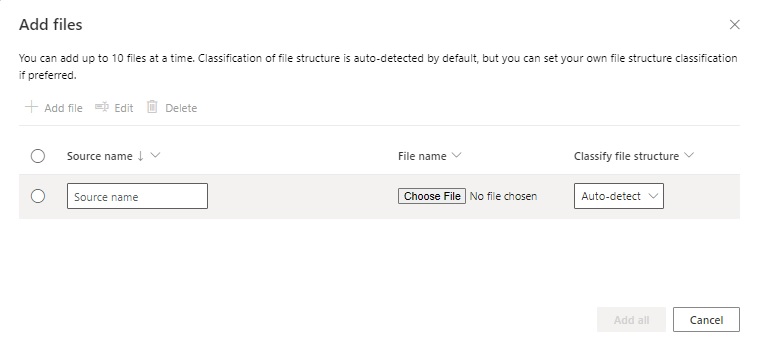
The structure of each source file can be either a spreadsheet XLSX format, or a TSV formatted file.
Below are the data field header names that are required to be declared within each source file:
| Field | Type | Description |
| Question | Text | A question. |
| Answer | Text | An answer. |
| Source | Text | KB source of question and answer. |
| Metadata | Text | Metadata. Optional |
| SuggestedQuestions | Text | List of suggested questions in brackets. Default is []. |
| IsContextOnly | Bool | Is context only. Default is False. |
| Prompts | Text | Prompts. Default is []. |
| QnaId | Integer | Q and A identifier. |
| SourceDisplayName | Text | Display name for source file. |
In the TSV file, each of the above headers and data values has to be separated by a tab space.
Below is the upload of first source file:
You will be able to tell if the file has been uploaded and parsed successfully by checking the Unstructured column below:
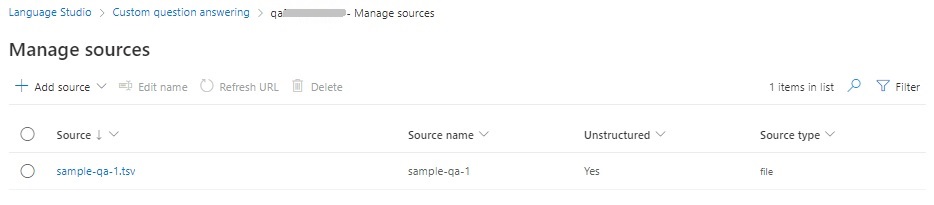
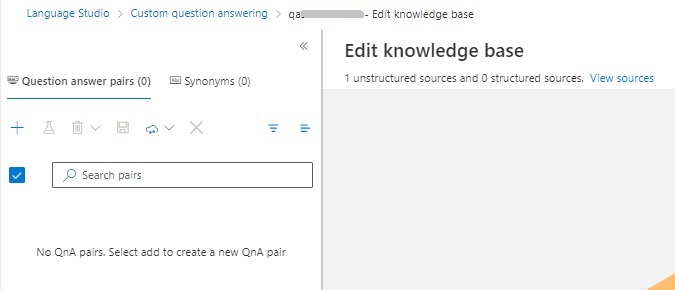
If you have separated the fields by spaces or added too many tabs between any fields, the file will be classified as unstructured text. In the Edit knowledge base pane,
if you see no question answer pairs display in the left pane, this is also another clue that the file uploaded was unsuccessful:
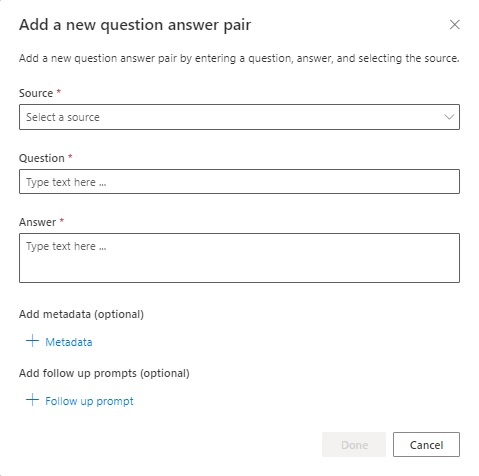
One way to ensure that data displays correctly is to add each record manually using the Add a new question answer pair dialog (select the plus sign in the left pane):
After adding the data, you can then export the data as a TSV or Excel file:
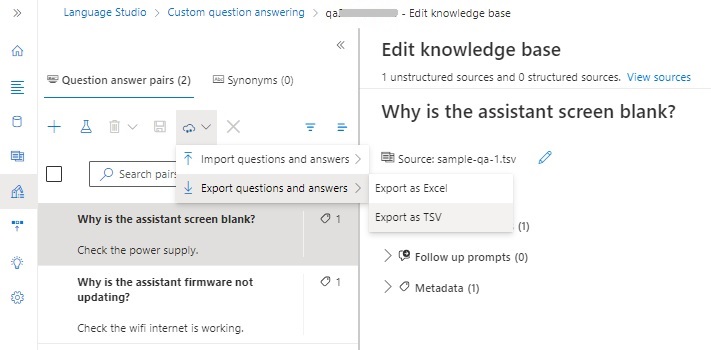
Once exported, you can view the data in an editor. Below is a display of data from a text editor:

You can then add further data (if this option is more efficient). Also, if you generate all the knowledge base data and exported to a TSV file, then upload it to the project, this is also another effective way to get larger knowledge bases into the project and retain and reuse the same data for future projects.
After the source data is loaded into the project, you can then review it in the project Edit knowledge base as shown:
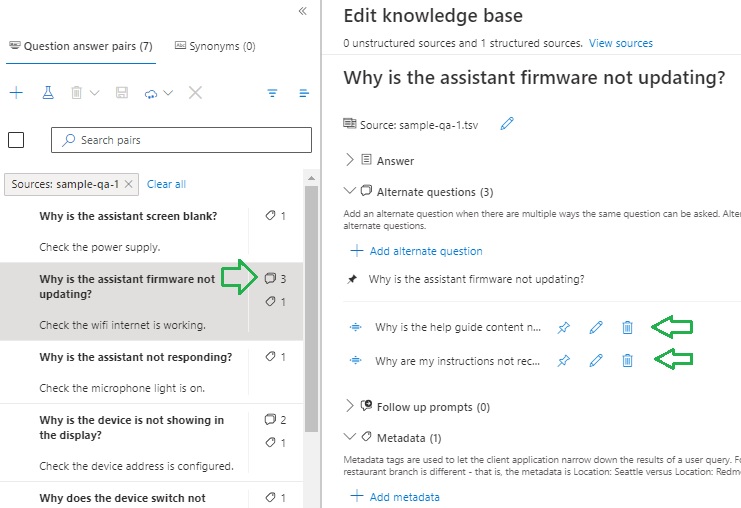
Where a loaded question and answer record has alternative questions, this means that the answer corresponds to other questions that share the same answer.

We can also change the display name of the source from the default file name as shown:
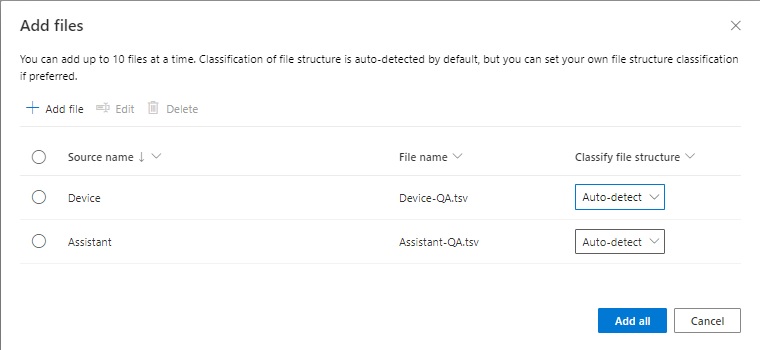
After creating and loading the above KB data, we can run some tests before we deploy the project as an API. I will show how to run the test in the next section.
Testing the Custom Knowledge Base in a Chat
In this section I will show how to test the Question-and-Answer FAQ project using a built-in test chat bot.
In the project’s Edit knowledge base page, near where you see the import and export action, there is a beaker (experiment) icon as shown below that allows you to run tests:
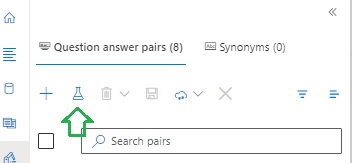
After selecting the above action, a test dialog that will display in the right pane of the project window:
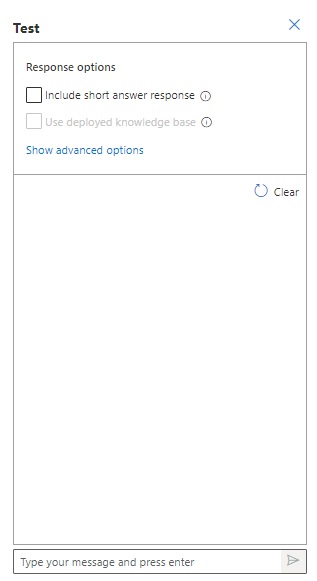
After entering one of the pre-existing questions from the knowledge base, or a question that is closely matching one of the pre-existing questions, an answer will output above the dialog chat response area in a beveled shape:
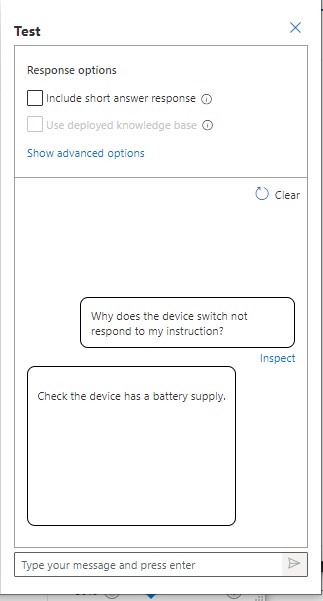
You will see an Inspect link just below the answer box, which will expand the dialog horizontally and display the top answers on the right as shown:
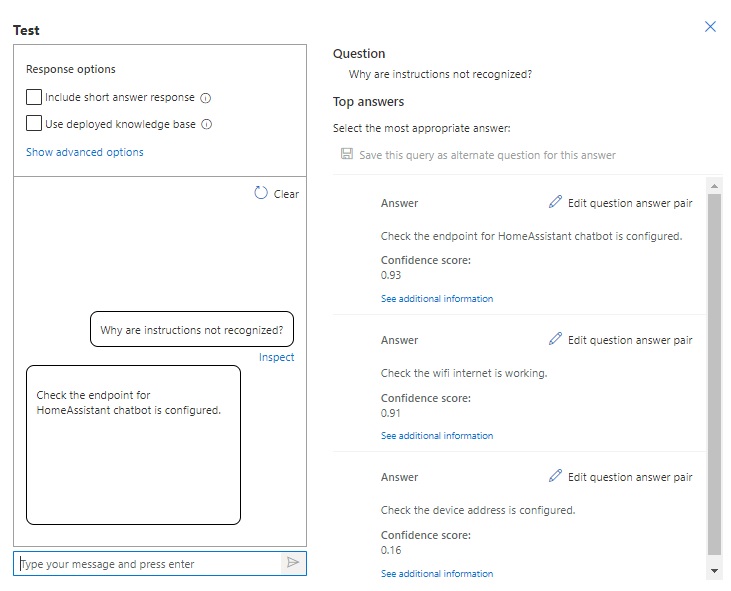
Each of the answers will also display the percentage in the level of confidence.
In the next section I will show how to deploy the project and its data as a prediction API.
Deploying the Project as a Prediction API
In this section I will show how to deploy our KB/FAQ Question and Answer project as a prediction API.
In the left menu icons, the deployment action is the binary icon shown below:
The Deployment knowledge base page has two options:
Deploy
Get prediction URL
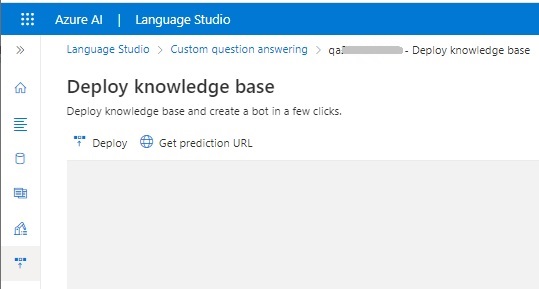
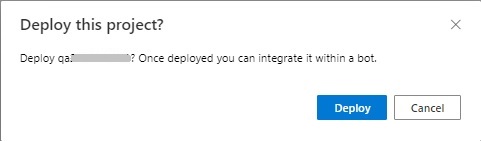
After selecting the Deploy option, you will then need to confirm deployment in the following dialog:
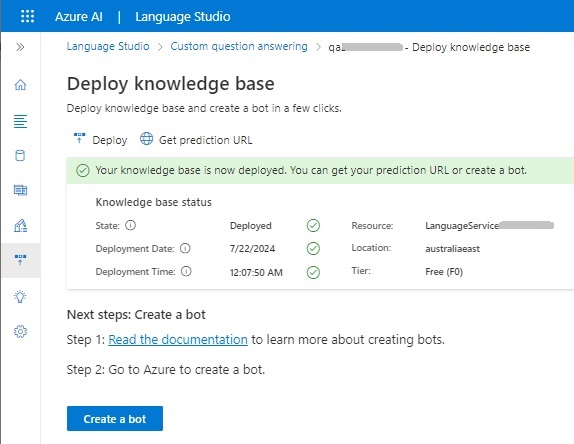
Following deployment, you will see the project deployed with the prediction API URL available. There is also the option to create a bot to process chat messages between a chat bot and the prediction API for the KB language project (which I will show in a future blog).
Now that we have deployed the FAQ language project, we can access it from a client application.
The Prediction URL is of the form:
https://[language-resource-name].cognitiveservices.azure.com/language/
:query-knowledgebases?
projectName=[custom-qa-project-name] &
api-version=2021-10-01 &
deploymentName=[development/test/production]
Following deployment, we can call the custom Question Answer NLP project within a chat bot through the project endpoint and pass in a question.
The response returned will be matching answers. To demonstrate the equivalent using the QuestionAnswer SDK, I will show how this is done in a C# console application in the next section.
Running the Deployed FAQ Project in a Client Application
In this section, I will show how to implement a C# application that sends questions and receives answer responses.
Before we can open the development environment, we will need to set some environment variables for the following parameters:
Language resource endpoint
Language resource key
Custom Question and Answer project name
Custom Question and Answer deployment name
This is done with SETX commands in a Windows command prompt:
setx LANGUAGE_ENDPOINT [Azure-language-resource-endpoint]
setx LANGUAGE_KEY [Azure-language-resource-key]
setx QA_PROJECT_NAME [custom-QA-project-name]
setx QA_DEPLOYMENT_NAME [custom-QA-deployment-name]
When the deployment and Prediction URL is generated in the custom QA project, the deployment name is set to production. In an application environment with multiple stages, this can be development, test, production.
Once the application is created within Visual Studio, the following NuGet package will need to be installed:
Azure.AI.Language.QuestionAnswering
In the application, assigning variables to the environment variable parameters is done as shown:
languageEndpoint = Environment.GetEnvironmentVariable("LANGUAGE_ENDPOINT");
languageKey = Environment.GetEnvironmentVariable("LANGUAGE_KEY");
qaProjectName = Environment.GetEnvironmentVariable("QA_PROJECT_NAME");
qaDeploymentName = Environment.GetEnvironmentVariable("QA_DEPLOYMENT_NAME");
The code for setting up instances of the QuestionAnsweringClient client and QuestionAnsweringProject is shown below:
Uri endpoint = new Uri(languageEndpoint);
AzureKeyCredential credential = new AzureKeyCredential(languageKey);
QuestionAnsweringClient client = new QuestionAnsweringClient(endpoint, credential);
QuestionAnsweringProject project = new QuestionAnsweringProject(qaProjectName, qaDeploymentName);
In the RetrieveQuestionAnswers() method where we process the specified question, we retrieve a response that contains AnswersResult objects by calling the following QuestionAnsweringClient class method:
Response<AnswersResult> GetAnswersAsync(
    string question,
    QuestionAnsweringProject project
);
From the above response value, there is an Answers property, which is a collection of KnowledgeBaseAnswer objects, which we can then iterate through to obtain the following properties:
Confidence
Answer
Source
Below is the main section of the application source that achieves the above:
using Azure;
using Azure.AI.Language.QuestionAnswering;

namespace CustomQuestionAnswerDemo
{
    internal class Program
    {
        static string qaProjectName = String.Empty;
        static string qaDeploymentName = String.Empty;

        static string languageEndpoint = String.Empty;
        static string languageKey = String.Empty;

        static void Main(string[] args)
        {
            InitializeVariables();

            Uri endpoint = new Uri(languageEndpoint);
            AzureKeyCredential credential = new AzureKeyCredential(languageKey);

            QuestionAnsweringClient client = new QuestionAnsweringClient(endpoint, credential);

            QuestionAnsweringProject project = new QuestionAnsweringProject(qaProjectName, qaDeploymentName);

            while (true)
            {
                Console.WriteLine("Custom Question and Answer Demo");
                Console.WriteLine("-------------------------------");
                Console.WriteLine("To ask a question to the Custom QA Service Press A.");
                Console.WriteLine("Press Escape to finish.");
                Console.WriteLine();

                ConsoleKeyInfo consoleKeyInfo = Console.ReadKey(true);

                if (consoleKeyInfo.Key == ConsoleKey.Escape)
                {
                    Console.WriteLine("Exiting application.");
                    return;
                }

                if (consoleKeyInfo.Key == ConsoleKey.A)
                {
                    Console.WriteLine("Enter a question to ask:");
                    string? question = Console.ReadLine();

                    if ((question != null) && (question.Length > 0))
                    {
                        RetrieveQuestionAnswers(question, client, project).Wait();
                    }
                }

                Console.WriteLine();
            }
        }
    ..
   }
}
Below are the variable initializations and question and answer retrieval method:
private static void InitializeVariables()
{
        languageEndpoint = Environment.GetEnvironmentVariable("LANGUAGE_ENDPOINT");
        languageKey = Environment.GetEnvironmentVariable("LANGUAGE_KEY");

        qaProjectName = Environment.GetEnvironmentVariable("QA_PROJECT_NAME");
        qaDeploymentName = Environment.GetEnvironmentVariable("QA_DEPLOYMENT_NAME");
    }

    static async Task RetrieveQuestionAnswers(
        string question,
        QuestionAnsweringClient client,
        QuestionAnsweringProject project)
    {
        Response<AnswersResult> response = await client.GetAnswersAsync(question, project);

        foreach (KnowledgeBaseAnswer answer in response.Value.Answers)
        {
            Console.WriteLine($"({answer.Confidence:P2}) {answer.Answer}");
            Console.WriteLine($"Source: {answer.Source}");
            Console.WriteLine();
        }
    }
}
Below is sample output from the above source:
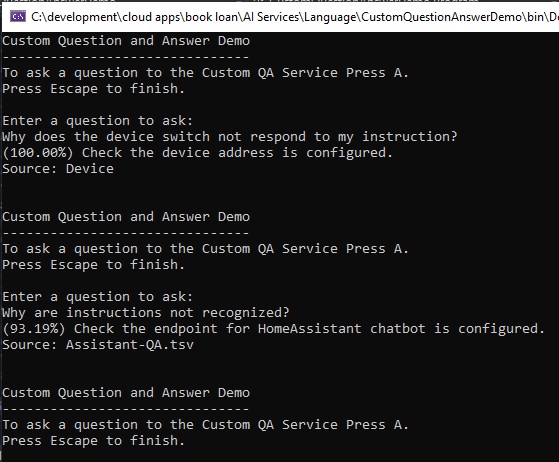
The above overview has shown us how to create a Custom Question Answer Natural Language Processing project within an Azure Language Studio project, which we then tested it in a chat dialog, deployed it as a Prediction URL, then implemented an FAQ/Q and A client application where we requested answers by submitting questions to the deployed project.
In a future post, I will show how to connect the above Custom Question and Answer layer to an Azure Chat Bot service, and test the chat bot as an FAQ web chat bot.
That is all for today’s post.
I hope that you have found this post useful and informative.

Andrew Halil is a blogger, author and software developer with expertise of many areas in the information technology industry including full-stack web and native cloud based development, test driven development and Devops.

