

Welcome to today’s post.
In today’s post, I will be discussing what a knowledge store is, what their purpose is, and how to create them from an Azure AI Search Service.
In a previous post, I showed how to create an Azure AI Search Service, which we used to index some PDF documents from an Azure Blob Storage Container. In the same post, I showed how to add cognitive skills such as Image analysis (tag and caption extraction), or Entity Recognition using the indexing wizard for the Azure Search Service.
In a subsequent post, I then showed how, using Azure Search Service HTTP REST API requests, how to extend the Azure Search instance by adding additional Azure AI Cognitive Skills, such as Sentiment Analysis.
In another post, I then showed how to execute indexed searches against the Azure AI Search instance within a web client application.
Knowledge Stores and Reporting
The other option for running searches is to use reporting tools that can return results based on keywords that are stored within JSON files, storage tables and image files that have been extracted from the Azure AI Search instance. What I will be showing is how to extend an existing Azure AI Search creation pipeline to extract many of the keywords, phrases, and properties from the unstructured file data sources, and store them in a more structured format within the storage container. The storage of the structured format within the storage container is known as a knowledge store.
The types of structured content that are in a knowledge store can include:
JSON files
Image files
Storage Tables
With the above content in a container, we will then be able to connect to the container as a data source and run reports. I will not go into the details of the reporting side of things, but only on the creation of the knowledge store.
In the next section, I will show the JSON structure of the skillset definition that is required for modification.
Structure of the Skillset to be Modified
Below is the structure of the Skillset definition with the skills sections and their details omitted for brevity.
Skillset.json
{
  "name": "parkdocs-skillset",
  "description": "Skillset created from the portal",
  "cognitiveServices": {
      "@odata.type": "#Microsoft.Azure.Search.CognitiveServicesByKey",
      "description": "Azure AI services",
      "key": "[your AI cognitive services multi-key]"
    },
  "skills": [
    {
      "@odata.type": "#Microsoft.Skills.Text.V3.EntityRecognitionSkill",
      …
    },
    {
      "@odata.type": "#Microsoft.Skills.Text.KeyPhraseExtractionSkill",
      …
    },
    {
      "@odata.type": "#Microsoft.Skills.Text.LanguageDetectionSkill",
      …
    },
    {
      "@odata.type": "#Microsoft.Skills.Text.MergeSkill",
      …
    },
    {
      "@odata.type": "#Microsoft.Skills.Vision.OcrSkill",
      …
    },
    {
      "@odata.type": "#Microsoft.Skills.Vision.ImageAnalysisSkill",
      …
    },
    {
      "@odata.type": "#Microsoft.Skills.Text.V3.SentimentSkill",
      …
    },
    … Shaper Skill definition here …
  ],
  … Knowledge Store definition here …
  "encryptionKey": null
}
In the next section, I will show how to modify the skillset definition to define our new knowledge store.
Modifying the Skillset to provide a new Knowledge Store
Achieving our goal of creating the knowledge store will require us to modify the Skillset.json file to include two additional sections:
- A Shaper skill.
- A knowledge store section. knowledgeStore
The Shaper Skill
The Shaper Skill, which is of OData type Microsoft.Skills.Util.ShaperSkill is used to take the fields that were extracted during the index creation process and structure them into an output field, named knowledge_projection. The input fields include those from the following fields:
- metadata_* fields
- Extracted recognition entities
- Extracted key phrases
- Extracted image tags and captions
- Extracted cognitive skills
The definition of the Shaper Skill is below:
{
      "@odata.type": "#Microsoft.Skills.Util.ShaperSkill",
      "name": "define-projection",
      "description": "Prepare projection fields",
      "context": "/document",
      "inputs": [
        {
          "name": "file_id",
          "source": "/document/metadata_storage_path"
        },
        {
          "name": "file_name",
          "source": "/document/metadata_storage_name"
        },
        {
          "name": "url",
          "source": "/document/url"
        },
        {
          "name": "language",
          "source": "/document/language"
        },
        {
          "name": "sentiment",
          "source": "/document/sentimentLabel"
        },
        {
          "name": "key_phrases",
          "source": null,
          "sourceContext": "/document/merged_content/keyphrases/*",
          "inputs": [
            {
                "name": "phrase",
                "source": "/document/merged_content/keyphrases/*"
            }
          ]
        },
        {
          "name": "locations",
          "source": null,
          "sourceContext": "/document/merged_content/locations/*",
          "inputs":[
            {
              "name": "location",
              "source": "/document/merged_content/locations/*"
            }
          ]
        },
        {
          "name": "image_tags",
          "source": null,
          "sourceContext": "/document/normalized_images/*/imageTags/*",
          "inputs":[
            {
              "name": "tag",
              "source": "/document/normalized_images/*/imageTags/*/name"
            }
          ]
        }
      ],
      "outputs": [
        {
          "name": "output",
          "targetName": "knowledge_projection"
        }
      ]
}
In the next section, I will show how to define the knowledge store to project the output of the shaper skill into our Azure storage container.
Defining the Knowledge Store
In this section, I will show how to define the knowledge store to project the output of the shaper skill into our Azure storage container.
Each projection into the Azure storage container is required to be moved into one of three types of project destination:
objects
files
tables
There can only be one projection defined for each of the above types of projection.
The destinations for the objects are JSON files.
The destinations for the files are images files.
The destinations for the tables are Azure storage tables.
To define the knowledge store, we require the following:
- A connection to the Azure storage container.
- Projections for the objects, files and tables.
With object and file projection types, we will need to specify a storage container and a source document projection folder.
{
    "storageContainer": "[storage container name]",
    "source": "/document/[sub-folder name]"
}
With table projection types, we will need to specify a table name, generated key name, and a source document projection folder.
{
    "tableName": "[storage table name]",
    "generatedKeyName": "[table key name]",
    "source": "/document/[sub-folder name]"
}
Below is our knowledge store definition with the document subfolders specified for our projections:
"knowledgeStore": {
    "storageConnectionString": "[azure storage connection string] ",
    "projections": [
      {
        "objects": [
          {
            "storageContainer": "parkdocs-knowledge",
            "source": "/document/knowledge_projection"
          }
        ],
        "tables": [],
        "files": []
      },
      {
        "objects": [],
        "tables": [],
        "files": [
          {
            "storageContainer": "parkdocs-images",
            "source": "/document/normalized_images/*"
          }
        ]
      },
      {
        "objects": [],
        "tables": [
          {
            "tableName": "KeyPhrases",
            "generatedKeyName": "keyphrase_id",
            "source": "/document/knowledge_projection/key_phrases/*"
          },
          {
            "tableName": "Locations",
            "generatedKeyName": "location_id",
            "source": "/document/knowledge_projection/locations/*"
          },
          {
            "tableName": "ImageTags",
            "generatedKeyName": "tag_id",
            "source": "/document/knowledge_projection/image_tags/*"
          },
          {
            "tableName": "docs",
            "generatedKeyName": "document_id",
            "source": "/document/knowledge_projection"
          }
        ],
        "files": []
      }
    ]
},
In the next section, I will show how we apply the skillset definition with the above shaper skill and knowledge store definitions.
Updating the Knowledge Store with the REST API
To update the knowledge store, we will need to first execute the skillset, index and indexer REST API methods to update the Azure AI Search instance. We will then need to execute the reset and run REST API methods to reset and run the search instance.
We execute the same REST API requests that were run when updating the skillsets and indexes. The only difference is in the definition within the skillset.json file.
Below is the REST API request for the skillset method:
curl -X PUT https://[search-service-name].search.windows.net/skillsets/parkdocs-skillset?api-version=2024-07-01
 -H "Content-Type: application/json"
-H "api-key: [azure search resource key]" -d @skillset.json
Below is the REST API request for the indexes method:
curl -X PUT https://[search-service-name].search.windows.net/indexes/parkdocs-index?api-version=2024-07-01
-H "Content-Type: application/json"
-H "api-key: [azure search resource key]" -d @index.json
Below is the REST API request for the indexers method:
curl -X PUT https://[search-service-name].search.windows.net/indexers/parkdocs-indexer?api-version=2024-07-01
-H "Content-Type: application/json"
-H "api-key: [azure search resource key]" -d @indexer.json
Below is the REST API request for the reset method:
curl -X POST https://[search-service-name].search.windows.net/indexers/parkdocs-indexer/reset?api-version=2024-07-01
-H "Content-Type: application/json" -H "Content-Length: 0"
-H "api-key: [azure search resource key]"
Below is the REST API request for the run method:
curl -X POST https://[search-service-name].search.windows.net/indexers/parkdocs-indexer/run?api-version=2024-07-01
-H "Content-Type: application/json" -H "Content-Length: 0"
-H "api-key: [azure search resource key]"
After completing the execution of the above CURL commands, you will then be able to inspect the storage container for the knowledge store.
In the next section, I will show how the storage container data source used by the Azure Search Service instance is populated with the data extracted from the document sources.
Viewing Outputs of the Knowledge Store within the Blob Storage Container
To view the results of the knowledge store in the Azure Portal, open the Storage Browser in the Storage Account resource overview.
Storage Tables
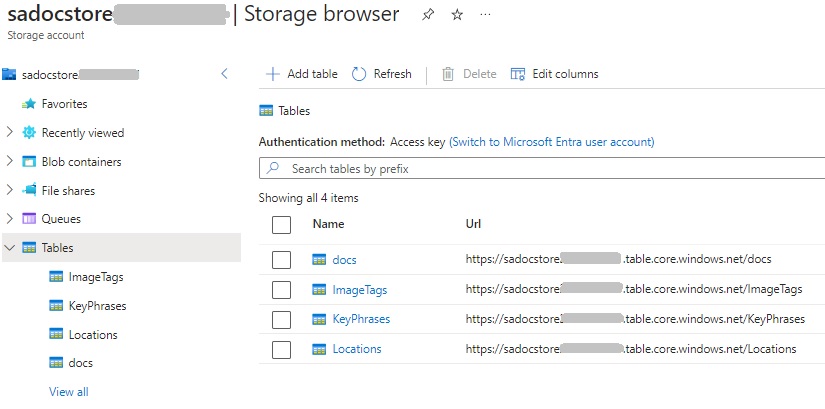
The table names are defined from the tableName propertywithin the tables array objects within the knowledgeStore definition, which you can review in the two previous sections.
docs Table
When viewing the docs storage table, you will see a document_id for each of the PDF documents, the file_name field, with the language and sentiment columns.
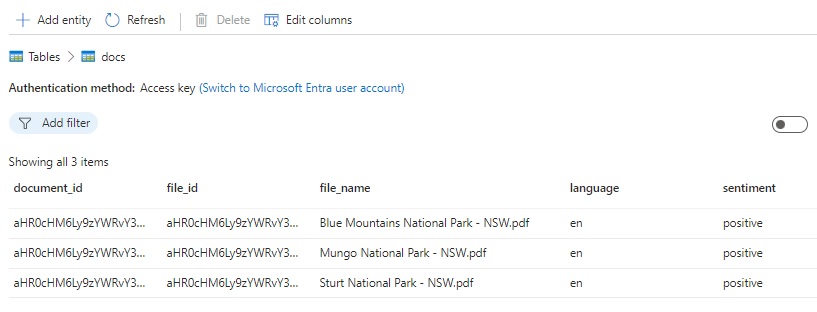
The above fields are defined within the ShaperSkill definition’s name property within the inputs array, which you can review in the two previous sections.
The above record values are obtained from the following input source contexts (mapped column name in parentheses):
/document/metadata_storage_path (file_id)
/document/metadata_storage_name (file_name)
/document/language (language)
/document/sentimentLabel (sentiment)
A typical PDF file URL within the storage account is of the form:
https://[storage-account-name].blob.core.windows.net/parkdocs/[file-name].pdf
Image Tags Table
When viewing the ImageTags storage table, you will see a document_id for each of the tags and tag and tag_id columns.
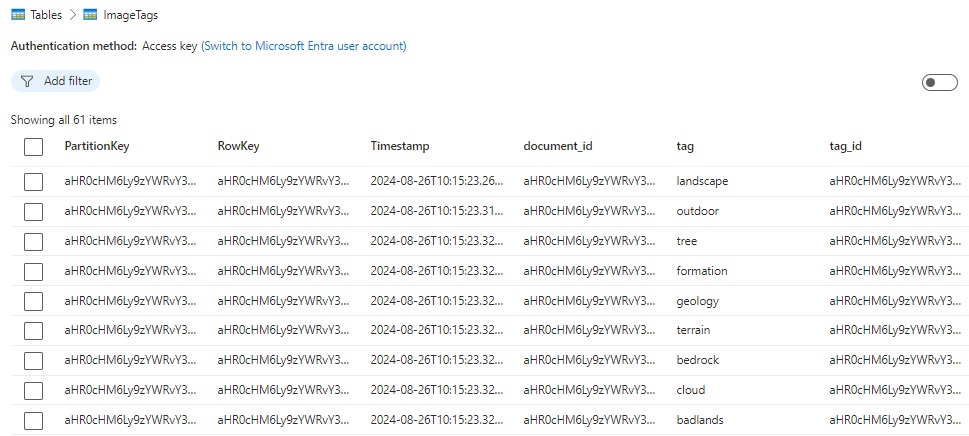
The ImageTags table column, tag is derived from the name property within the inputs array of the image_tags object in the ShaperSkill definition.
The above record values are obtained from the following input source context:
/document/normalized_images/*/imageTags/*
Key Phrases Table
When viewing the KeyPhrases storage table, you will see a document_id for each of the phrases, and keyphrase_id and phrase columns.
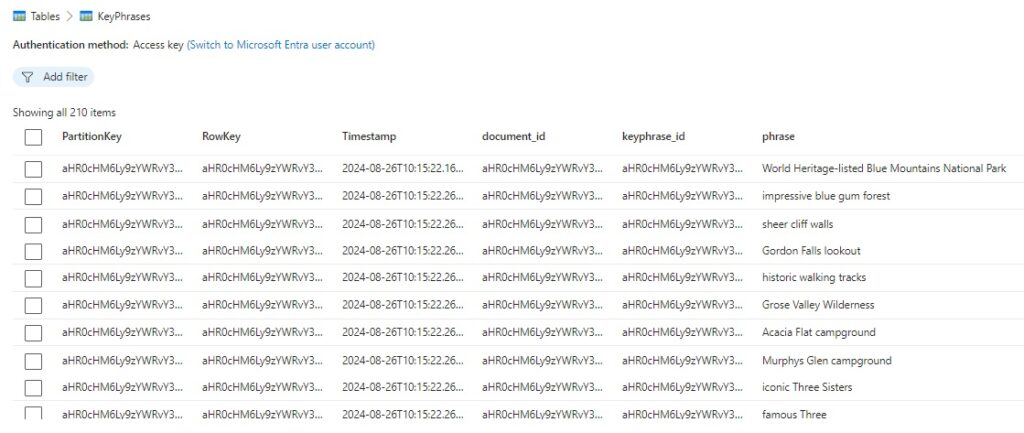
The KeyPhrases table field, phrase is derived from the name property within the inputs array of the key_phrases object in the ShaperSkill definition.
The above record values are obtained from the following input source context:
/document/merged_content/keyphrases/*
Locations Table
When viewing the locations storage table, you will see a document_id for each of the locations, and the location and location_id columns.
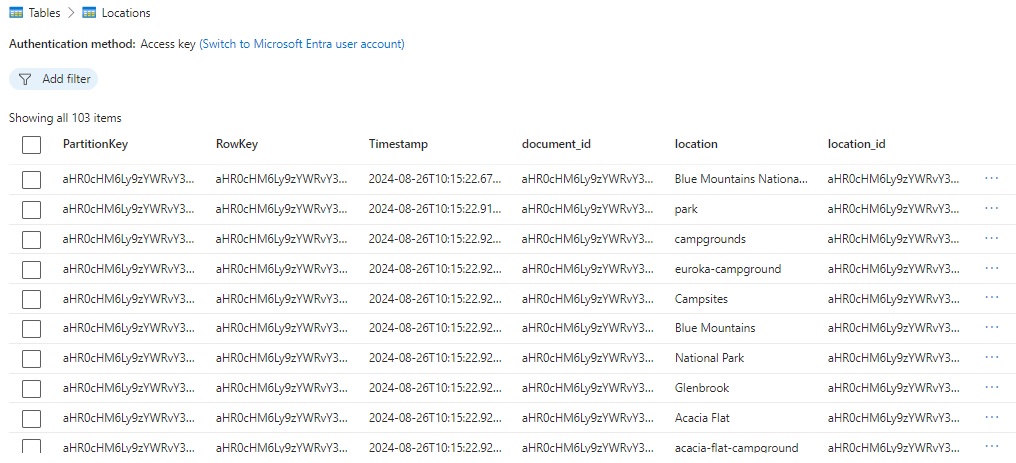
The Locations table field, location is derived from the name property within the inputs array of the location object in the ShaperSkill definition.
The above record values are obtained from the following input source context:
/document/merged_content/locations/*
File, Image and Object Projection Outputs
To view the knowledge store images and structured JSON object (file), you can expand the Blob containers node as shown:
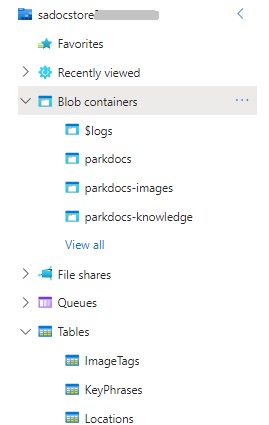
You will notice there are three blob storage containers:
parkdocs
parkdocs-images
parkdocs-knowledge
The parkdoc container contains the source PDF documents extracted during the indexing process, the parkdoc-images container contains the images extracted from the documents, and the parkdocs-knowledge contains the data extracted from the documents in a structured JSON format in a file.
I will now explain each blob container output.
Blob Container File parkdocs
After selection of the parkdocs container, which is a projection of the data from the following input document source:
/document/knowledge_projection
you will see the following rows of data:
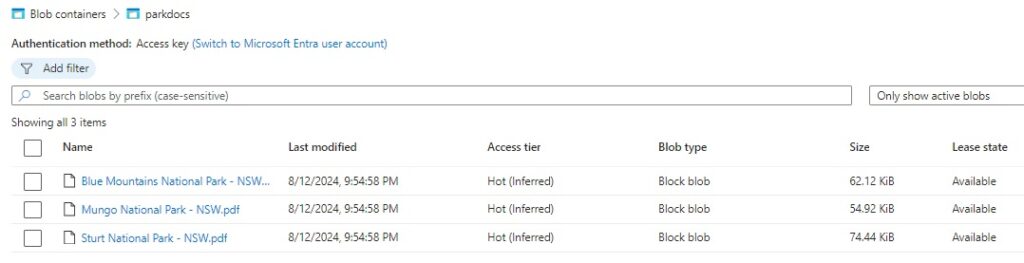
After clicking on one of the above rows of data corresponding to one of the extracted PDF files, you will see the file (a Block blob) that can be downloaded:
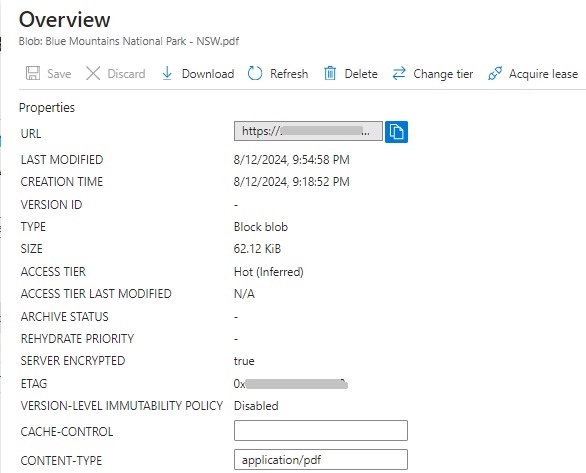
Each output PDF file is accessible with a URL of the form:
https://[storage-account-name].blob.core.windows.net/parkdocs/[document-id]/[file-name].pdf
Blob Container Image parkdocs-images
After selection of the parkdocs-image container, which is a projection of the data from the input document source:
/document/normalized_images/*
you will see the following rows of data:
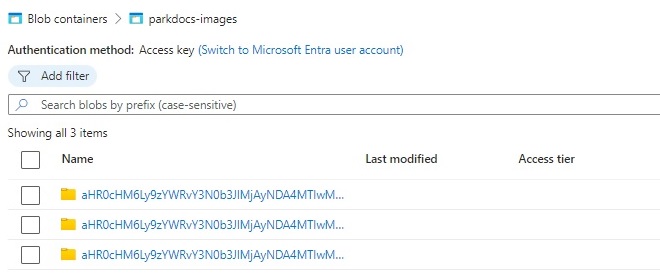
After clicking on one of the above rows of data, you will see the JSON file (a Block blob) that contains the extracted JPEG image file:

Each output image file is accessible with a URL of the form:
https://[storage-account-name].blob.core.windows.net/parkdocs-images/[document-id]/normalized_images_0.jpg
Blob Container Object parkdocs-knowledge
After selection of the parkdocs-knowledge container, which is a projection of the data from the input document sources:
/document/knowledge_projection/key_phrases/*
/document/knowledge_projection/locations/*
/document/knowledge_projection/image_tags/*
/document/knowledge_projection
you will see the following rows of data:
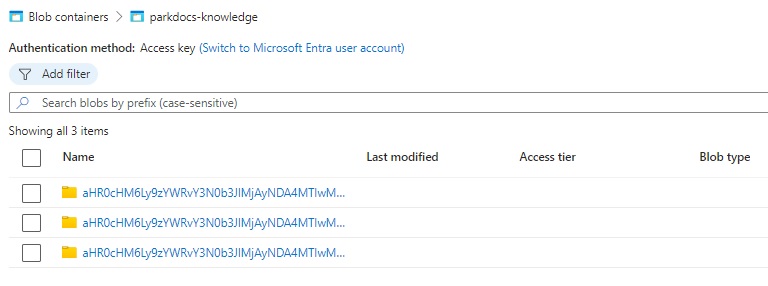
After clicking on one of the above rows of data, you will see the JSON file (a Block blob) that contains a structured projection of the data within the above input document projections:
/document/knowledge_projection/*
The JSON file, which is of type Block blob is shown below:
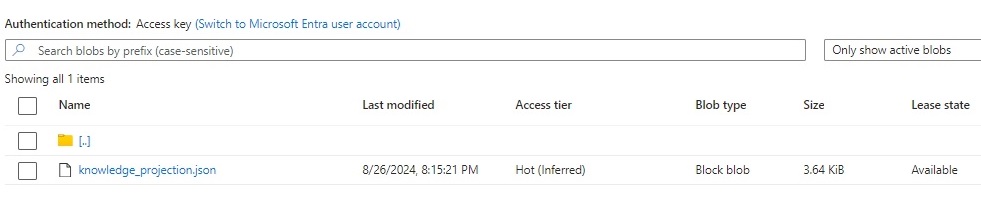
Each JSON projection file is accessible with a URL of the form:
https://[storage-account-name].blob.core.windows.net/parkdocs-knowledge/[document-id]/knowledge_projection.json
Structure of the Knowledge Projection JSON File
A knowledge projection file is generated for each of the PDF files.
Below is the knowledge projection file for the first PDF file, which is a JSON file, knowledge_projection.json. It consists of the key phrases, locations, and image tags. I have included only a handful of entries for each projection for brevity.
{
    "file_id":"aHR0c...GRm0",
    "file_name":"Blue Mountains National Park - NSW.pdf",
    "language":"en",
    "sentiment":"positive",
    "key_phrases":
    [
        {"phrase":"World Heritage-listed Blue Mountains National Park"},
        {"phrase":"impressive blue gum forest"},
        {"phrase":"iconic Blue Mountains views"},
        …
        {"phrase":"three-sisters"},
        {"phrase":"village"},
        {"phrase":"Leura"}
    ],
    "locations":
    [
        {"location":"Blue Mountains National Park"},
        {"location":"park"},
        {"location":"Katoomba"},
        …
        {"location":"Govetts Leap lookout"},
        {"location":"Grose"},
        {"location":"Valley"}
    ],
    "image_tags":
    [
        {"tag":"landscape"},
        {"tag":"outdoor"},
        {"tag":"mountain"},
        …
        {"tag":"canyon"},
        {"tag":"cliff"},
        {"tag":"rock"}
    ]
}
The above has been an overview of how to define a share skill and knowledge store, then output the knowledge store from an existing indexed query built from an Azure Search Service instance.
The resulting outputs from the knowledge store, which include PDF documents, image files, JSON files, and Azure Storage tables, can be used for producing useful reports on the analysed documents.
That is all for today’s post.
I hope that you have found this post useful and informative.

Andrew Halil is a blogger, author and software developer with expertise of many areas in the information technology industry including full-stack web and native cloud based development, test driven development and Devops.