

Welcome to today’s post.
In today’s post I will show how to extract data from document forms within a client application using the Azure AI Document Intelligence SDK.
In previous posts I showed how to extract data from document forms within the Azure Document Intelligence Studio using a prebuilt-model. I then showed how to create and train a custom data extraction model within the Azure Document Intelligence Studio. After training the custom model, we were then able to run a document analysis to extract data from sample document forms.
Why is data extraction from document forms so useful within a client application?
Within a client application, we can extract data from a document form and use the extracted data for inputs to other business processes, such as reports, financial applications, membership systems, and so on.
The sources of the document form can either be stored within a cloud-based storage container, publicly accessible file URL, or even uploaded to the client application.
Data Extractions of Prebuild vs Custom Machine Learning Models
When we run a document analysis process on an input document form, we will also need to specify a custom model identifier or the name of a prebuild model.
The prebuilt models are standard document form machine learning models that include everyday forms that we use. These can include:
Invoices
Receipts
Identification Forms
Tax Forms
With the above prebuilt forms, we know what the document structure will be and the names of the fields that will be extracted. With these known in advance, we can write the extraction routines to target which fields we want to extract from the input form.
With custom models, we know what structure we trained the custom machine learning model to extract, and which fields we labelled. So, when we write our extraction routines, we specify which form structures and fields we want to extract into application variables. Before we can identify which form structures and fields are output from the analysis, we can output the structures and fields in lists of name and value pairs. The names of the list items extracted can then be used as part of a more customized application extraction routine, where we filter out those form elements that we want to extract into application variables.
I will show how to approach this later.
Configuring Client Applications to use the Document Intelligence SDK
In this section, I will show how to install the required libraries and to configure the application to interact with an Azure Document Intelligence resource.
Connecting to an Azure Document Intelligence Resource
The parameters you will require to connect to an Azure Document Intelligence resource, and then execute an analysis on an input document form are an endpoint and a key, which are available from the overview page of the document intelligence resource in the Azure Portal. The endpoint URL is of the form:
https://[document-intelligence-resource-name].cognitiveservices.azure.com/
The key can be obtained from one of the two available keys within the same resource overview in the hyperlink near the Manage keys field.
Installing the Azure Document Intelligence SDK
The name Azure AI FormRecognizer is the legacy name of Azure Document Intelligence, however the Azure Document intelligence SDK library uses the namespace Azure.AI.FormRecognizer.DocumentAnalysis in the corresponding NuGet library, soto find the library you will need to search for the namespace “Azure.AI.FormRecognizer” in the Package Library Manager in Visual Studio. You will then see the matching NuGet package library:
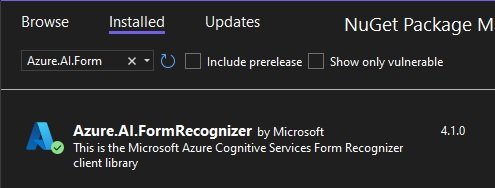
We then install the above NuGet library.
Declaring and Configuring the Azure Document Intelligence SDK
To use the Azure Document Intelligence SDK, we will need to use the following declaration near the top of our source file:
using Azure.AI.FormRecognizer.DocumentAnalysis;
We will also need to declare some variables to hold our resource endpoint as key as shown:
string endpoint = Environment.GetEnvironmentVariable("DOC_INTELLIGENCE_ENDPOINT");

string key = Environment.GetEnvironmentVariable("DOC_INTELLIGENCE_KEY");
To use the above, we would need to use SETX from a command prompt to assign values to the above environment variables before opening our Visual Studio development environment.
Establishing a Client Connection to the Azure Document Intelligence SDK
To be able to connect to the Azure Document Intelligence SDK Library we will need to create an instance of the AzureKeyCredential credential class using our document intelligence access key, then use the credential instance to create a client connection to DocumentAnalysisClient with the document intelligence endpoint URI and the credential instance.
This is done as shown:
AzureKeyCredential credential = new AzureKeyCredential(key);

DocumentAnalysisClient client = new DocumentAnalysisClient(new Uri(endpoint), credential);
Running Document Analysis with the Document Intelligence SDK
After setting up and creating the document intelligence analysis client instance, you can then execute analysis runs on input document forms.
To do this, we supply the following additional parameters:
Model ID
Document Form File URL
The Model ID parameter is the identifier of the trained document intelligence model and is obtained from the Models screen of the custom data extraction project within the Azure Document Intelligence Studio.
The location of the Model ID is shown below:

The Document Form File URL is the file URL that you obtain from the public location of your file. It can either be from a web site folder, or from a storage container folder.
In a storage container, the file blob will be of the form:
https://[storage-account-name].blob.core.windows.net/[storage-container-name] /[file-name].pdf
The document form PDF is shown below:
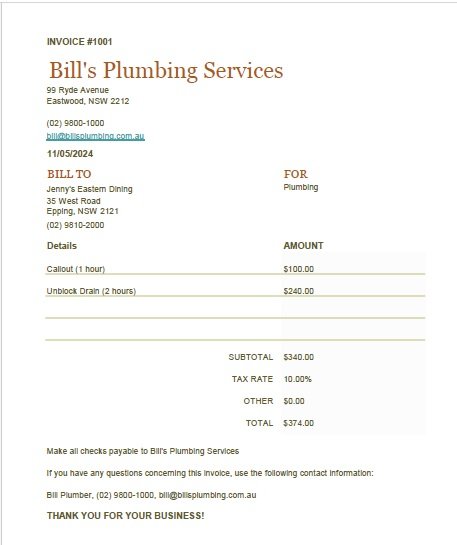
(The data including addresses and contact details shown in the above PDF form for the businesses are entirely fictitious.)
You can then run the analysis on the document using the asynchronous method, AnalyzeDocumentFromUriAsync() from the DocumentAnalysisClient SDK class.
Below is the sample code to execute the run and obtain a result:
Uri fileUri = new Uri(urlFileName);

AnalyzeDocumentOperation operation = await
client.AnalyzeDocumentFromUriAsync(
    WaitUntil.Completed,
    modelId,
    fileUri
);

AnalyzeResult result = operation.Value;
Processing Results from the Document Analysis
In this section, I will show how to process results from the document analysis.
To process results from the analysis results output, we will need to extract values from within properties of the object that is of type AnalyzeResult.
Below is a snapshot during debugging of the result variable:
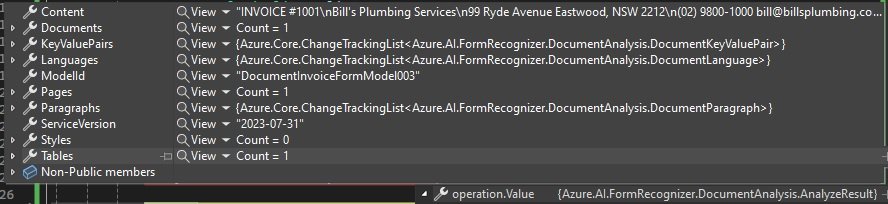
What we notice are the useful collections:
Documents
Pages
Paragraphs
Tables
Styles
The above collections are part of the document structure that is extracted into the result.
Reading Field Values from Layout and Prebuilt-Invoice Document Models
The type of document model that we are using for the analysis will determine which properties we will have to read the field names and field values from.
The key value pairs or query fields of the document, that represent the fields, and their respective values are obtained from the dictionary collection property KeyValuePairs. The key value pair values are only available with layout and invoice pre-built models.
The KeyValuePairs property is a key-value type DocumentKeyValuePair, which consists of the following properties:
Key
Value
To read the value of each of the above key or value, we read its Content property.
The fields extracted within the document key value pairs can also be obtained from the Documents collection through the Fields property:
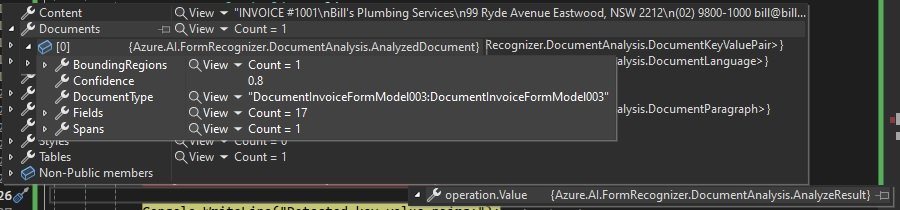
Below is the code excerpt for reading the key-value pairs for each field within the document:
Console.WriteLine("Detected key-value pairs:");

foreach (DocumentKeyValuePair kvp in result.KeyValuePairs)
{
    if (kvp.Value == null)
    {
        Console.WriteLine($"  Found key with no value: '{kvp.Key.Content}'");
    }
    else
    {
        Console.WriteLine($"  Found key-value pair: '{kvp.Key.Content}' and '{kvp.Value.Content}'");
    }
}
Reading Form Field Values from Custom Document Models
With a custom document model, we can read field values from different properties.
In the Pages collection we will first need to obtain the Lines collection for each DocumentPage object. Then for each DocumentLine object we can read the content and bounding polygon (box) with the following properties:
Content
BoundingPolygon
The Content property contains the content value of the field.
The BoundingPolygon property is an array, with each array item corresponding to the coordinates of each of the rectangular polygon points that define the boundary surrounding the field content. This is an array of four objects:
BoundingPolygon[0]
BoundingPolygon[1]
BoundingPolygon[2]
BoundingPolygon[3]
Where the BoundingPolygon array element has the following properties:
X
Y
The top-left corner of the polygon bounding box is:
BoundingPolygon[0].X
and
BoundingPolygon[0].Y
The table below show how the bounding box coordinates map to the position of the coordinates of the bounding polygon:
| Polygon Coordinates | Coordinate Relative Position |
| BoundingPolygon[0].X, BoundingPolygon[0].Y | Top Left |
| BoundingPolygon[1].X, BoundingPolygon[1].Y | Top Right |
| BoundingPolygon[2].X, BoundingPolygon[2].Y | Bottom Right |
| BoundingPolygon[3].X, BoundingPolygon[3].Y | Top Right |
Below is the code excerpt for reading the fields and their content values for each field within the document:
foreach (DocumentPage page in result.Pages)
{
    Console.WriteLine($"Document Page {page.PageNumber} has {page.Lines.Count} line(s), {page.Words.Count} word(s),");
    Console.WriteLine($"and {page.SelectionMarks.Count} selection mark(s).");

    for (int i = 0; i < page.Lines.Count; i++)
    {
        DocumentLine line = page.Lines[i];
        Console.WriteLine($"  Line {i} has content: '{line.Content}'.");

        Console.WriteLine($"    Its bounding box is:");
        Console.WriteLine($"      Upper left => X: {line.BoundingPolygon[0].X}, Y= {line.BoundingPolygon[0].Y}");
        Console.WriteLine($"      Upper right => X: {line.BoundingPolygon[1].X}, Y= {line.BoundingPolygon[1].Y}");
        Console.WriteLine($"      Lower right => X: {line.BoundingPolygon[2].X}, Y= {line.BoundingPolygon[2].Y}");
        Console.WriteLine($"      Lower left => X: {line.BoundingPolygon[3].X}, Y= {line.BoundingPolygon[3].Y}");
    }
    …
}
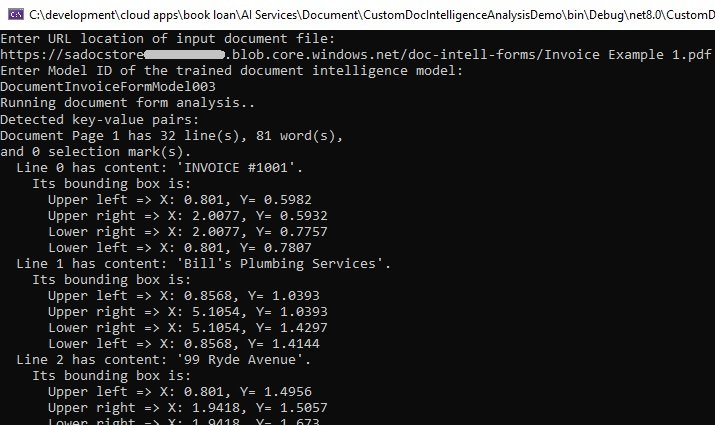
Below is a screenshot of output from the first three fields:
Reading Tables from Custom Document Models
Tables and the structure that consists of the column headings, along with the content within each cell, within each row can be extracted from custom models. The property that we need to access is the Tables property. Then the properties within each table object, DocumentTable contain the following properties which determine the amount of data that we will need to retrieve from within the table:
RowCount
ColumnCount
Cells
BoundingRegion
Spans
Below is an example of the DocumentTable properties in a debug session:
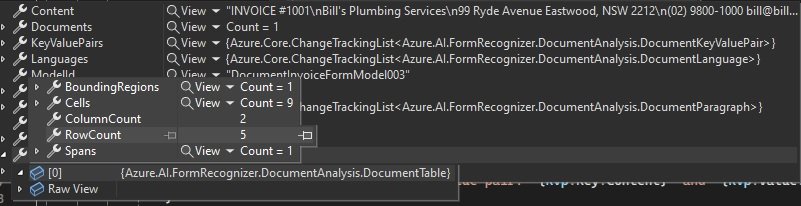
The BoundingRegions collection are the regions the table is enclosed within.
The RowCount and ColumnCount properties tell us how many rows and columns of data the table contains.
After we have determined the above counts of the rows and columns, we can loop through the document cells and retrieve data from the cells. Retrieving data from the table cells is done by first looping through each object of type DocumentTableCell within the Cells collection property within the DocumentTable object.
Each cell object of type DocumentTableCell has the following properties:
RowIndex
ColumnIndex
Kind
Content
The RowIndex and ColumnIndex properties are the zero-based index the cell is offset from the first column heading of the table, with the first table column heading having a row index of zero and a column index of zero.
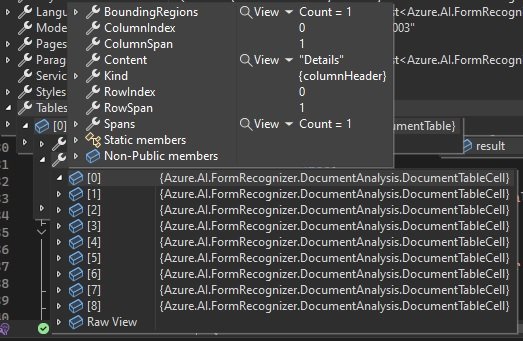
The Kind property shows the type of content that is within the cell object. This is one of two types:
columnHeader
content
Below is an example of a cell with a content type of columnHeader:
Below is an example of a cell with a content type of content:
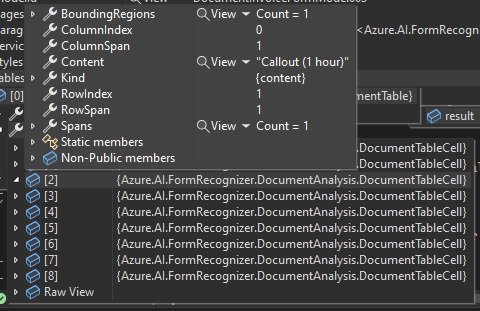
We know from the content type if the content is a column heading or a data value within one of the table cells.
Below is the code excerpt for reading the column headings and cell content values for each within a detected table structure:
Console.WriteLine("The following tables were extracted:");

for (int i = 0; i < result.Tables.Count; i++)
{
    DocumentTable table = result.Tables[i];
    Console.WriteLine($"  Table {i} has {table.RowCount} rows and {table.ColumnCount} columns.");

    foreach (DocumentTableCell cell in table.Cells)
    {
        Console.WriteLine($"    Cell ({cell.RowIndex}, {cell.ColumnIndex}) has kind '{cell.Kind}' and content: '{cell.Content}'.");
    }
}
Below is the output from the data extraction of the table structure:
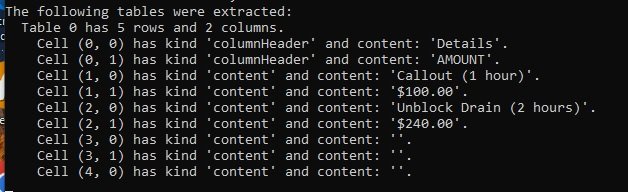
Notice that the last three cells are showing empty cell content values. Extracted data from one of the empty cells is shown below:
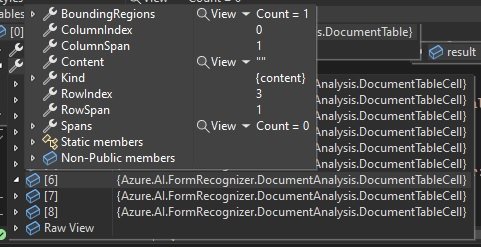
We can filter our client code to filter empty data if we wish.
Reading Selection Marks from Document Models
Recall that selection marks are checkboxes. Our sample document does not have any checkboxes, so the output run will not contain any data from selection marks. Below is the code used to extract selection marks:
for (int i = 0; i < page.SelectionMarks.Count; i++)
{
    DocumentSelectionMark selectionMark = page.SelectionMarks[i];

    Console.WriteLine($"  Selection Mark {i} is {selectionMark.State}.");
    Console.WriteLine($"    Its bounding box is:");
    Console.WriteLine($"      Upper left => X: {selectionMark.BoundingPolygon[0].X}, Y= {selectionMark.BoundingPolygon[0].Y}");
    Console.WriteLine($"      Upper right => X: {selectionMark.BoundingPolygon[1].X}, Y= {selectionMark.BoundingPolygon[1].Y}");
    Console.WriteLine($"      Lower right => X: {selectionMark.BoundingPolygon[2].X}, Y= {selectionMark.BoundingPolygon[2].Y}");
    Console.WriteLine($"      Lower left => X: {selectionMark.BoundingPolygon[3].X}, Y= {selectionMark.BoundingPolygon[3].Y}");
}
Reading Styles from the Custom Document Model
We can also detect styles that can also include handwritten styles and their spans from the document structure.
Below is sample code to read data extracted from each document style:
foreach (DocumentStyle style in result.Styles)
{
    bool isHandwritten = style.IsHandwritten.HasValue && style.IsHandwritten == true;
    if (isHandwritten && style.Confidence > 0.8)
    {
        Console.WriteLine($"Handwritten content found:");

        foreach (DocumentSpan span in style.Spans)
        {
            Console.WriteLine($"  Content: {result.Content.Substring(span.Index, span.Length)}");
        }
    }
}
Sample Application to Retrieve User Inputs
Below is the main method of our program that asks for the document URL and model ID:
static void Main(string[] args)
{
    AzureKeyCredential credential = new AzureKeyCredential(key);
    DocumentAnalysisClient client = new DocumentAnalysisClient(new Uri(endpoint), credential);

    ConsoleKeyInfo consoleKeyInfo;
    bool isFinished = false;

    while (!isFinished)
    {
        string? urlFileName = String.Empty;
        string? modelId = string.Empty;

        Console.WriteLine("Enter URL location of input document file:");
        urlFileName = Console.ReadLine();

        if (urlFileName == String.Empty || urlFileName?.Length == 0)
        {
            Console.WriteLine("Please specify a valid filename.");
            return;
        }

        Console.WriteLine("Enter Model ID of the trained document intelligence model:");
        modelId = Console.ReadLine();

        if (modelId == String.Empty || modelId?.Length == 0)
        {
            Console.WriteLine("Please specify a model ID name.");
            return;
        }

        Console.WriteLine("Running document form analysis..");

        RunDocumentIntelligenceFormFileAnalysis(client, modelId!, urlFileName!);

        Console.WriteLine("Press Y to analyze another document form sample. Escape to finish.");
        consoleKeyInfo = Console.ReadKey(true);
        if (consoleKeyInfo.Key == ConsoleKey.Escape)
        {
            Console.WriteLine("Escape Key Pressed.");
            isFinished = true;
        }
    }
}
And below is the skeleton definition for the custom method RunDocumentIntelligenceFormFileAnalysis() that runs the document analysis:
static async void RunDocumentIntelligenceFormFileAnalysis(
    DocumentAnalysisClient client,
    string modelId,
    string urlFileName)
{
    // input document
    Uri fileUri = new Uri(urlFileName);

    AnalyzeDocumentOperation operation = await
        client.AnalyzeDocumentFromUriAsync(
            WaitUntil.Completed,
            modelId,
            fileUri
    );

    AnalyzeResult result = operation.Value;

    … place the code here from earlier to display the extracted data from the
 analyzed document form pages, lines, tables, selection marks, and styles …
}
The above has been an overview of how to develop a client application that runs document analyses from sample document forms on a trained custom data extraction document intelligence machine learning model.
That is all for today’s post.
I hope that you have found this post useful and informative.

Andrew Halil is a blogger, author and software developer with expertise of many areas in the information technology industry including full-stack web and native cloud based development, test driven development and Devops.

