
Welcome to today’s post.
In today’s post I will be looking at a new feature for exploring WebAPI routes included in Visual Studio 2022, which may be useful for Web API development.
When creating an ASP.NET Core Web API project within Visual Studio, you will already know that the project template adds additional code within the program startup code to bind any Web API methods to API method definitions that are displayed within a Swagger UI interface. In the first section. In a previous post, I showed how to add Swagger to an existing ASP.NET Core application. In a more recent example including the of Swagger UI, I showed how to create a Minimal Web API.
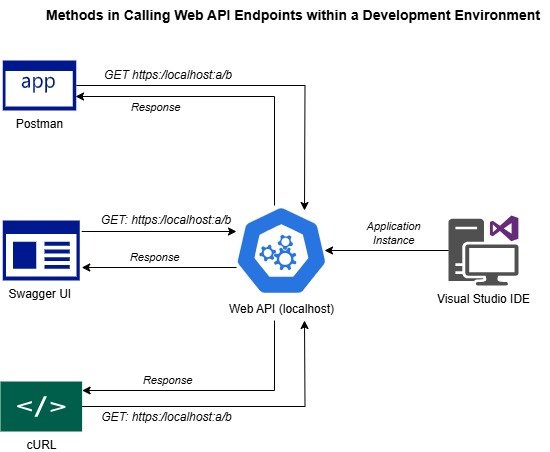
Before I cover the Endpoint Explorer, I will review the different tools that can be used to make calls to our API methods.
Other Interfaces used for Web API Calls
The Swagger UI interface is a useful part of the application during the development phase. It can be used to execute sample HTTP REST API calls to your API endpoints. The API method definitions and implementations, which are within the Web API application can be executed from the Swagger UI methods.
Where the Swagger interface comes in handy, is when you realise that during the development phase, when the API implementation requires testing, instead of running the Web API application within Visual Studio and having to utilize external tools such as POSTMAN or cURL to execute calls to the running Web API instance, you can use Swagger instead to make the calls.
When the application is deployed into higher environments (Test, UAT, Production), your API service and its methods may require protection with additional security. In this case, the Swagger UI interface could either be removed from the deployment, or it can be protected with token-based security, such as OAuth with JWT.
When your application does not have Swagger UI built-in to it, you have another option available for viewing and executing your API methods, and this is the inclusion of the Web API Endpoint Explorer.
Another common way of testing and debugging Web API endpoints is through use of the POSTMAN tool, which is available from a locally installed utility or a cloud-based workspace. In a previous post, I showed how to run POSTMAN test scripts of Web API endpoints, and also automate Web API testing with POSTMAN.
The cURL tool, which is available in the Windows environment, allow you to execute HTTP REST calls (GET, POST, PUT, DELETE etc.) that consist of endpoint URLs from a command line.
The diagram below gives an overview of the tools I have just discussed.
I will give an overview of the endpoint explorer in the next section.
The Web API Endpoint Explorer
The Web API Endpoints Explorer was introduced in one of the initial releases of Visual Studio 2022 (v17.6) with discovery of static Web API endpoints. , and was upgraded with dynamic Web API endpoints discovery as recently in the Visual Studio v17.11.5 release.
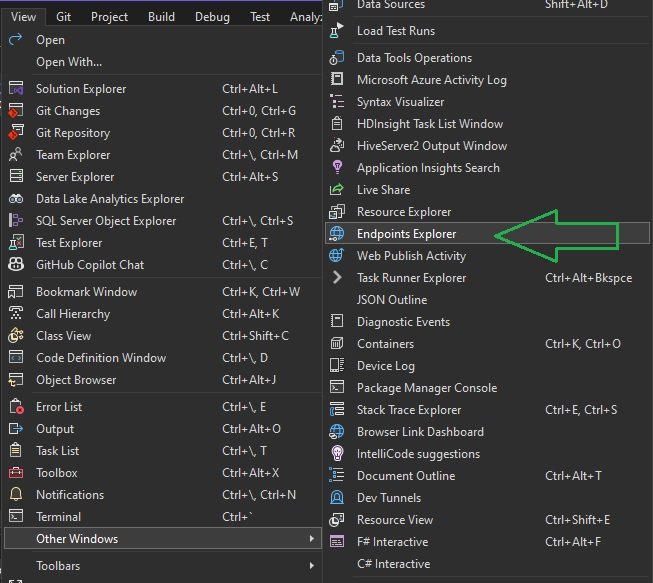
In the Visual Studio IDE, the Endpoints Explorer is accessible through the View | Other Windows | Endpoints Explorer menu item as shown:
In addition, the dynamic discovery feature can be deactivated from the Tools | Options | Projects and Solutions | ASP.NET Core option, Use advanced Web API endpoint discovery as shown:
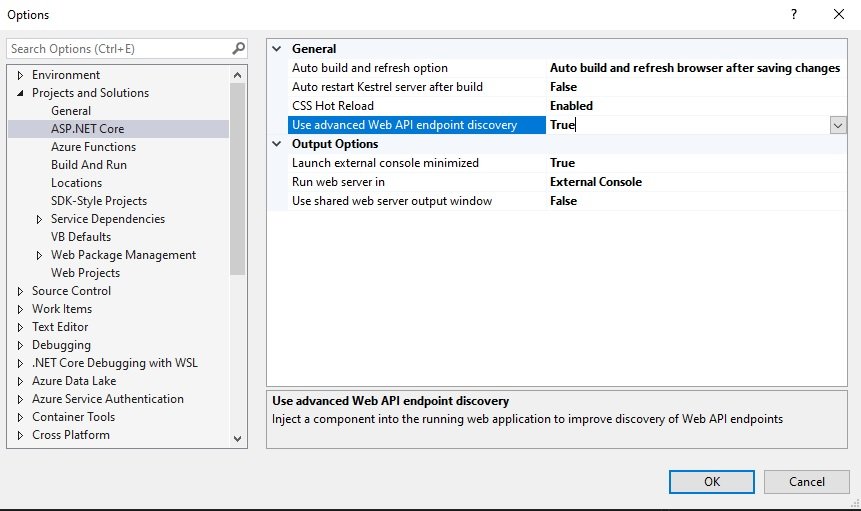
When your Web API application does not map the endpoints to the Web API methods, the dynamic discovery feature injects a component into the application instance to locate the Web API endpoints and display them in the explorer.
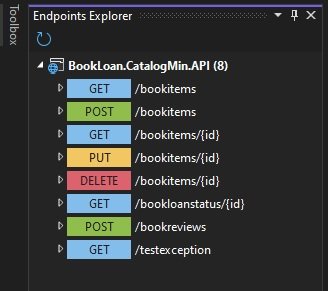
When the endpoint explorer is opened, each of the Web API endpoints display in a hierarchy as shown:
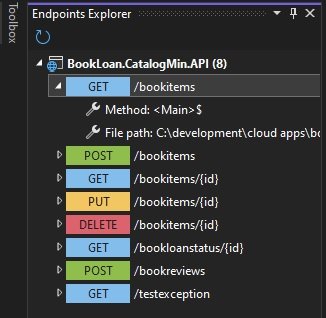
When you expand each endpoint method, you will see a Method and File path, which are the path that the endpoint has been defined in the application instance:
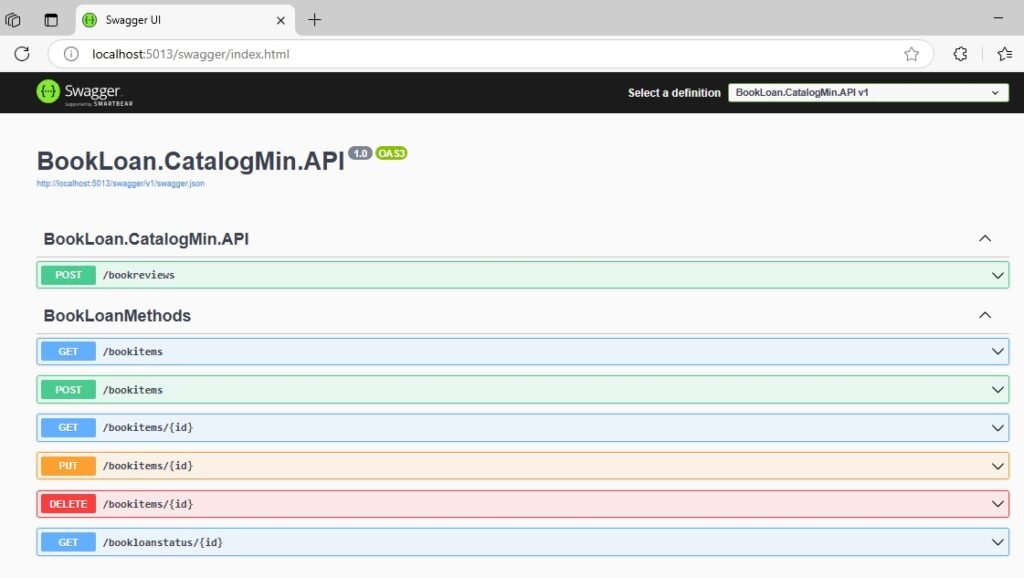
It is possible for the Swagger UI and the Endpoints Explorer to run and coexist in the same Web API application. When we disconnect all the endpoint mappings from the API methods, the static endpoint discovery (dynamic endpoint discovery not selected) will find no endpoints. However, when we enable dynamic endpoint discovery, they will be visible. Below is the Swagger UI for statically defined Web API endpoints:
It is also possible to run an ASP.NET Core Web API application without the Swagger UI and still view the Endpoints Explorer and execute requests from it. I will show how.
In your program startup, the lines of code that initialize Swagger and the Swagger UI is shown here in the application startup:
var app = builder.Build();

...

// Configure the HTTP request pipeline.
if (app.Environment.IsDevelopment())
{
    app.UseDeveloperExceptionPage();

    app.UseSwagger();
    app.UseSwaggerUI();
}
When can then disable the Swagger interface as shown:
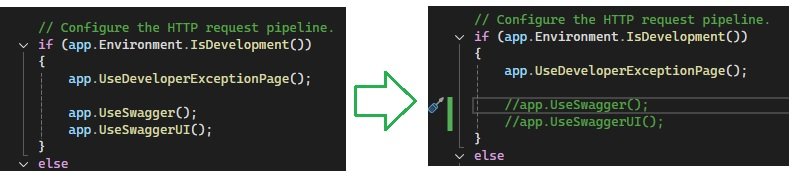
Then rebuild and run the application.
When the application runs, you will notice that you will no longer be able to execute HTTP requests from Swagger:
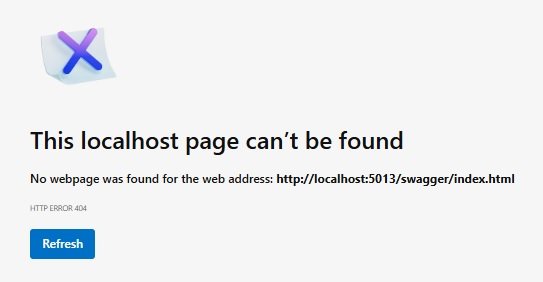
However, you can still view or open the Endpoints Explorer.
Now that we know how to get out endpoints to display, we will need to know how to execute endpoints from the explorer so that we can test our Web API methods. I will show how this is done in the next section.
Web API Endpoint Executions with the HTTP File Editor
In this section I will show how to run executions of Web API endpoints from within the Endpoint Explorer.
In addition, I will show how to use the HTTP File Editor to execute calls to the Web API endpoints. To access the editor, you will need to open the context menu for the endpoint (right-mouse click). When the context menu is opened, you will see two options: Open in the editor and Generate request as shown:
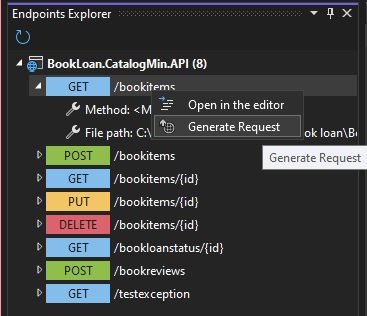
When you select the Generate Request option, you will see a new file window open to the right of the endpoints explorer as shown:
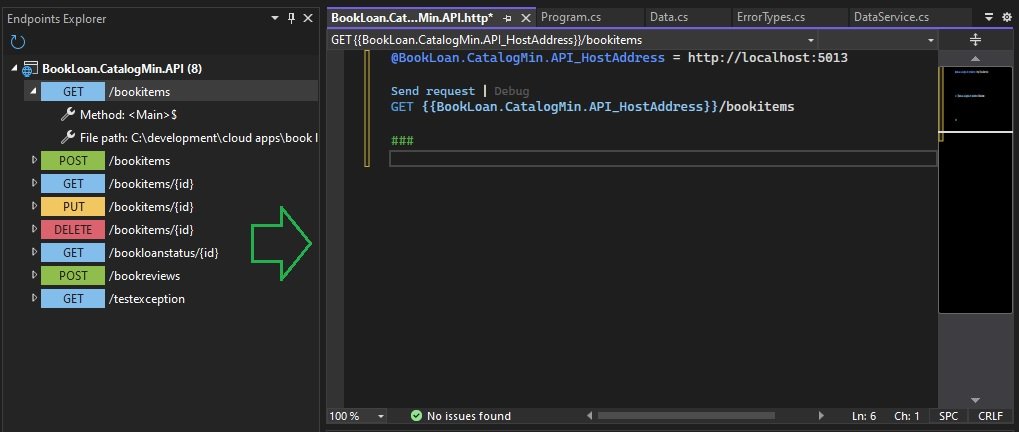
The file, which has an .http extension, will generate the HTTP REST call to the API method you have selected in the endpoint explorer. In the above screen, we see the HTTP GET call, with the host address of the Web API and the API method endpoint, which, in the above case is /bookitems.
The ### characters denote a delimiter, which separates each of the HTTP REST calls in the .http file editor.
The HTTP GET call below has a corresponding Web API method that takes an optional parameter, so it can be executed as it is.
@BookLoan.CatalogMin.API_HostAddress = http://localhost:5013
GET {{BookLoan.CatalogMin.API_HostAddress}}/bookitems
###
The are two ways in which we can execute the request. The first method is the Send request action link:
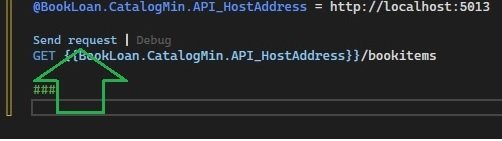
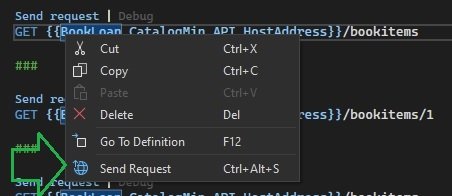
The second method is with the Send Request menu item within the context menu on the request URI as shown:
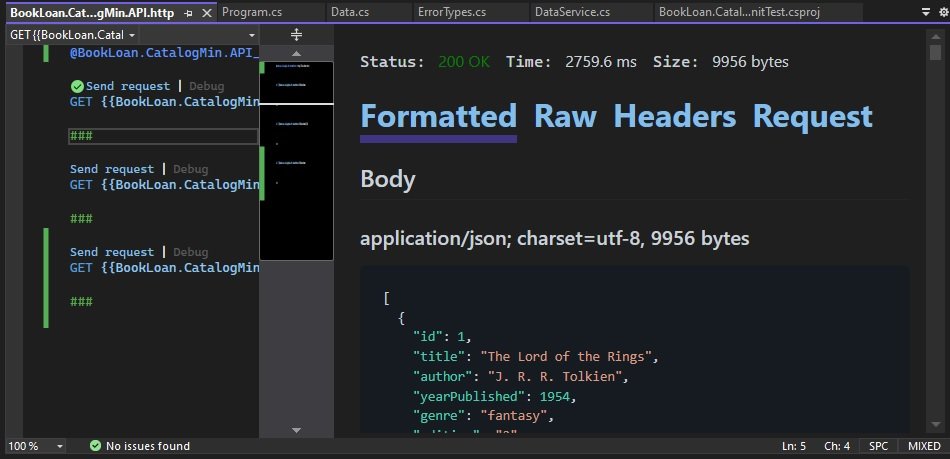
When the above HTTP GET is executed, the response is output to another window to the right of the HTTP editor as shown in the formatted response:
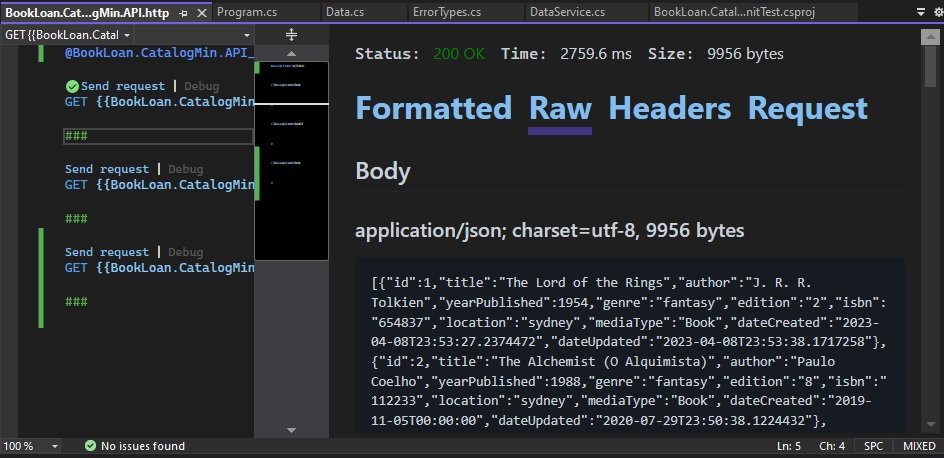
We can also an additional three details of the request and response: Raw, Headers and Request. Below is the view of the Raw response in JSON format:
There is another type of HTTP GET request that is generated in the editor for an endpoint that has a parameter, such as the one shown:
GET {{BookLoan.CatalogMin.API_HostAddress}}/bookitems/{id}
###
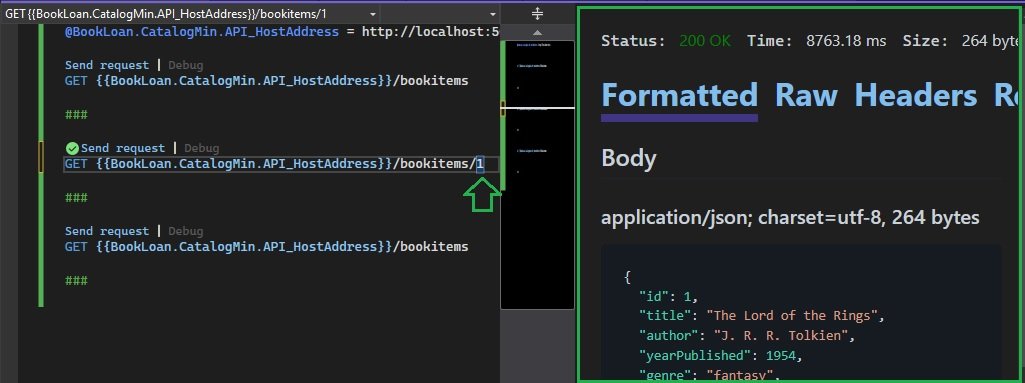
The above request cannot be sent as it is, we will need to modify the parameter placeholder with an actual value. So, after we apply the following change to the request:
GET {{BookLoan.CatalogMin.API_HostAddress}}/bookitems/1
###
Following, execution, the request will show in the output window with a single record as shown:
The next type of endpoint request is the HTTP POST request, which is shown below:
POST {{BookLoan.CatalogMin.API_HostAddress}}/bookitems
###
On its own, we cannot run the above HTTP POST request on its own. We require the following minimum to be added to the request:
The content type
The request body
If we were to submit the HTTP POST request shown here:
POST {{BookLoan.CatalogMin.API_HostAddress}}/bookitems
{
  "id": 0,
  "title": "Some Book 2024",
  "author": "A Bloggs",
  "yearPublished": 2024,
  "genre": "Fiction",
  "edition": "1",
  "isbn": "12345678",
  "location": "Sydney",
  "mediaType": "Book",
  "dateCreated": "2024-10-30T14:07:03.818Z",
  "dateUpdated": "2024-10-30T14:07:03.818Z"
}
###
The response we will get is a 415 error, an Unsupported Media Type error.
For the above request to go through correctly, we add the content type header as shown:
POST {{BookLoan.CatalogMin.API_HostAddress}}/bookitems
Content-Type: application/json
{
  "id": 0,
  "title": "Some Book 2024",
  "author": "A Bloggs",
  "yearPublished": 2024,
  "genre": "Fiction",
  "edition": "1",
  "isbn": "12345678",
  "location": "Sydney",
  "mediaType": "Book",
  "dateCreated": "2024-10-30T14:07:03.818Z",
  "dateUpdated": "2024-10-30T14:07:03.818Z"
}
###
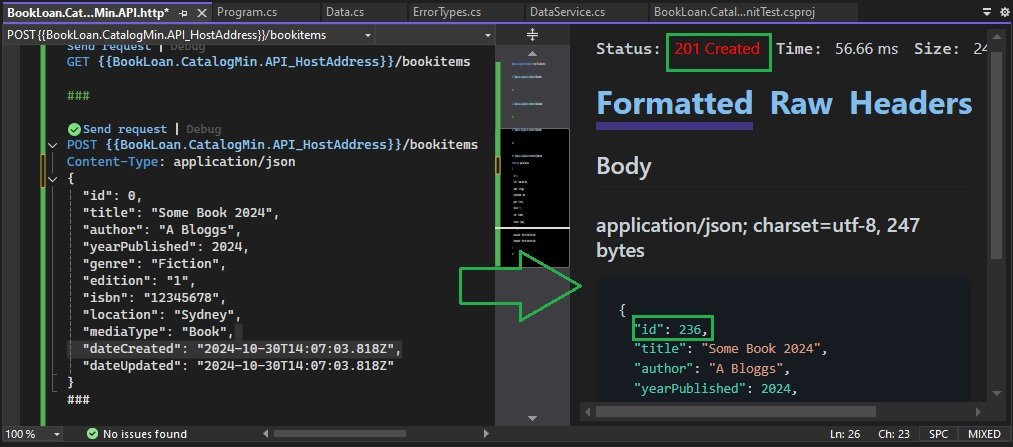
When the above HTTP POST request is submitted, the response will display in the output response window as show:
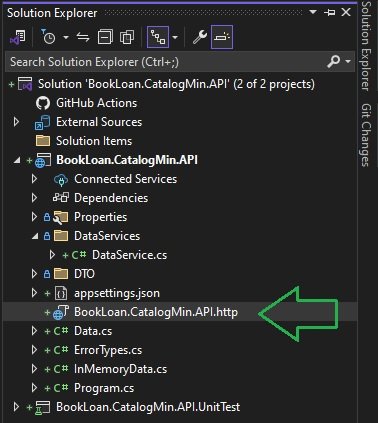
Another way of accessing the HTTP File Editor without using the Endpoints Explorer is from an existing .http file from within the solution explorer as shown, which opens the HTTP File Editor:
The final aspect I want to cover is the ability to debug the Web API endpoints. This is in the next section.
Debugging Web API Methods from the HTTP File Editor
In this section, I will show how to debug Web API endpoints from requests defined within the HTTP File Editor.
You will have noticed in the HTTP File Editor there is a Debug action link just above the HTTP request as shown:
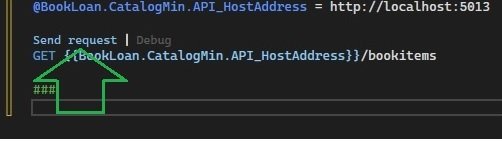
You might ask yourself, does this run and debug the actual code for the endpoint?
The answer is no.
What is does do is to run the application in Debug configuration and do nothing more.
At this point, we can assume that the previous three requests work as we expected and mapped as shown:
var app = builder.Build();

...

app.MapGet("/bookitems", BookLoanMethods.BookItems);

app.MapGet("/bookitems/{id}", BookLoanMethods.BookItem);

app.MapPost("/bookitems", BookLoanMethods.CreateBook);
In the first API method, the definition of the implementation of endpoint \bookitems is shown below:
public static async Task<Microsoft.AspNetCore.Http.IResult> BookItems(
BookLoanDb db)
{
    var books = await db.Books.ToListAsync();
    if (books is null)
        return Results.NotFound();
    return Results.Ok(books);
}
To debug the above, we just add a breakpoint to the first line of code in the method as shown:
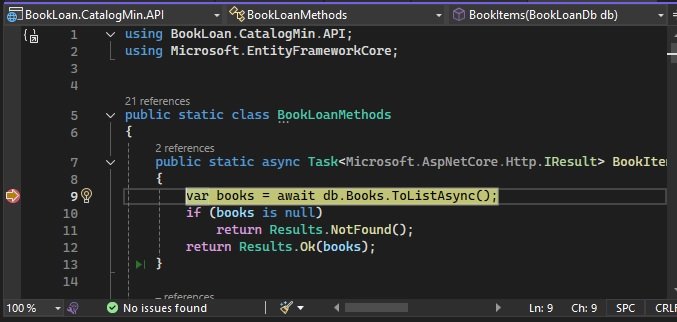
When the request is executed, the debugger will hit the line above, and after continuation, if you have enabled logging in the application, you should see the SQL output in the console as shown:
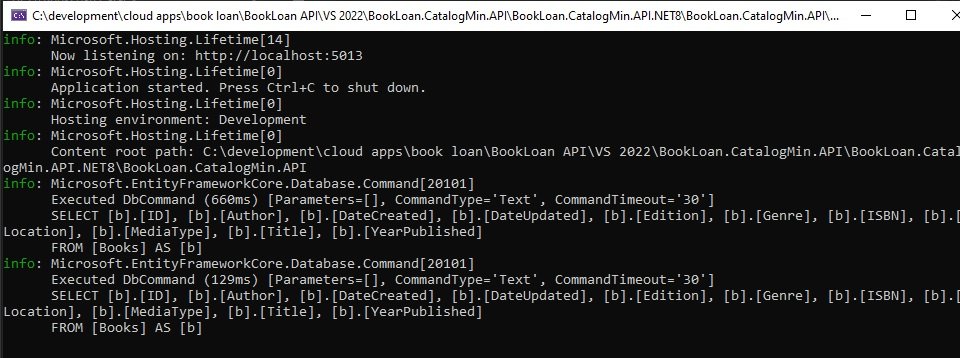
You can do likewise with the other HTTP requests including the HTTP POST request /bookitems as shown:
public static async Task<Microsoft.AspNetCore.Http.IResult> CreateBook(BookViewModel book, BookLoanDb db)
{
    db.Books.Add(book);
    await db.SaveChangesAsync();
    return (Microsoft.AspNetCore.Http.IResult)Results.Created(
        $"/bookitems/{book.ID}", book);
}
Adding a breakpoint to the first line as shown:

Will achieve the debugging goal.
Below is the console output for the SQL INSERT that the above API method applies to the database through the data context:
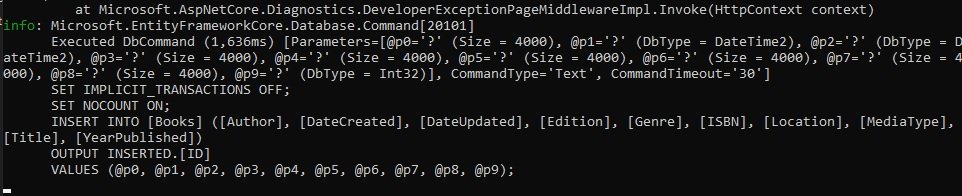
As we can see, we have achieved the same outcomes that we had with the Swagger UI:
Execution of Web API endpoints.
Debugging and testing of Web API endpoints.
Integration of Web API endpoint testing without using an external tool.
The other thing to note with the discovery of the dynamic endpoints, is that IIS endpoints will not be discovered because the dynamic endpoint discovery component is not able to be injected into the IIS process.
That is all for today’s post.
I hope that you have found this post useful and informative.

Andrew Halil is a blogger, author and software developer with expertise of many areas in the information technology industry including full-stack web and native cloud based development, test driven development and Devops.